Substitute Pools
Substitute Pools give your district control over when different groups of substitutes can see and accept openings. Rather than offering every opening to all substitutes at the same time, pools let you stagger access — so preferred substitutes get first opportunity, with other groups becoming eligible after a delay.
Note: Substitute Pools must be enabled for your Substitute Management Unit before the Pools tab will appear. See Settings to turn on this feature.
Why Use Pools?
Different districts have different policies for how openings should be offered:
- Retired/rehired substitutes — Some states require that retired substitutes only be offered openings after a genuine effort has been made to fill them with non-retired substitutes first.
- Tiered substitutes — Districts may want their most experienced or highest-performing substitutes to see openings first, with others gaining access after a set delay.
How Pools Work
Each substitute in your Substitute Management Unit belongs to one pool. When an opening is posted, the system evaluates each pool's rules to determine which substitutes are currently eligible. Substitutes in a pool that is not yet active will not see the opening and will not receive notifications for it — until their pool becomes active.
Pools are re-evaluated continuously. As time passes (or as an opening gets closer to its start time), additional pools may activate, expanding the group of substitutes who can see and fill the opening.
Substitutes are never told which pool they belong to. If an opening is not yet available to them, they see a message indicating it is not currently available based on district policy.
Pool Types
Each pool has a type that determines how it activates:
| Type | Behavior |
|---|---|
| Default | Always active. Substitutes in this pool can always see eligible openings immediately. |
| Conditional | Activates based on rules you configure, tied to the age or urgency of the opening. |
| Manual | Never activates automatically. Substitutes in this pool can only be assigned to an opening directly by a manager. |
| Deactivated | Substitutes in this pool are ineligible for all openings. Unlike the other pool types, this cannot be overridden by a manager. |
A typical setup has one Default pool for your standard substitutes, and one or more Conditional pools for groups with restricted access.
Priority
Each pool has a priority number (lower number = higher priority). When multiple pools are active, higher-priority pools are evaluated first.
Example:
| Pool | Priority | Type |
|---|---|---|
| Standard | 1 | Default |
| Retired/Rehired | 2 | Conditional |
Here, Standard substitutes always see every opening. Retired/Rehired substitutes see openings only after the conditions on their pool are met.
Activation Conditions (Conditional Pools)
For Conditional pools, you configure one or more rules that determine when the pool becomes active for a given opening. The pool activates as soon as either applicable condition is satisfied (whichever comes first).
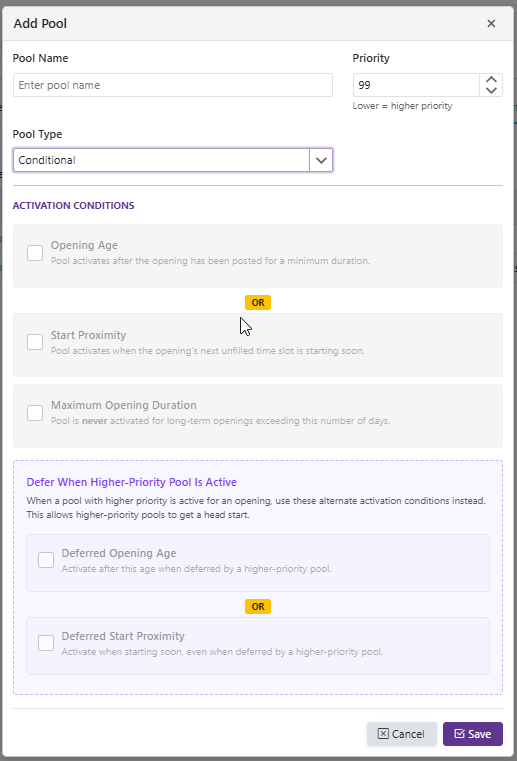
Opening Age
The pool becomes active after the opening has been posted for a minimum amount of time.
Example: "Activate after 2 days" — the pool becomes active 2 days after the opening was created.
Start Proximity
The pool becomes active when the opening's next unfilled time slot is starting soon.
Example: "Activate when starting within 12 hours" — if the opening is about to begin and still unfilled, this pool's substitutes become eligible.
Maximum Opening Duration (Exclusion)
This is a hard block — if configured, the pool will never activate for openings that span more than the specified number of days. This takes precedence over both conditions above.
Example: "Exclude openings longer than 5 days" — substitutes in this pool will never be offered long-term assignments, regardless of how long the opening has been posted or how soon it starts.
Defer When Higher-Priority Pool Is Active
Conditional pools have an optional Defer section, controlled by the Defer When Higher-Priority Pool Is Active switch. It lets a pool hold back while a higher-priority pool is working an opening, so those substitutes get a head start.
The two groups of conditions are independent, and they work together rather than replacing one another:
| Group | What it describes | When it applies |
|---|---|---|
| Normal conditions — Opening Age, Start Proximity, Maximum Opening Duration | Properties of the opening itself | Always |
| Defer conditions — Deferred Opening Age, Deferred Start Proximity, Insufficient Candidates | The pool's place in the priority order | Only while a higher-priority pool is active for that opening |
A deferred pool must satisfy both groups. Its normal conditions are a floor that is never bypassed: if you configure "activate after 2 days," the pool will not open before 2 days no matter what the defer conditions say. Within each group, any one condition is enough.
You can configure either group on its own. A pool with only defer conditions is open normally, and holds back only when a higher-priority pool is working the opening.
Deferred Opening Age
Once deferred, the pool activates after the opening has been posted for this long.
Deferred Start Proximity
Once deferred, the pool activates when the opening's next unfilled time slot is starting soon.
Insufficient Candidates
Once deferred, the pool activates when the higher-priority pools don't produce at least the number of eligible candidates you specify.
Example: "Activate unless there are at least 3 eligible candidates" — if the pools above this one can only field 2 substitutes, this pool opens to widen the search.
This condition can be used on its own, with no time condition attached. Pools open one tier at a time: the substitutes an opened tier brings in count toward the thresholds of the tiers below it, so a lower tier opens only if the tiers above it still haven't produced enough between them.
Managing Pools
Navigate to Client Admin → [Your SMU Name] → Pools.

The Pools tab shows a grid listing each pool's name, priority, type, configured conditions, and the number of substitutes assigned to it. Click the > arrow on any pool row to expand it and see its current members.
Add a Pool
- Click the + icon in the Pools grid header.
- Enter a Pool Name and set a Priority number.
- Select the Pool Type.
- If Conditional, check one or more Activation Conditions and configure the values.
- Click Save.
Edit a Pool
Click the pencil (Edit)  icon next to the pool. Make your changes and click Save.
Delete a Pool
Click the trash can (Delete)  icon next to the pool and confirm.
Note: Deleting a pool does not remove its substitutes from the system. Those substitutes will revert to Default pool behavior and will be immediately eligible for all openings.
Assigning Substitutes to Pools
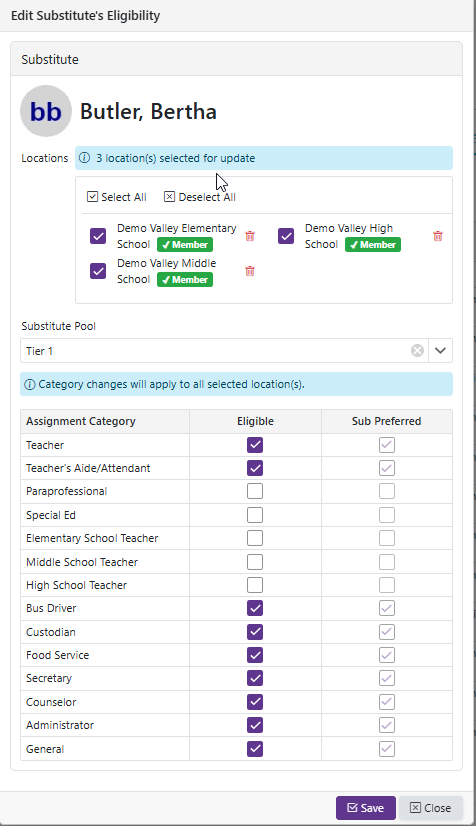
Each substitute belongs to one pool at a time within a Substitute Management Unit. To assign a substitute from the Edit popup:
- Navigate to Client Admin → [Your SMU Name] → Substitutes.
- Click the Edit icon next to the substitute.
- Under Substitute Pool, select a pool from the dropdown.
- Click Save.
Substitutes not assigned to any pool are treated as members of the Default pool and will always be eligible for openings.
You can also set a substitute's pool directly in the substitutes grid, one at a time from the Pool column or several at once with Assign to Pool. See Substitutes for the steps.
Example Configurations
Retired/Rehired Substitutes
| Pool | Priority | Type | Opening Age | Start Proximity | Max Duration |
|---|---|---|---|---|---|
| Standard | 1 | Default | — | — | — |
| Retired/Rehired | 2 | Conditional | 2 days | 12 hours | 5 days |
Result:
- Standard substitutes see every opening immediately.
- Retired/Rehired substitutes see an opening only after it has been posted for 2 days, or when it starts within 12 hours — whichever comes first.
- Retired/Rehired substitutes are never offered openings that span more than 5 days.
Retired/Rehired, Opened Only When Substitutes Are Short
| Pool | Priority | Type | Opening Age | Max Duration | Defer |
|---|---|---|---|---|---|
| Standard | 1 | Default | — | — | — |
| Retired/Rehired | 2 | Conditional | 2 days | 5 days | Fewer than 3 candidates |
Result:
- Standard substitutes see every opening immediately.
- Retired/Rehired substitutes are never offered an opening in its first 2 days, and never offered openings longer than 5 days.
- After 2 days, they are brought in only when the Standard pool cannot field 3 eligible candidates. If Standard has plenty of available substitutes, the retired pool stays closed.
Use this when you want retired substitutes held in reserve rather than released on a fixed schedule.
Tiered Substitutes
| Pool | Priority | Type | Opening Age |
|---|---|---|---|
| Tier 1 | 1 | Default | — |
| Tier 2 | 2 | Conditional | 1 day |
| Tier 3 | 3 | Conditional | 3 days |
Result:
- Tier 1 substitutes see all openings immediately.
- Tier 2 substitutes see openings after 1 day.
- Tier 3 substitutes see openings after 3 days.
- If an opening is filled within the first day, Tier 2 and Tier 3 substitutes never see it.
Effect on Substitutes
- Substitutes in an inactive pool will not see the opening and will not receive notifications until their pool activates.
- Once a pool becomes active, its substitutes are eligible to view, receive notifications about, and accept the opening as normal.
- Substitutes in a Deactivated pool never see or receive notifications for any opening, and cannot be manually assigned by a manager. When viewing an opening's candidate list, managers see these substitutes clearly marked as excluded because their pool is deactivated.
- Pool configuration details are never shown to substitutes.
Districts Not Using Pools
If your district has not enabled Substitute Pools, all substitutes continue to see all openings exactly as before. The feature is entirely opt-in and has no effect unless configured.