Withdraw From Assignment
Path 1: Dashboard (Home) -> My Assignments Tab
Path 2: Assignments -> My Assignments

Step 1: Open the Assignment
- Click the
 to open the assignment.
Step 2: Clear the TimeSlots You Are Withdrawing From
- In the Time Slots list, the checkbox on each row is checked while you are still assigned to that TimeSlot. Clear the checkbox on the TimeSlots you are withdrawing from.

-
The Status column changes to Pending Cancellation. Nothing is saved yet.
-
To withdraw from all TimeSlots, clear the checkbox at the top of the table.
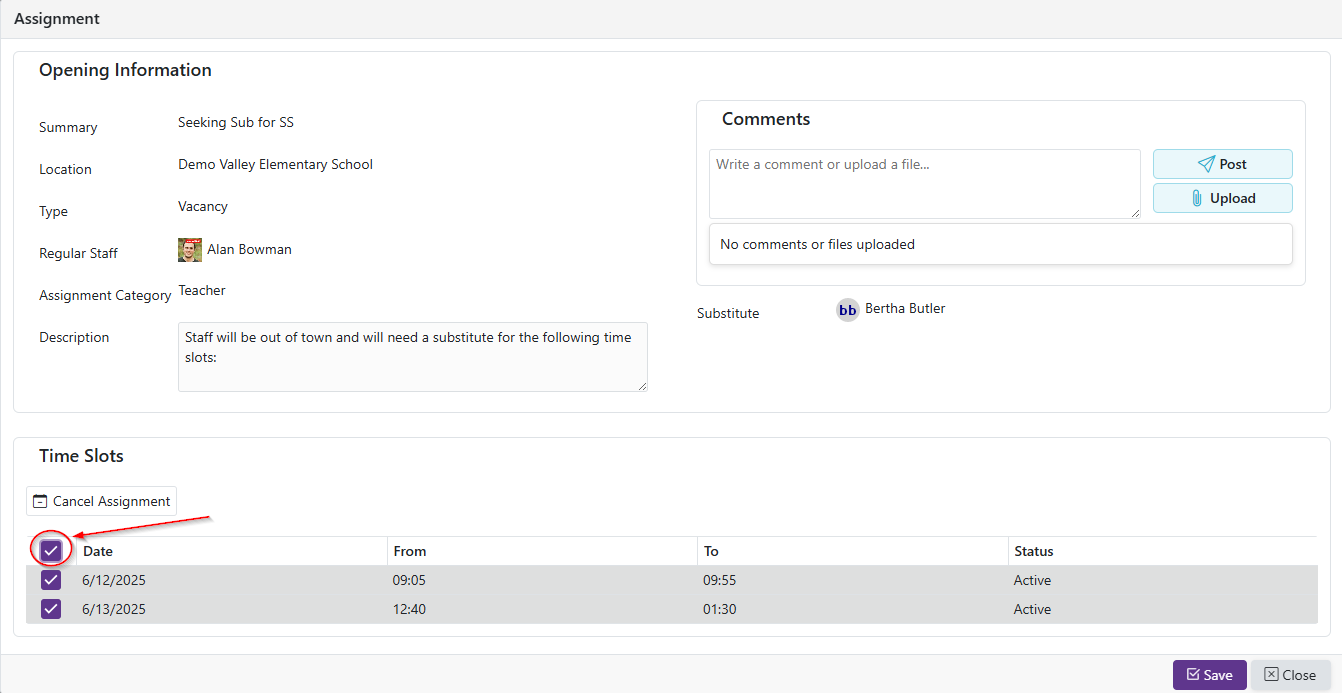
- If this assignment requires one substitute to cover all remaining days, a banner appears. Clearing any one TimeSlot clears them all, so you can withdraw from the whole assignment but not from part of it. Contact your manager if you need it split.
Step 3: Save and Give a Reason
-
Click the ‘Save’ button.
-
The Reason for Canceling Assignment window opens. A reason is required, so you cannot save with it blank.
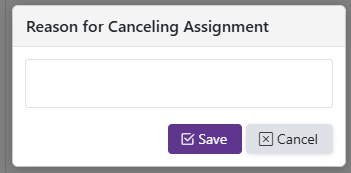
-
Once saved, those TimeSlots show a status of Canceled, and a Cancel Reason column appears with what you entered.
-
If every TimeSlot in an assignment has been canceled, the assignment itself shows a status of Canceled. It becomes Active again if you re-accept a TimeSlot from the Available Openings grid.