News
The News page lets you publish announcements and system messages that appear to users throughout SmartSub.
Who Uses This
- Application Administrator
- System Administrator
Navigation Path
- Administration menu → News
The News Grid

The grid lists every news item you've created, and can be filtered and sorted by any column:
- Title
- Type — News or System
- Roles — the roles this item is targeted to, or "Everyone" if no roles were selected
- Published — the date the item starts appearing to users
- Expires — the date the item stops appearing, or "N/A" if it doesn't expire
- Content — a rendered preview of the item's Markdown content
Use the View (eye) icon on a row to see the full item as users will see it, the Edit (pencil) icon to modify it, or the Delete icon to remove it (you'll be asked to confirm before it's removed).
Adding or Editing a News Item
Click Add News in the grid header (or the Edit icon on an existing item) to open the News editor:
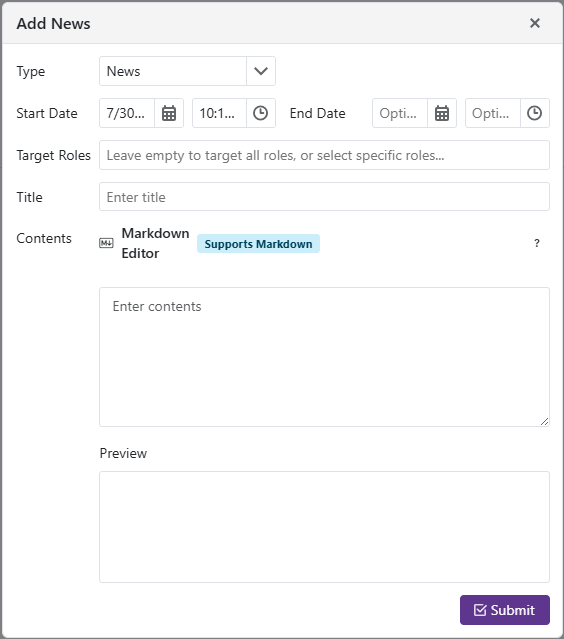
- Type — choose News or System.
- Start Date — the date and time the item becomes visible to users. There's no separate "publish" switch — an item is live as soon as its Start Date arrives.
- End Date (optional) — the date and time the item stops being visible. Leave blank for an item that doesn't expire.
- Target Roles — select one or more roles to limit who sees the item. Leave this empty to show it to everyone.
- Title — required.
- Contents — required. Written in Markdown, with a live preview shown below the text box as you type. See the Markdown Cheat Sheet for formatting help.
Click Submit to save.
Where Users See News
Published items appear to users via the bell icon in the navigation menu — see Viewing News and Announcements for what that looks like from a user's perspective.