Managing Leave Requests
Creating A Leave Request
For Regular Staff
Accessible from:
- Dashboard (Home) -> Regular Staff Leave Requests Tab
- Regular Staff -> Leave Requests -> Regular Staff
- Regular Staff -> Manage Regular Staff -> Leave Requests
- Location Admin -> Leave Requests -> Regular Staff
For a Location
Accessible from:
- Regular Staff -> Leave Requests -> Location tab
- Regular Staff -> Manage Regular Staff -> Locations -> Leave Requests
- Location Admin -> Manage Location -> Leave Requests
- Location Admin -> Leave Requests -> Location
For a Department
Accessible from:
- Regular Staff -> Leave Requests -> Department tab
- Regular Staff -> Manage Regular Staff -> Locations -> Departments -> Leave Requests
- Location Admin -> Manage Location -> Departments -> Leave Requests
- Location Admin -> Leave Requests -> Department
Step 1: Click the Add Icon
Click the  button to start creating a new leave request.
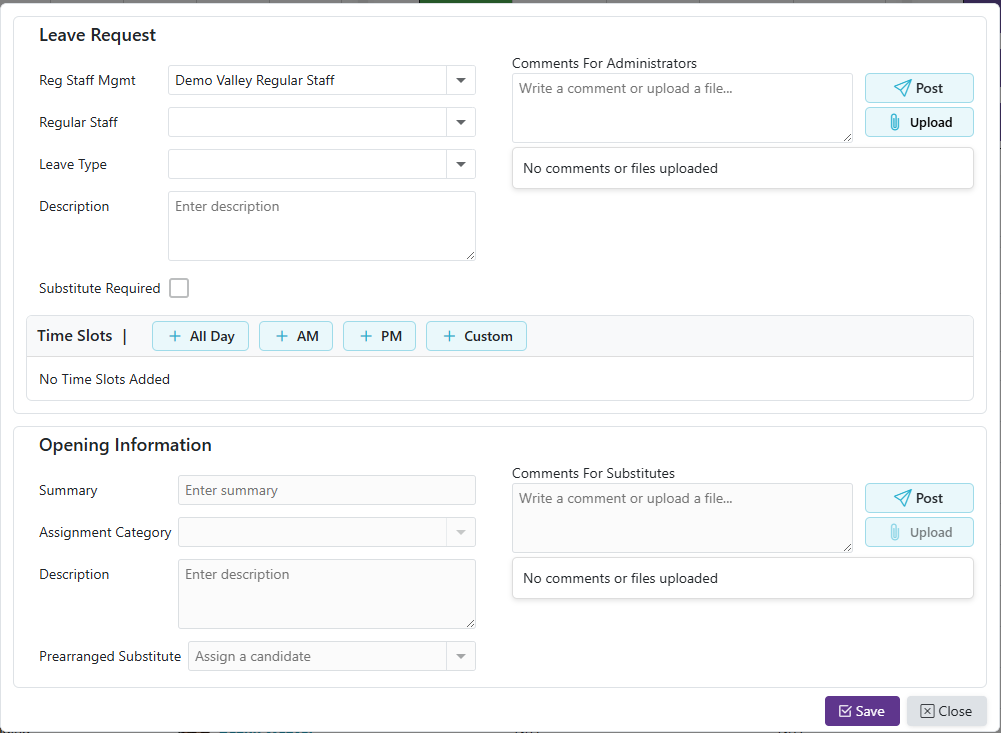
Step 2: Select the Regular Staff User
Click the Regular Staff dropdown and select the staff member requesting leave.
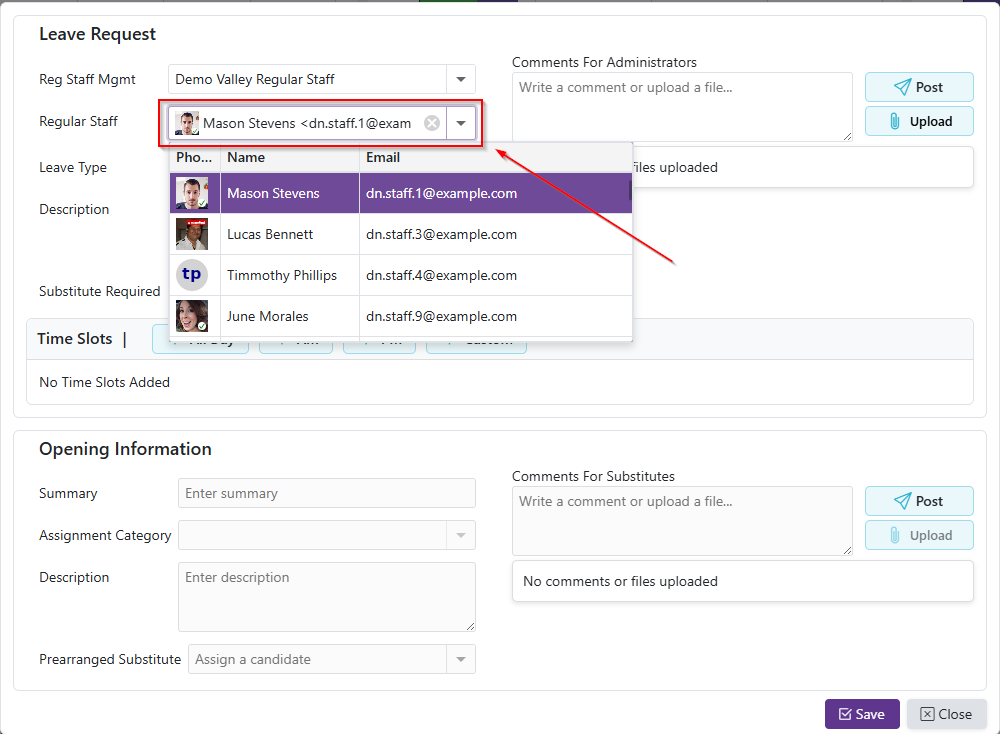
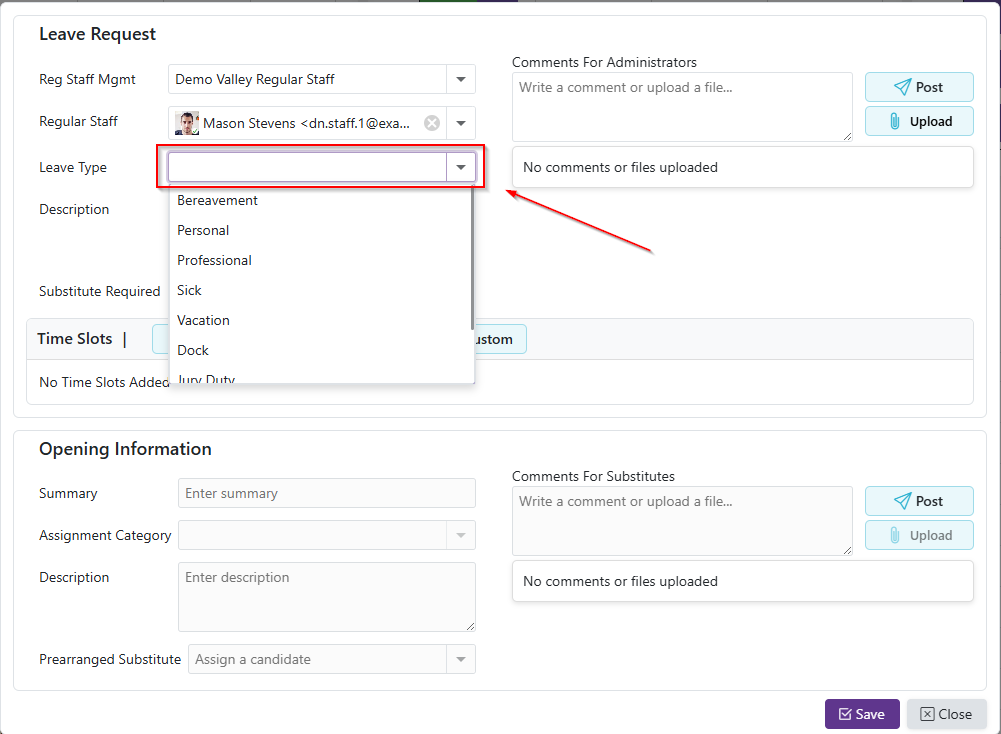
Step 3: Select the Leave Type
Click the Leave Type dropdown and choose the appropriate leave type.
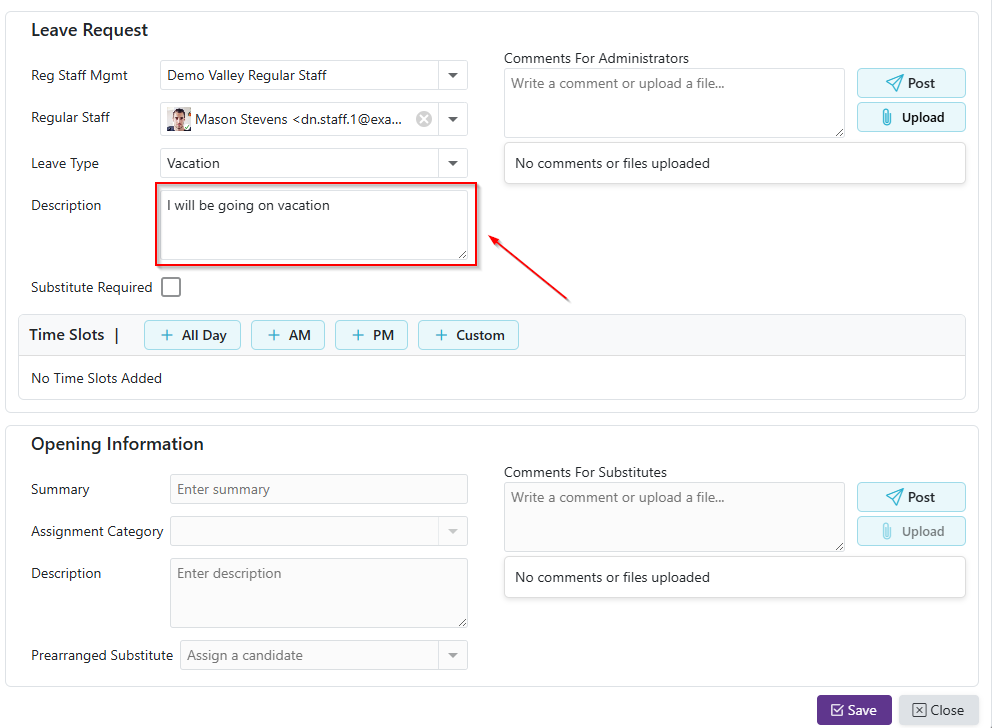
Step 4: Enter a Description
Go to the Details tab, click in the Description field, and provide details about the leave request. This information can be helpful for approvers to understand the reason for the leave and any important information related to it.
Step 5: Indicate if a Substitute is Required
If a substitute is needed, check the ‘Substitute Required’ box.
Checking this box will make Step 9 mandatory. If unchecked, you can skip Step 8.
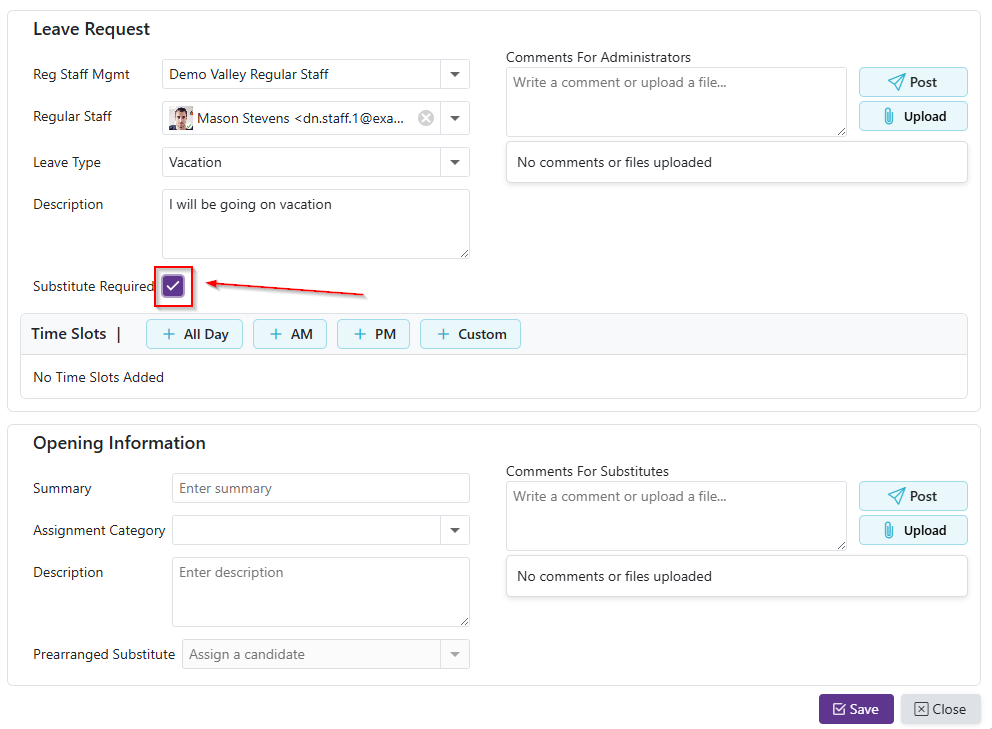
Step 6: Add Time Slots
a. Click one of the buttons: ‘All Day’, 'AM', 'PM', or 'Custom'
- All day: adds a time slot with the From Time set to the Start Time set in the location's preference and the To Time set to the End Time in the location preference
- AM: adds a time slot with the From Time set to the Start Time set in the location's preference and the To Time set to noon
- PM: adds a time slot with the From Time set to noon and the To Time set to the End Time in the location preference
- Custom: adds a time slot with blank times

b. Enter the Date, From Time, To Time, Location, and Department (if available).

c. Repeat steps a-b to add multiple time slots
d. To delete any unwanted time slots, click the  icon.
icon.

Step 7 (Optional): Add Comments And/Or Attachments to the Leave Request
Comments:
a. Type your comment in the input field. This can be used to provide additional information or context about the leave request that may be helpful for approvers to know.
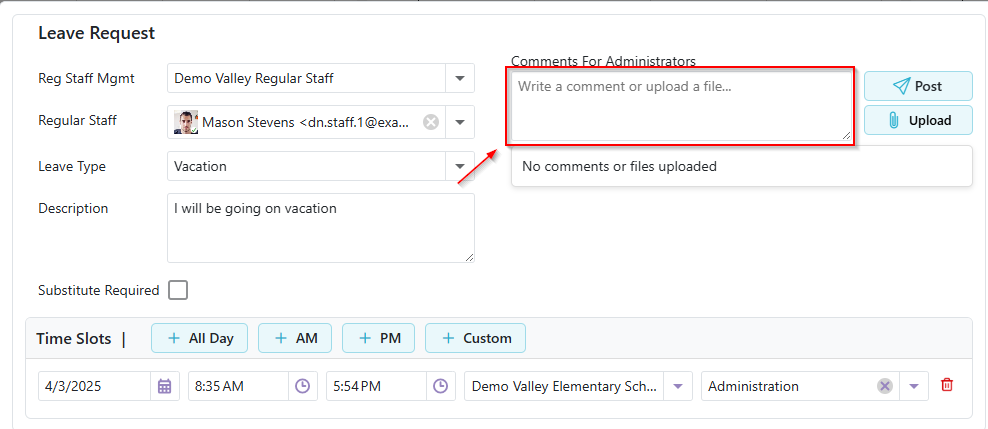
b. Click  button to submit the comment.
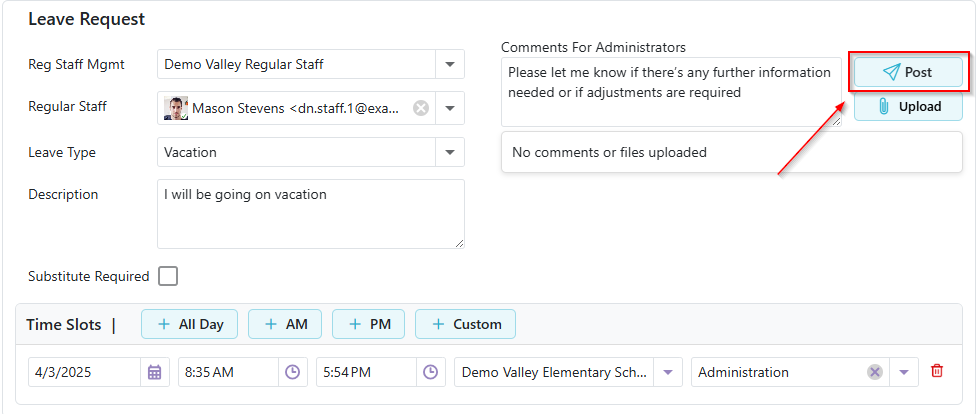
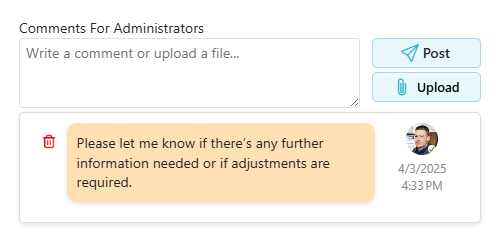
c. Repeat this process for adding multiple comments
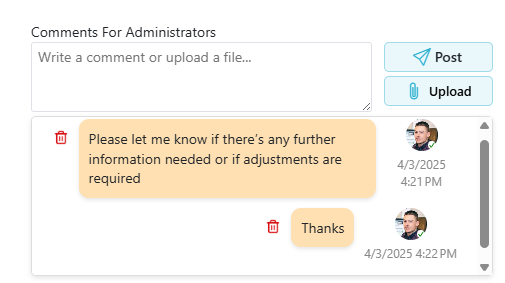
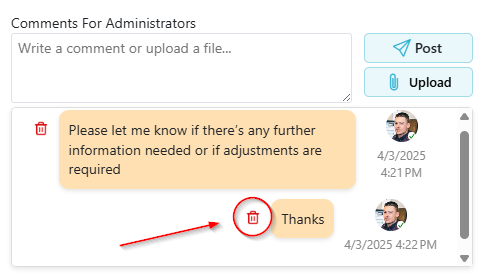
d. To remove a comment, click the icon on the corresponding comment. Users can only remove their own comments
Attachments:
a. Attachments can be uploaded by dragging and dropping the file into the input field
b. File can also be uploaded by clicking the  button which opens up the file explorer
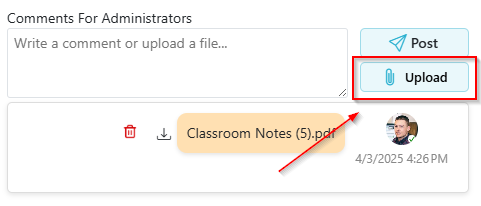
c. Repeat this process for adding multiple attachments
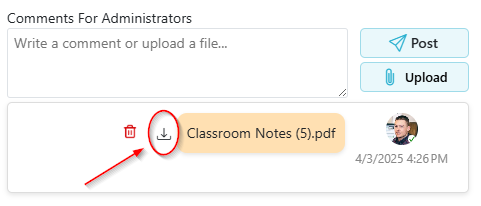
d. To download an attachment, click the  icon on the corresponding attachment.
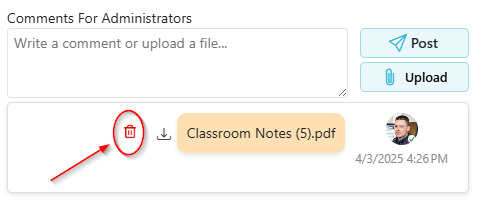
e. To remove an attachment, click the icon on the corresponding attachment. Users can only remove their own attachments
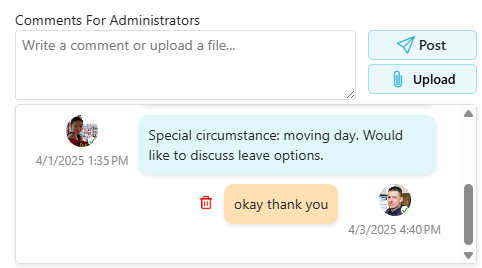
- Comments and Attachments can both be added/viewed together
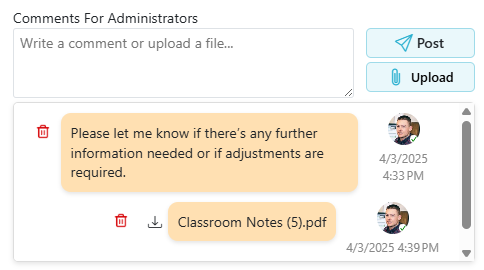
- Comments/Attachments from other users will be blue and on the left
Step 8: Add Opening Information (if Substitute Required is Checked)
If you selected  in Step 5, the Opening Information becomes required.
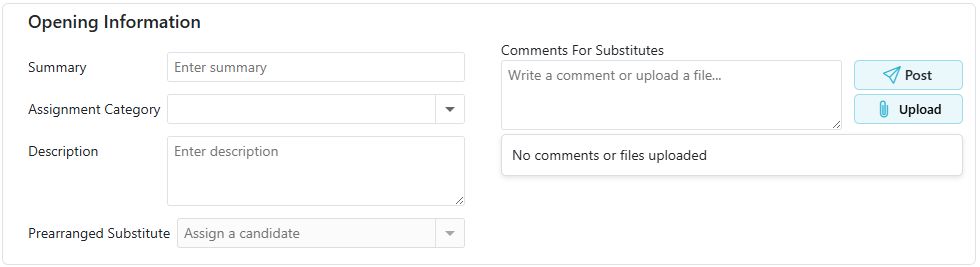
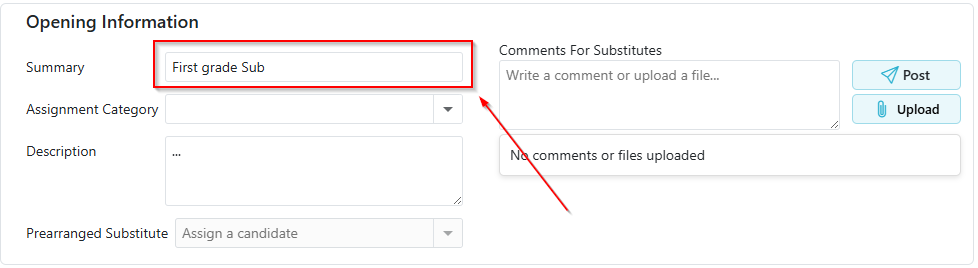
a. Provide an Opening Summary. This should be concise and clearly describe the opening to attract potential substitutes. It will be the title of the opening that substitutes see when browsing available openings.
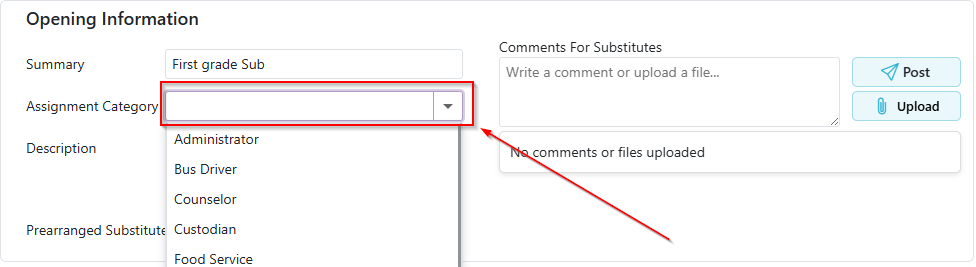
b. Select an Assignment Category from the dropdown menu.
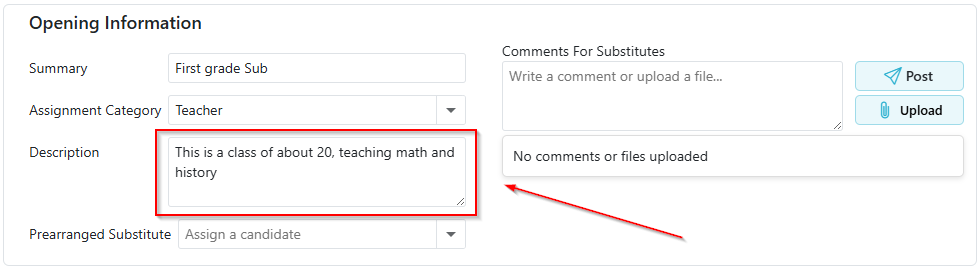
c. Enter an Opening Description. This should provide more detailed information about the opening, such as the responsibilities, any special instructions, or qualifications needed for a substitute to fill the opening.
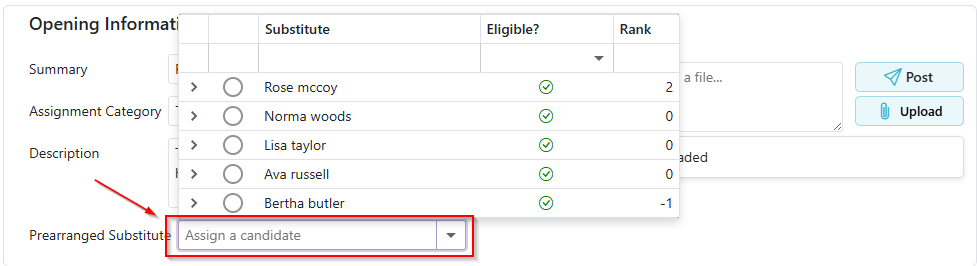
d. (Optional) Choose a Prearranged Substitute.
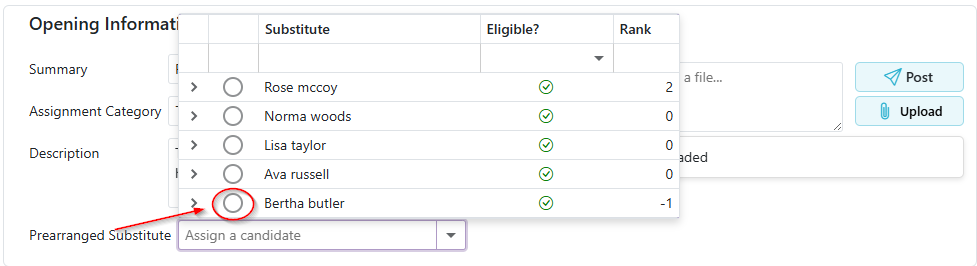
 - Click the
  to remove the substitute
e. (Optional) Add any Comments or Attachments specific to the Opening (works the same as Step 7, except these are Comments for the Opening and will be visible by the substitutes).
Comments:
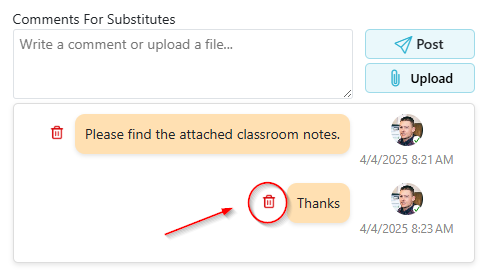
a. Type your comment in the input field. This can be used to provide additional information or context about the opening that may be helpful for potential substitutes to know.
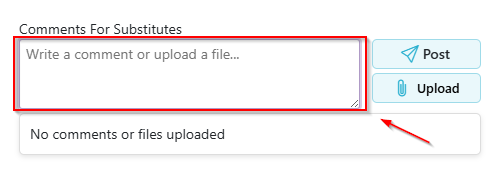
b. Click button to submit the comment.
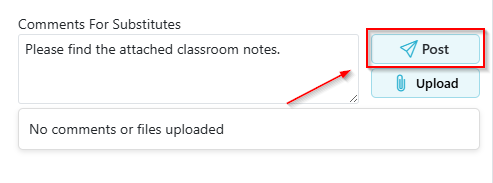
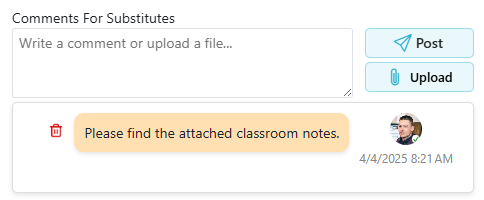
c. Repeat this process for adding multiple comments
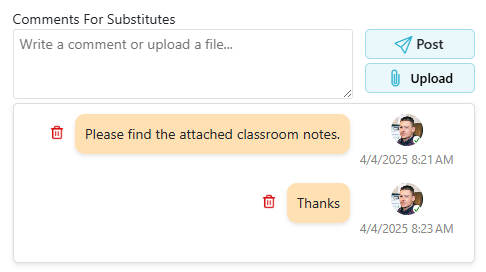
d. To remove a comment, click the icon on the corresponding comment. Users can only remove their own comments
Attachments:
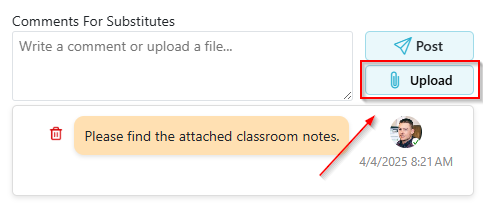
a. Attachments can be uploaded by dragging and dropping the file into the input field
b. File can also be uploaded by clicking the button which opens up the file explorer
c. Repeat this process for adding multiple attachments
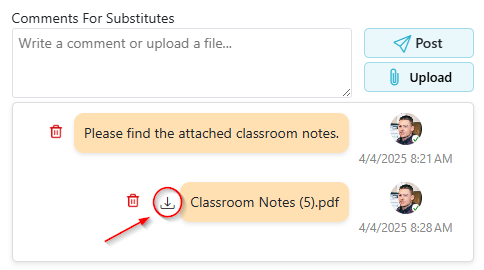
d. To download an attachment, click the icon on the corresponding attachment.
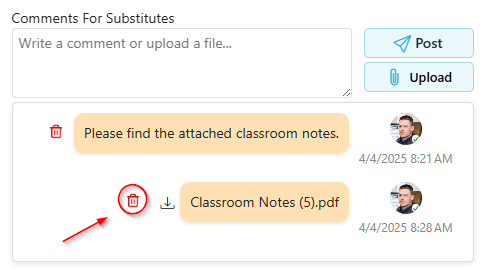
e. To remove an attachment, click the icon on the corresponding attachment. Users can only remove their own attachments
- Comments and Attachments can both be added/viewed together
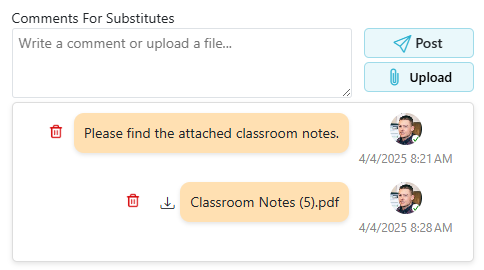
- Comments/Attachments from other users will be blue and on the left
Step 9: Save the Leave Request
Once all details have been entered, click the Save button to create the leave request.
Editing A Leave Request
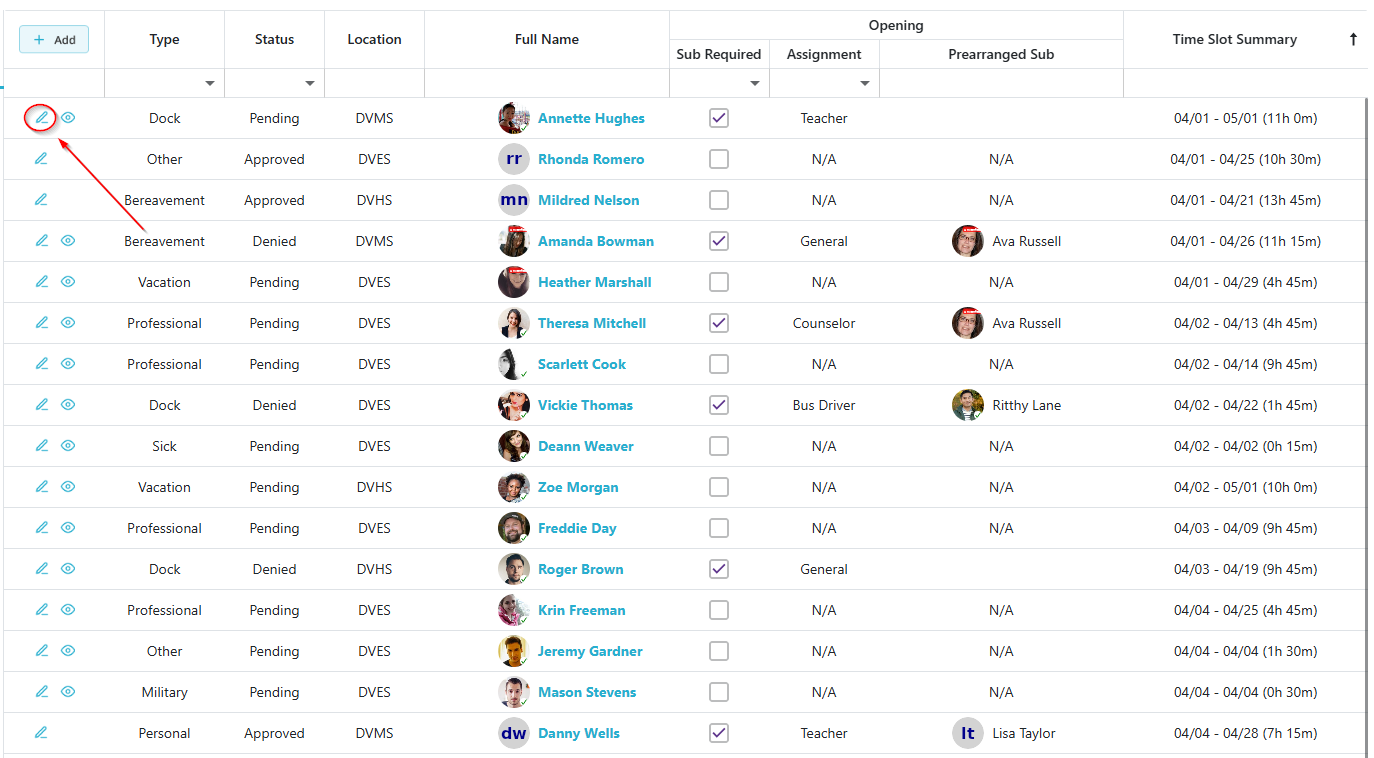
Click the  to access the Edit Leave Request page.
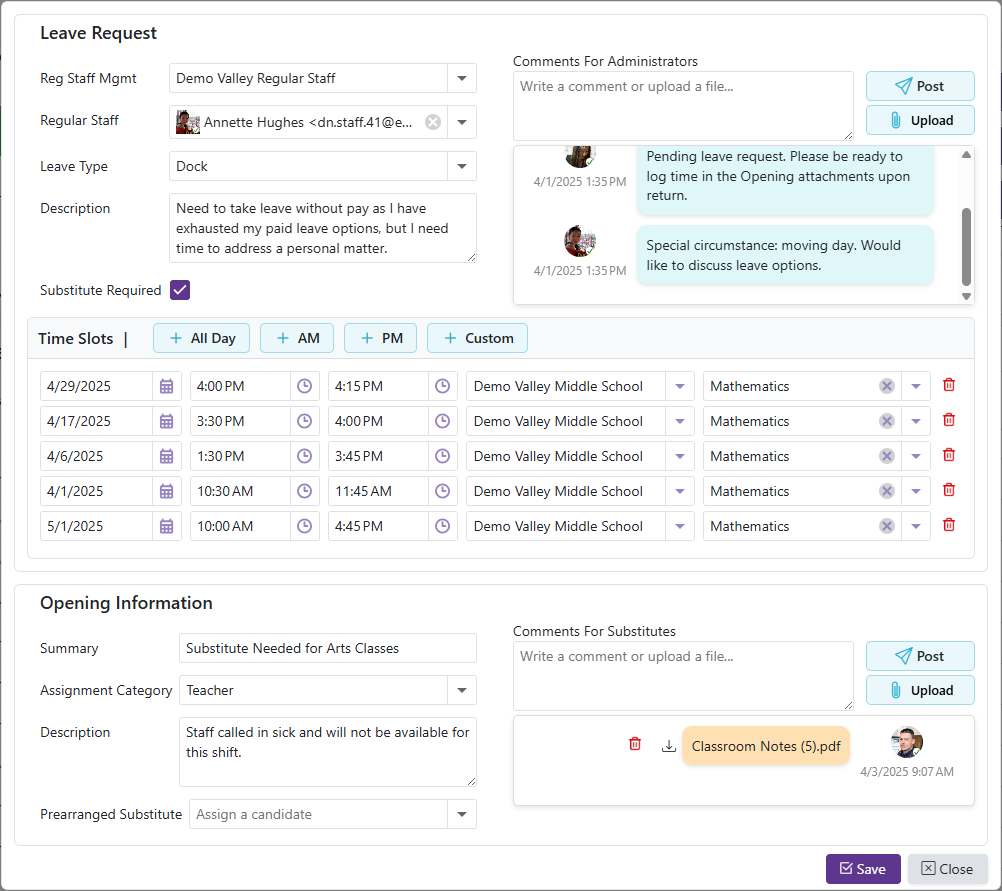
The Regular Staff User can be changed by selecting the new user that is requesting leave from the dropdown menu
The Leave Type can be changed by clicking the Leave Type dropdown and choosing the appropriate leave type
Click the Leave Type dropdown and choose the appropriate leave type.
The Description field can be changed by clicking in the Description field and editing the text
Go to the Details tab, click in the Description field, and provide details about the leave request.
Update whether a Substitute is required by toggling the corresponding checkbox
- Checking this box will make the Opening Information required.
Time Slots can be modified:
a. Click one of the buttons: ‘All Day’, 'AM', 'PM', or 'Custom'
- All day: adds a time slot with the From Time set to the Start Time set in the location's preference and the To Time set to the End Time in the location preference
- AM: adds a time slot with the From Time set to the Start Time set in the location's preference and the To Time set to noon
- PM: adds a time slot with the From Time set to noon and the To Time set to the End Time in the location preference
- Custom: adds a time slot with blank times
b. Enter the Date, From Time, To Time, Location, and Department (if available).
c. Repeat steps a-b to add multiple time slots
d. To delete any unwanted time slots, click the icon.
Comments and Attachments can be added or modified on the Leave Request (Optional)
Comments:
a. Type your comment in the input field.
b. Click button to submit the comment.
c. Repeat this process for adding multiple comments
d. To remove a comment, click the icon on the corresponding comment. Users can only remove their own comments
Attachments:
a. Attachments can be uploaded by dragging and dropping the file into the input field
b. File can also be uploaded by clicking the button which opens up the file explorer
c. Repeat this process for adding multiple attachments
d. To download an attachment, click the icon on the corresponding attachment.
e. To remove an attachment, click the icon on the corresponding attachment. Users can only remove their own attachments
- Comments and Attachments can both be added/viewed together
- Comments/Attachments from other users will be blue and on the left
If a Substitute is required, the Opening Information can be modified:
- If is checked, Opening Information becomes required
a. Provide an Opening Summary.
b. Select an Assignment Category from the dropdown menu.
c. Enter an Opening Description.
d. (Optional) Choose a Prearranged Substitute.
- Click the to remove the substitute
e. (Optional) Add any Comments or Attachments specific to the Opening (works the same as Step 7, except these are Comments for the Opening and will be visible by the substitutes).
Comments:
a. Type your comment in the input field.
b. Click button to submit the comment.
c. Repeat this process for adding multiple comments
d. To remove a comment, click the icon on the corresponding comment. Users can only remove their own comments
Attachments:
a. Attachments can be uploaded by dragging and dropping the file into the input field
b. File can also be uploaded by clicking the button which opens up the file explorer
c. Repeat this process for adding multiple attachments
d. To download an attachment, click the icon on the corresponding attachment.
e. To remove an attachment, click the icon on the corresponding attachment. Users can only remove their own attachments
- Comments and Attachments can both be added/viewed together
- Comments/Attachments from other users will be blue and on the left
Once all modifications are complete, click the 'Save' button to apply and save changes to the leave request
Once all details have been entered, click the Save button to create the leave request.
Approving/Denying A Leave Request
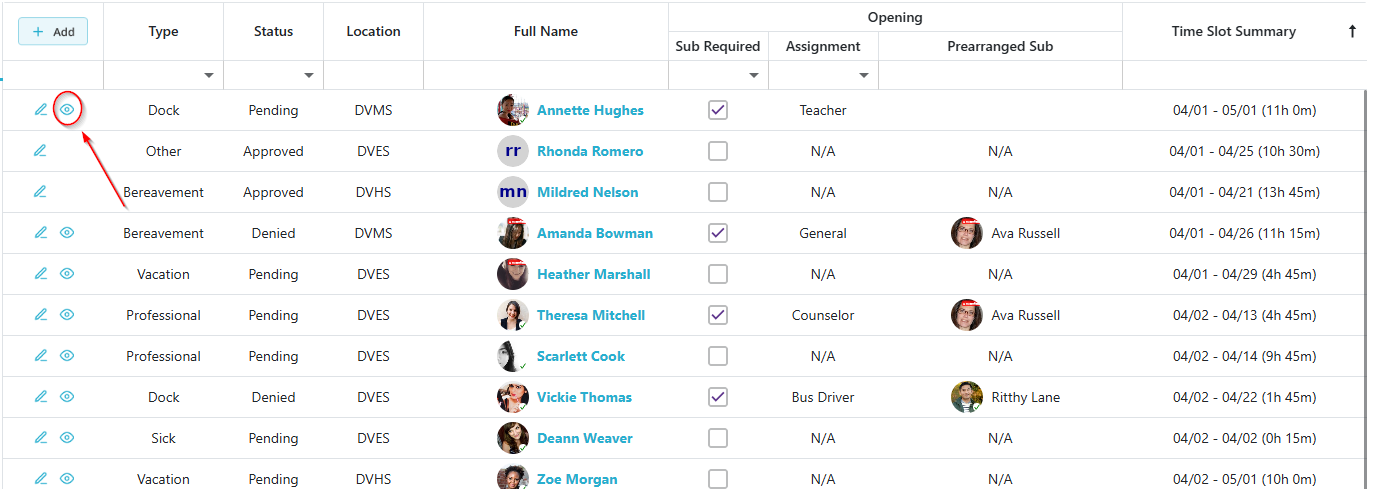
On Any Leave Request grid where you have permissions, a Leave Request with the Pending Status will have the  icon in the Actions column which allows users to view the details of the leave request and either approve or deny it.
Step 1: Open the Leave Request
Click the icon to view the details of the pending leave request.
Step 2: Approve or Deny the Request
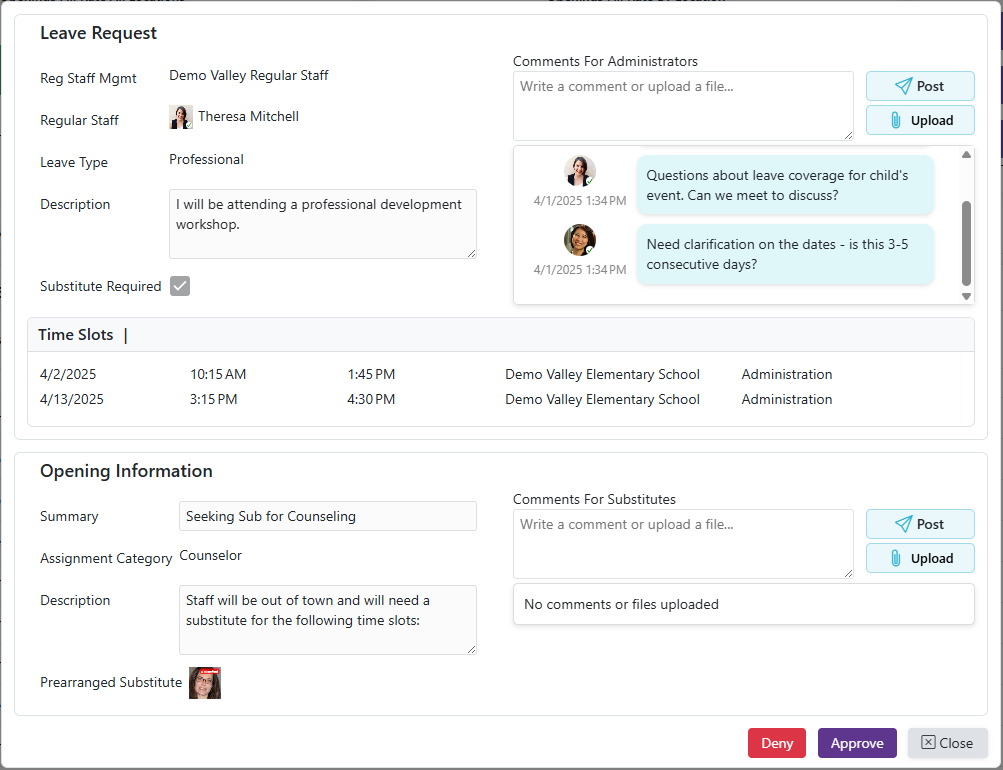
After reviewing the leave request, click ‘Approve’ or ‘Deny’ based on your decision.
- If the request is Approved and a Substitute is Required, an Opening will automatically be created using the information provided in the leave request.
- If there are 5 or more other staff members out on a certain day, a warning will display telling the user which day has 5 or more staff members out

- Hovering over the date in the warning will display a list of staff members out
