Substitute Attendance Tab
- The Substitute Attendance Tab allows managers to verify substitute's attendance.
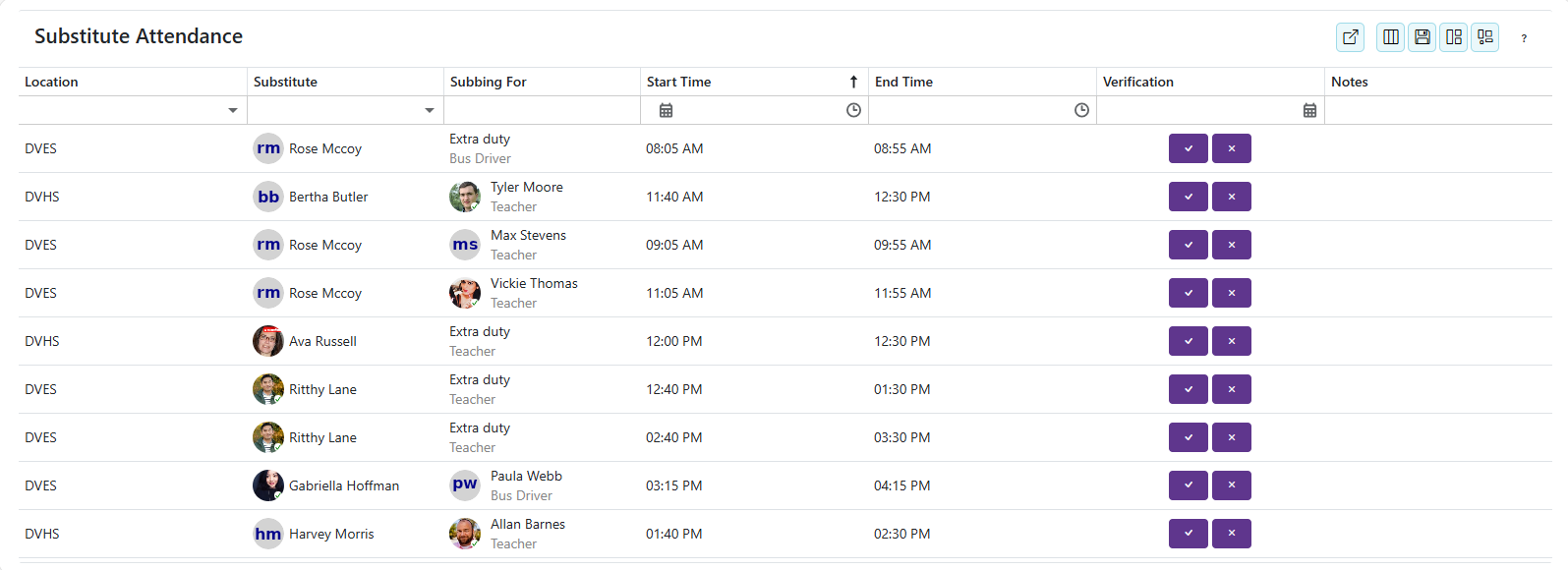
- Clicking the
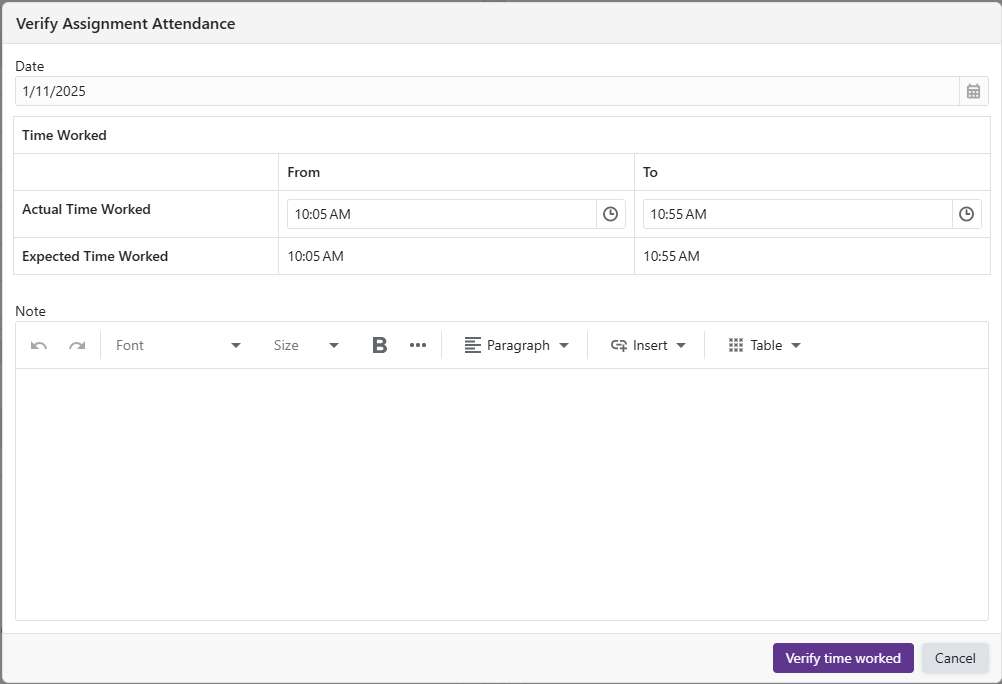
 opens the Verify Assignment Attendance form, allowing the manager to view notes left by the substitute, add their own notes, and edit the Actual Time Worked.
- Clicking the
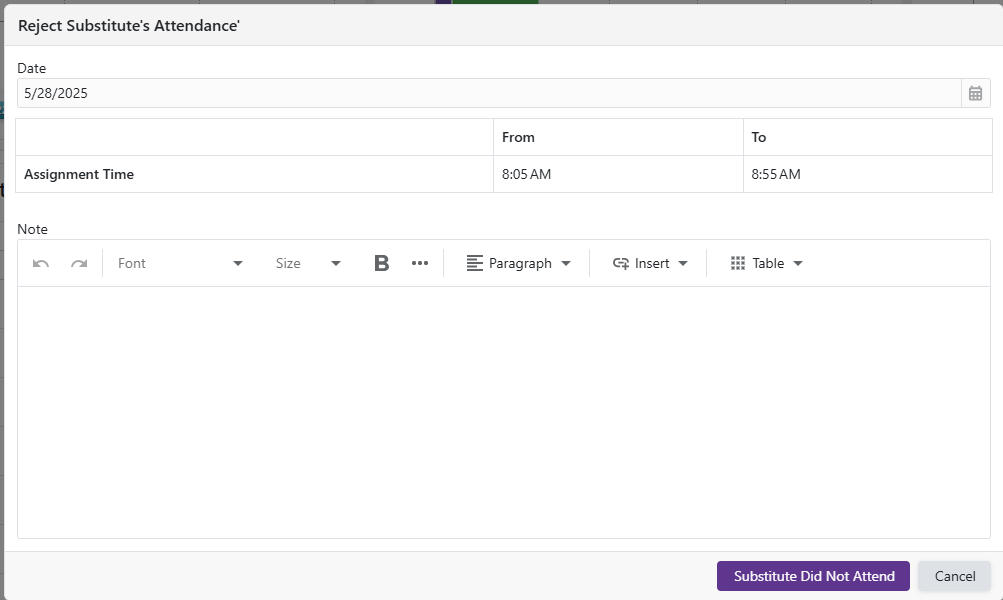
 opens the Reject Assignment Attendance form, allowing the manager to reject the attendance of a substitute, if a substitute does not show up.
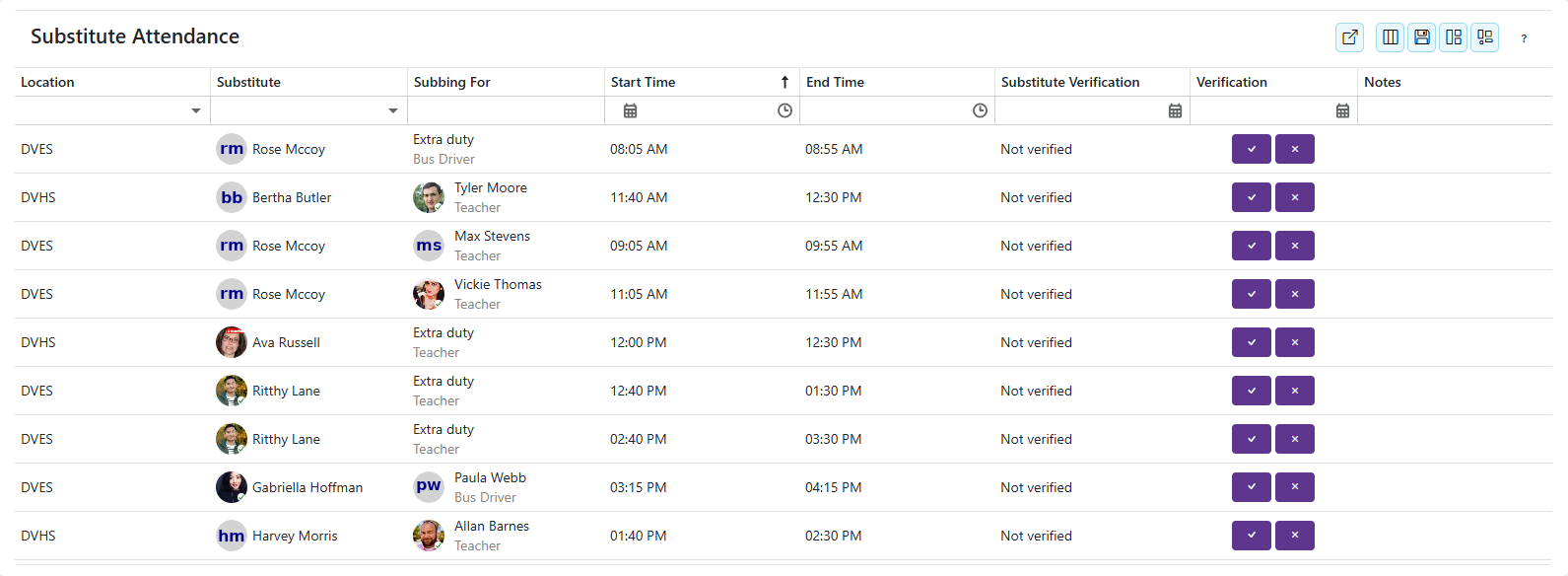
- If 'Substitutes May Verify Their Own Attendance' is enabled in the location's preferences, the 'Substitute Verification' column becomes available, this is where the manager can see if the substitute has verified their attendance. You do not have to wait for it, verifying the attendance yourself completes the assignment:
Multi-select approval of attendance
-
Only attendance records you can approve in bulk have a checkbox: records at a location with Mass Attendance Approval turned on, at a location or department you manage. Other rows have no checkbox and must be verified one at a time.
-
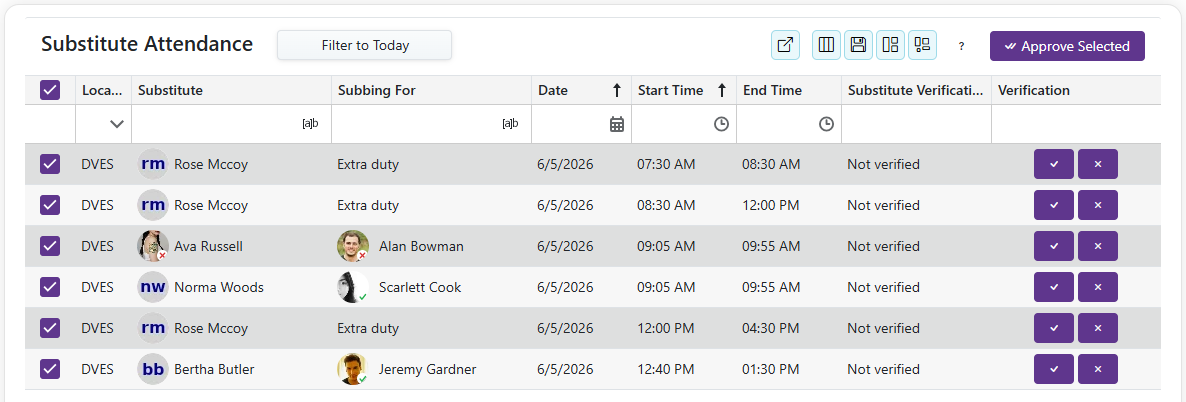
Clicking the checkbox in the header on the left selects every record you can approve in bulk, across all pages of the grid, not only the page you are looking at. Then click the
 to verify all selected substitute attendances at once.
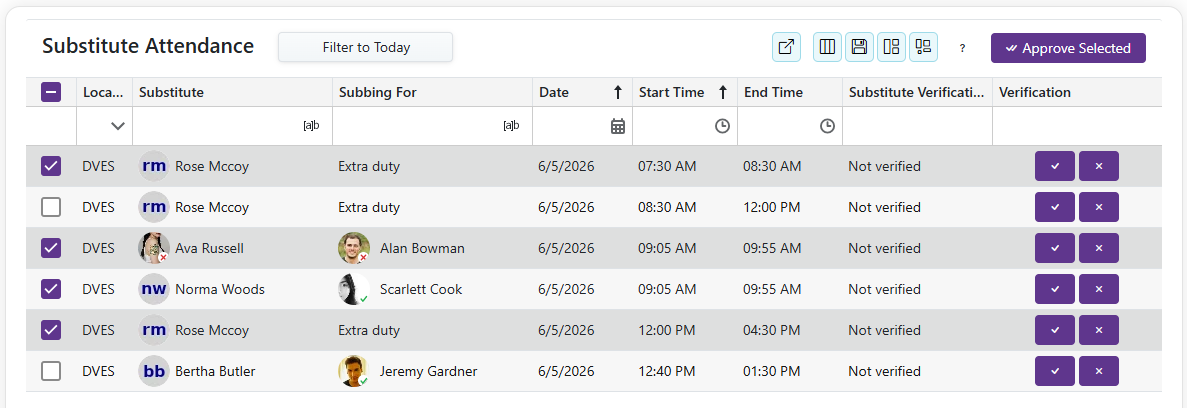
- Clicking on the checkbox next to each substitute attendance allows the manager to select individual substitute attendances, and then click the to verify all selected substitute attendances at once.
-
The
is disabled until at least one record is selected. -
If the selection includes a record a manager has already verified, nothing is approved and SmartSub shows "One or more selected records have already been verified." Clear the checkbox on that record and click Approve Selected again.
Grid Operations
-
Clicking the
 will export the grid, and lets you choose the file format: Excel (.xlsx), CSV (.csv), or PDF (.pdf). The export contains the columns you have visible, in the order you have arranged them, and any sorting and filtering you have applied carries into the file.
Note: Exporting a grid that is grouped may not give the results you expect. The grouping values are not included in the file, so remove the grouping before exporting if you need them.
-
Clicking the
 (Column Chooser) will bring up a column chooser where you can choose which of the grid's optional columns are displayed.
 -
To reorder the columns, drag a column header to a new position. To change a column's width, drag the divider between two column headers.
-
Clicking the
 (Save Layout) saves the grid exactly as you have it: which columns are visible, their order and widths, and your sorting, grouping, and filter selections, including the choices made in multi-select filter popups. The saved layout is applied automatically the next time you open that page.
 -
Clicking the
 (Restore Saved Layout) returns the grid to the layout you last saved.
 -
Clicking the
 (Reset Layout to Default) returns the grid to its original layout. Your saved layout is kept, so Restore Saved Layout brings it back afterwards.
 -
Layouts are saved separately for each grid on each page, and are kept in your browser. They carry over between sessions on the same browser, but not to a different browser or device, and clearing your browser's site data removes them.
-
Most grids also carry an ID column, named for what the row is, such as Opening ID or User ID. It is hidden until you turn it on in the column chooser. Turn it on when you need the exact identifier for a support request, and filter it with Equal to find one specific record.
Note: The export, column chooser, and layout buttons are available to managers, coordinators, and administrators. Regular staff and substitutes who hold no manager, coordinator, or administrator role do not see them. Not every grid offers all of these; a grid that does not support a feature simply does not show that button.