API Configuration
- The API Configuration tab allows users to enable the SmartSub API and have access to the keys, secrets, endpoint, and unit identifiers.
Note: Changing this configuration is limited to a Reseller Administrator, Application Administrator, or System Administrator. A client administrator can open the tab, read every field, copy values, and test the connection, but cannot change the configuration.
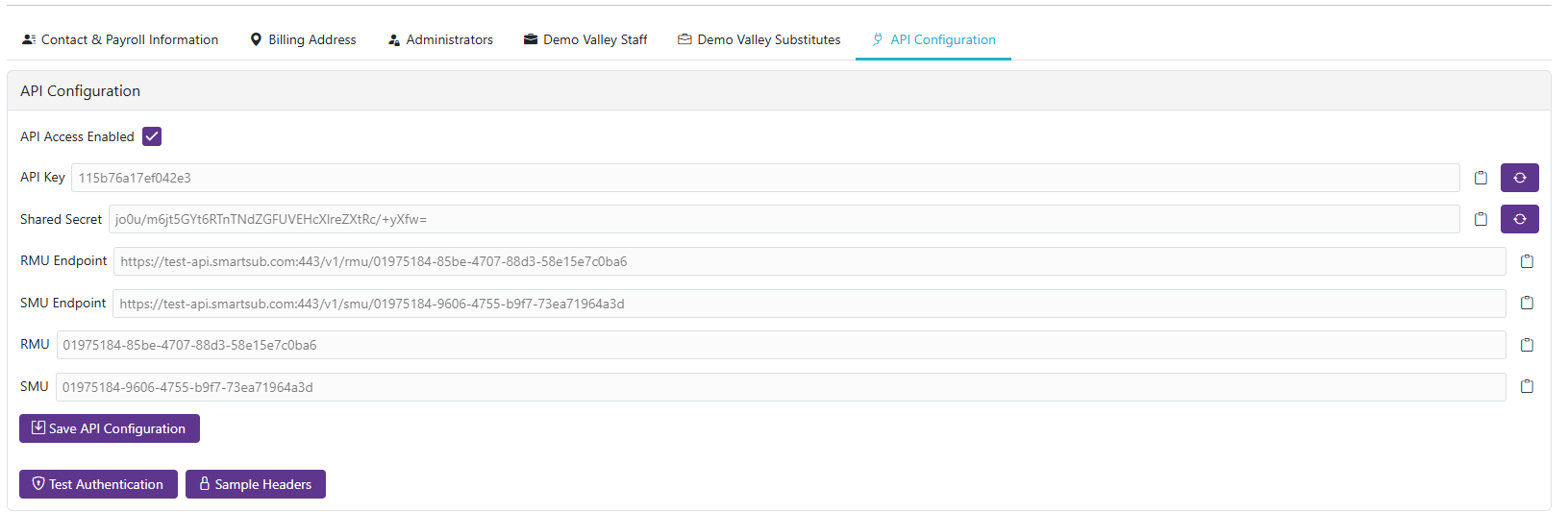
Configuration Fields
- API Access Enabled: Toggle to enable or disable API access for your organization
- API Key: Unique key used for API authentication
- Shared Secret: Secret value used for HMAC signature generation
- Endpoint: Base API URL (scheme and hostname only, e.g.,
https://qa-api.smartsub.com) - RMU: Regular Management Unit identifier (GUID)
- SMU: Substitute Management Unit identifier (GUID) - if applicable
Actions
-
Clicking the
 will copy that field to the clipboard
 -
Clicking the
 will generate a new API key or Shared secret. Available only to a Reseller, Application, or System Administrator, and only while API Access Enabled is turned on
 -
Click the
 to save the current API configuration. This button appears only for a Reseller, Application, or System Administrator
 -
Click the
 to display sample headers

- Click the
 to test the API connection authentication
Notification Methods
- The Notification Methods tab holds the Event Notification Targets, the addresses notified when system events occur.
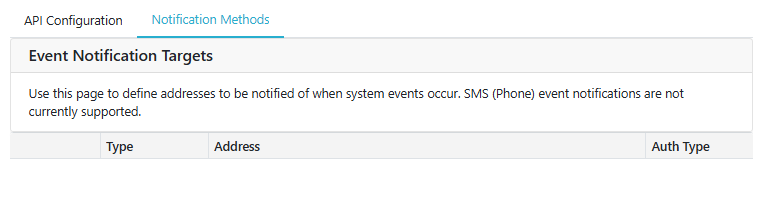
-
Email addresses are supported. SMS to a phone number is not currently supported.
-
At least one target must be configured before a timesheet transfer can be requested from Manage Timesheets.
-
As elsewhere on this page, only a Reseller Administrator, Application Administrator, or System Administrator can change these. Everyone else sees them read-only.
External Application Configuration
When configuring external applications (SCView, CSIU, etc.) to connect to the SmartSub API, you will need:
- Endpoint: The base URL (e.g.,
https://qa-api.smartsub.com) - API Key: For authentication
- Shared Secret: For HMAC signature generation
- RMU/SMU Identifiers: To construct the appropriate API paths (e.g.,
/v1/rmu/{guid}/...)
All fields can be copied to the clipboard using the clipboard icon next to each field.