Manage Substitute Staff
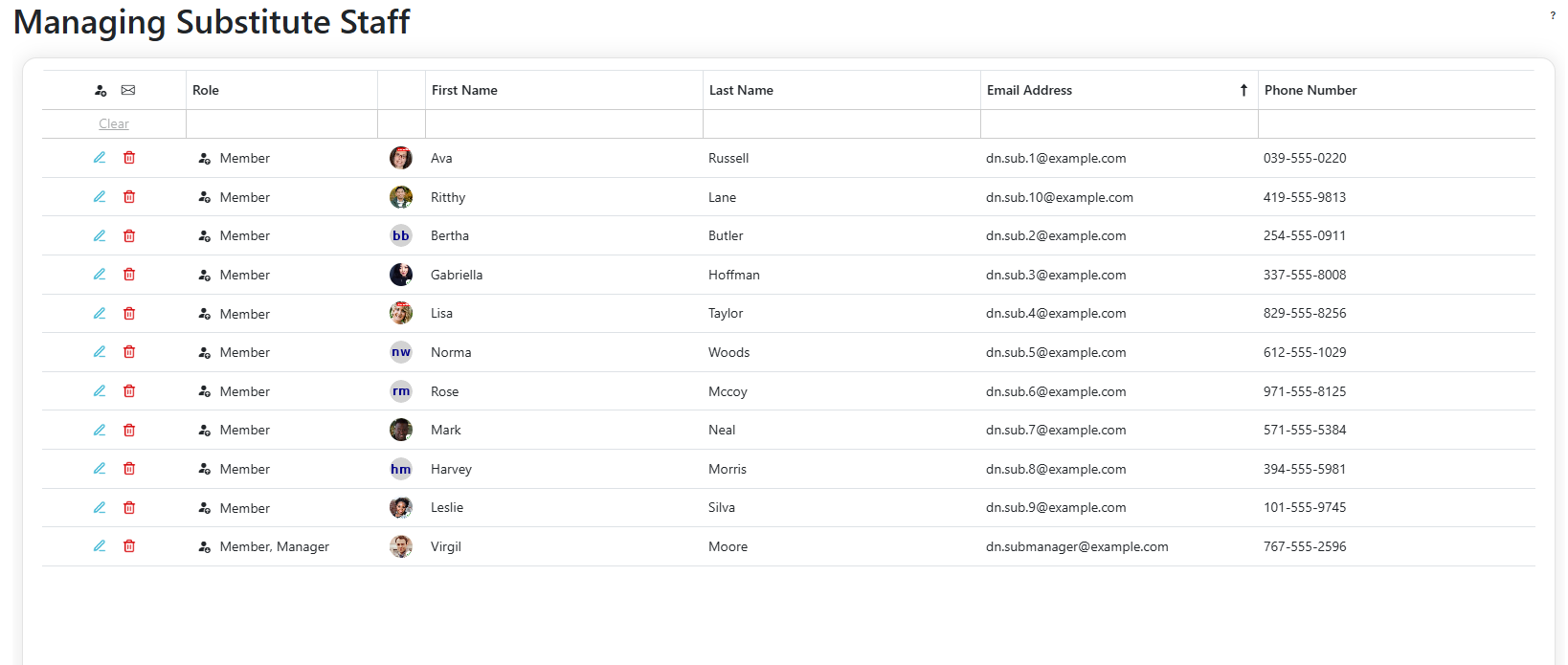
Grouping the Substitutes List
- Drag a column header into the group panel above the grid to group the list by that column. Drag in a second column to group within the first, and drag a chip back out to ungroup.
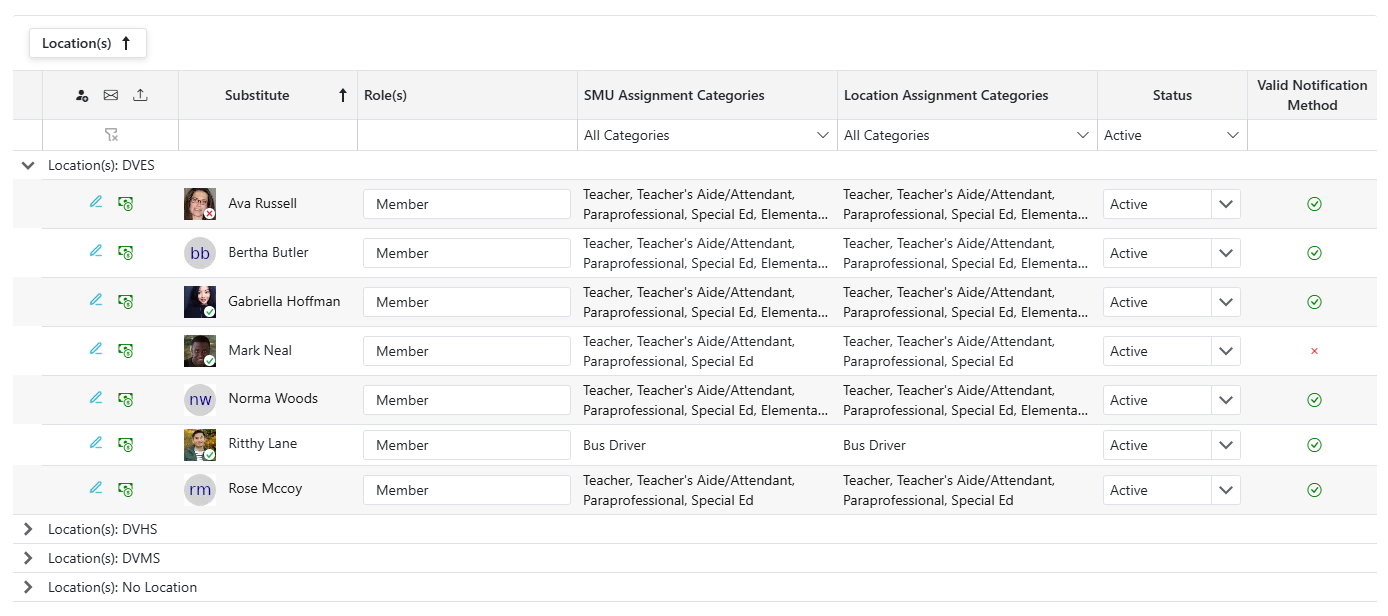
-
Grouping by Location(s) adds a Location Assignment Categories column. That column only exists while the list is grouped by location, and it always groups underneath the location level rather than above it.
-
Removing the Location(s) grouping also removes the Location Assignment Categories grouping and clears any filter you set on it, since the column itself disappears.
-
Substitute and Role(s) cannot be grouped.
Assigning Substitutes to a Pool
Note: These controls appear only when Substitute Pools are enabled for this Substitute Management Unit, and only for Client Administrators and Substitute Management Unit managers. See the Substitute Pools page for how pools work.
One Substitute
- In the Pool column, select a pool from the substitute's dropdown. The change is saved immediately.
- Click the X in the dropdown to clear the pool. The substitute shows No Pool and is treated as a member of the Default pool.

Several Substitutes at Once
- Check the box at the start of each substitute's row. The number selected is shown above the grid.
- Click Assign to Pool.
- In the Assign Substitutes to Pool popup, select a pool, or leave it empty to clear the pool for everyone selected.
- Click Assign.
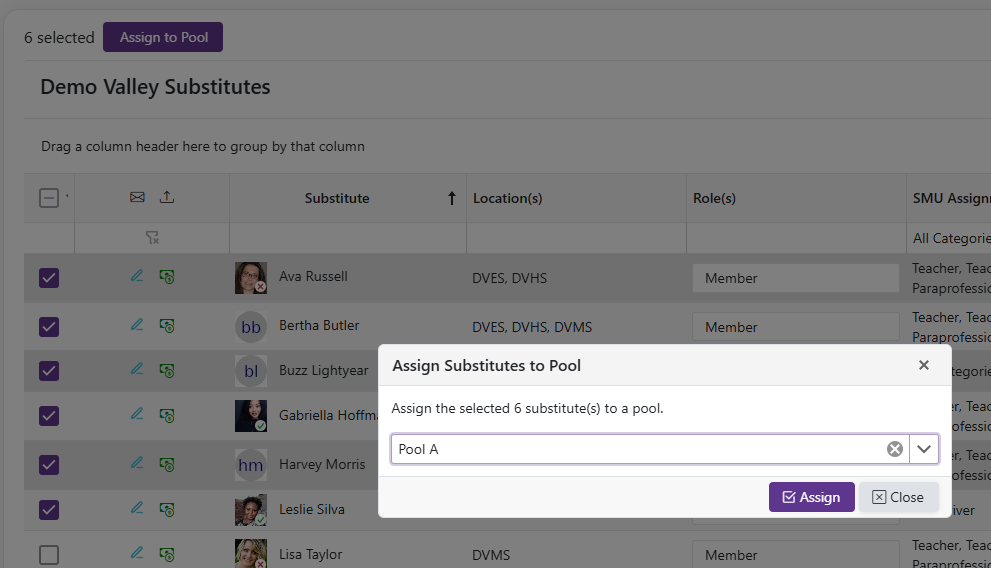
Note: If any selected substitute cannot be updated, none of them are changed.
Everyone in a Pool
- Group the list by Pool, then check the box on a pool's group header to select every substitute in that pool.
- The group checkbox is not available while the list is also grouped by Location(s) or SMU Assignment Categories.
Tip: To take substitutes out of rotation all at once, such as before an annual rehire, move them into a pool with the Deactivated type. They become ineligible for all openings until they are moved back.
Adding A Substitute
-
Click the
 to add a new substitute to the list.
 -
Click the
 to invite new or existing users to join the Regular Staff unit. A single user can be invited or an Excel sheet can be uploaded to mass invite users. Uploads should have column headers: Email, LastName, FirstName, BirthDate, SSN4, EmployeeId (Optional).
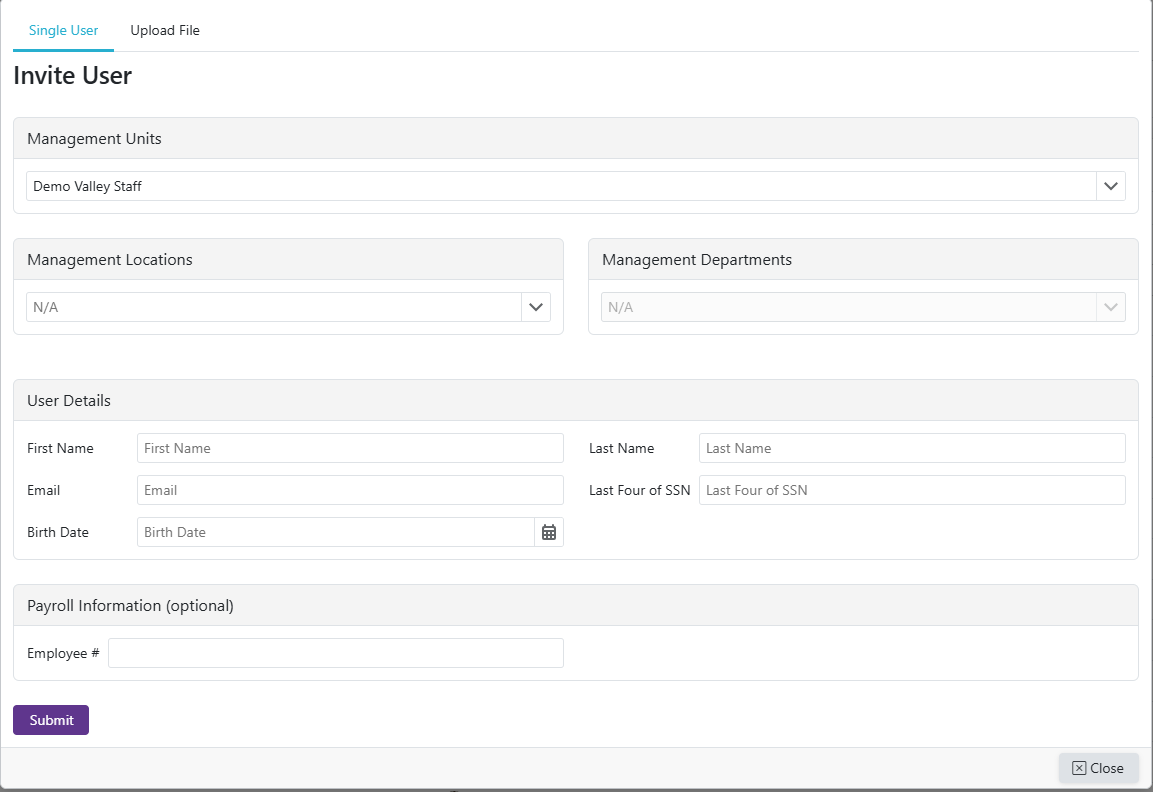
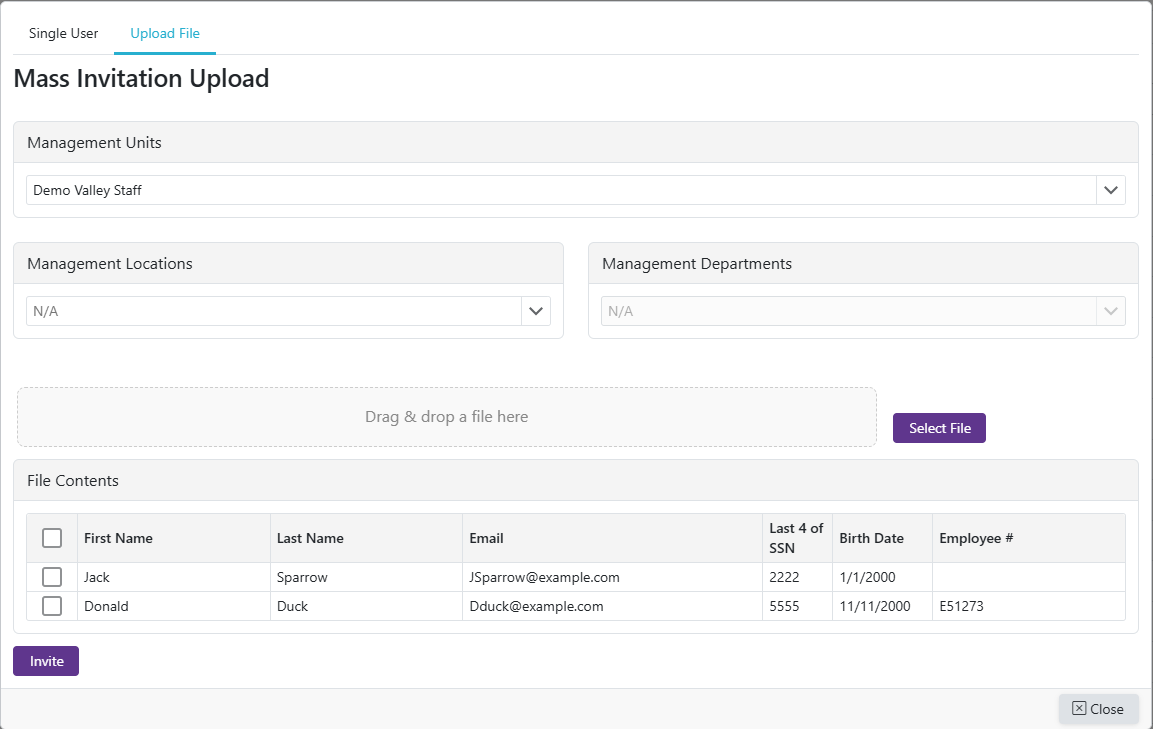
- NOTE: Once a user has accepted the invitation, an admin will need to manually enter in the Substitute's Assignment Categories that they are authorized to work.
Edit the SMU's Authorized Preferences For A Substitute
- Click the
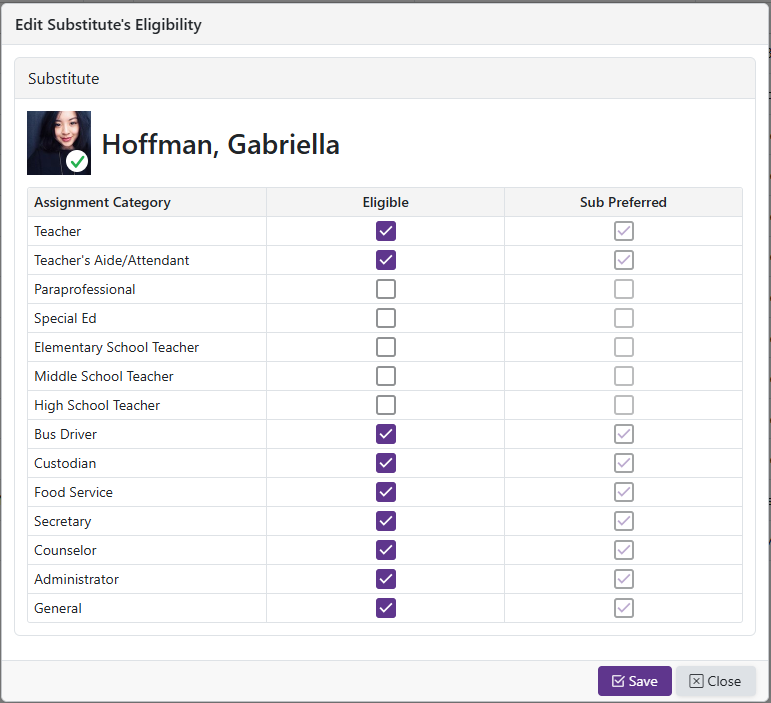
 icon to view/edit the SMU's authorization for the selected substitute.
-
The SMU can select which assignment categories the substitute is eligible for. The column on the right shows the assignment categories that the substitute has preferred. The SMU's preferences are then used by each location so they can set which of the SMU authorized assignment categories the substitute can work at that location. The Location can not select any assignment categories that the Substitute Management Unit, SMU, has not authorized.
-
If a substitute is authorized to be a 'Teacher', they are also eligible for all teacher types: 'High School Teacher', 'Middle School Teacher', 'Elementary School Teacher'.
-
If a substitute is authorized to be a 'Paraprofessional' they are also eligible to be a 'Teacher's Aide/Attendant'. If a substitute is authorized to be a 'Teacher's Aide/Attendant' they are also eligible to be a 'Paraprofessional'.
Changing a Substitute's Status
- Each substitute has a Status dropdown (Active, Inactive, or Terminated) instead of an outright removal action.
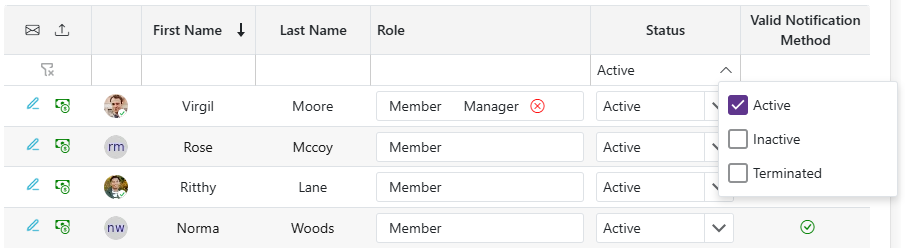
- Use the Status filter above the grid to choose which statuses to show — it defaults to Active only. Select Inactive and/or Terminated to include them.
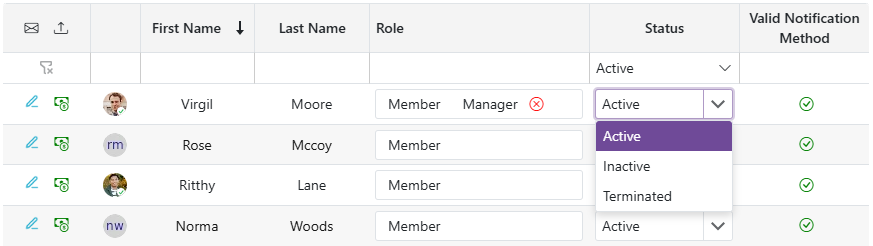
- If you move a substitute out of Active status while they still have outstanding assignments (any assignment that isn't Canceled, Complete, or Not Attended — including upcoming and in-progress ones), the change will be rejected: "You cannot remove this substitute because they have outstanding assignments, please cancel their assignments before removing them from [unit name]."