Notification Methods
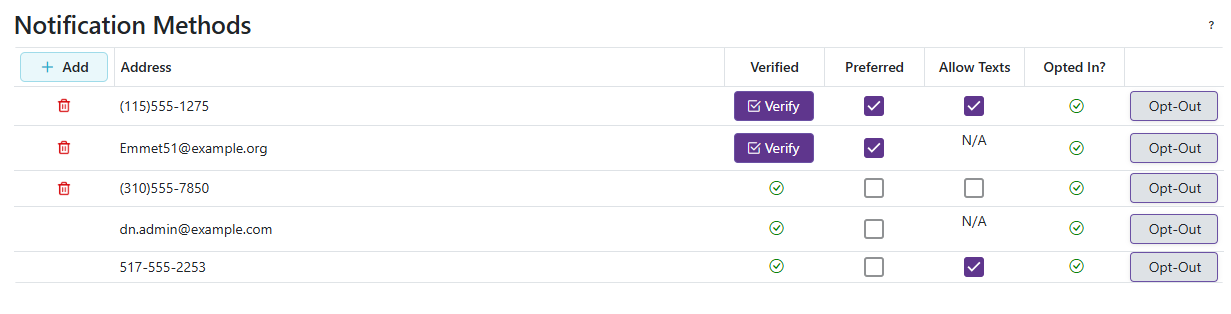
The Notification Methods section enables users to manage how they receive notifications, whether via email or phone. This screen allows the user to verify, prefer, and Opt In/Opt out of their Notification Methods.
Adding Notification Methods
-
Clicking
 allows the user to add a Notification method, click 'Save' to add the entered Notification Method
 -
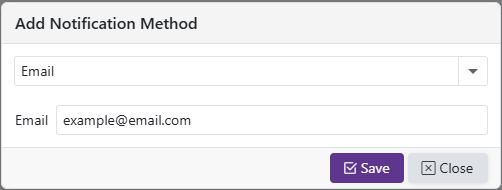
Add an Email
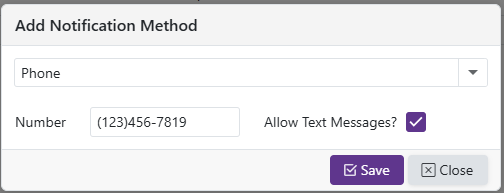
- Add a Phone Number
Verifying Notification Methods
Verifying an Email
Step 1: Click 'Verify' next to the Email Address you want to verify.

- A Verification Email is then sent out, here is an example:

Step 2: Click the 'View in App' link in the email

- The Email is now verified.
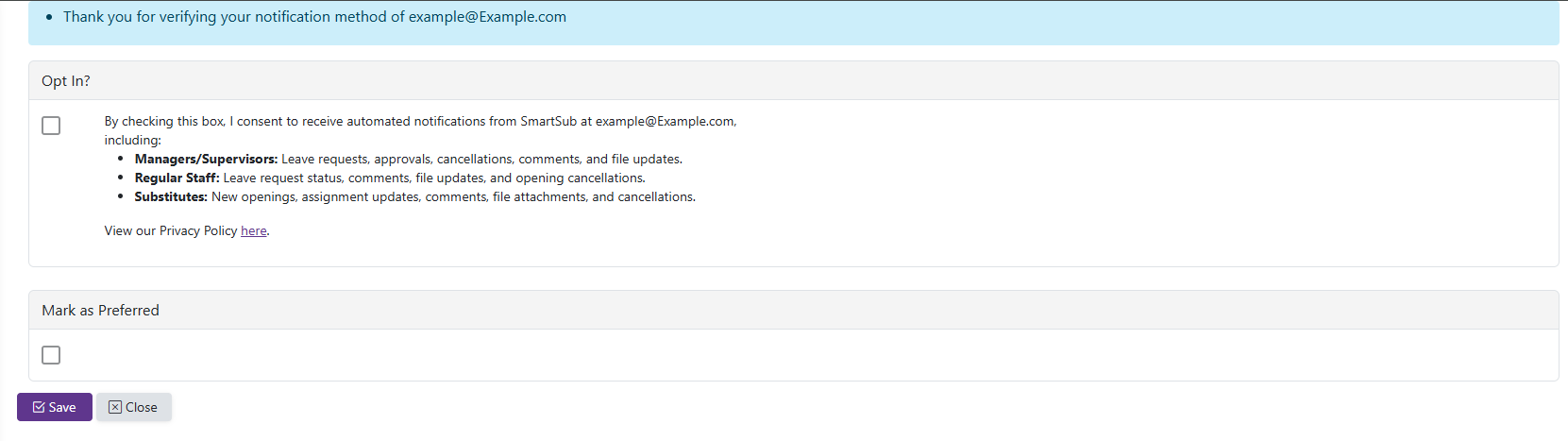
- In the notification methods grid, the user can now Opt-In and select if this method is Preferred.

Verifying a Phone Number
Step 1: Click Verify next to the Phone Number you want to verify.

- A text message is then sent out with a verification code, here is an example:
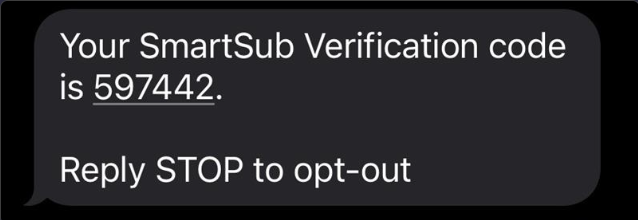
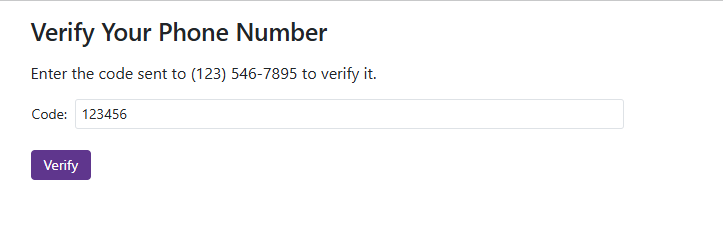
Step 2: Enter the verification Code into SmartSub, and click 'Save'
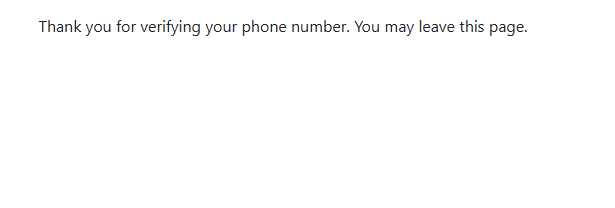
- The Phone Number is now Verified
- In the notification methods grid, the user can now Opt-In, select if this method is Preferred, and also choose to allow texts (allow Text is required to receive SMS messages).

Preferred Notification Methods
- Clicking the checkbox in the 'Preferred' column for a Notification Method allows users to toggle their preferred notification methods. Notifications will be sent using the selected methods only if they are Verified and Opted-In. For phone notifications, Allow Texts must also be enabled to receive text messages.
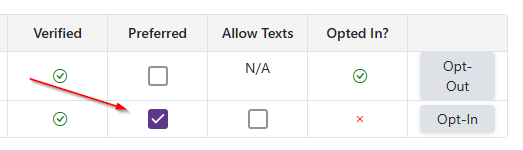
Allow Text (Phones Only)
- Clicking the checkbox in the 'Allow Texts' column for a Notification Method enables users to toggle text message permissions. To receive text message notifications, the phone must meet the following criteria: it must be Verified, set as Preferred, have Allow Texts enabled, and be Opted-In.
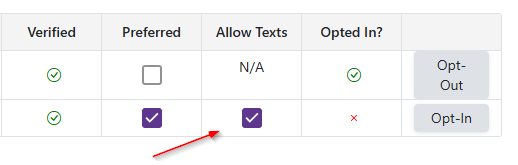
- Here is an example of a Phone method that is eligible to receive text message notifications.

Opting In/Opting Out
Opt-In
- A Notification method must be verified in order to Opt-In
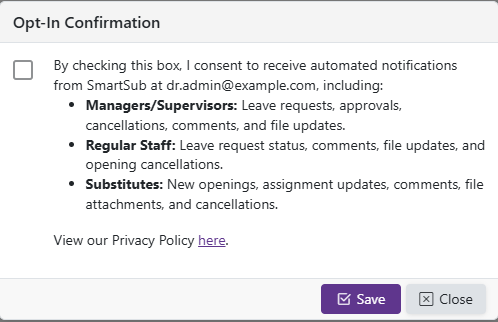
Step 1: Click the Opt-In button for the Notification Method you wish to enable and start receiving notifications.

| Phone | |
|---|---|
 |
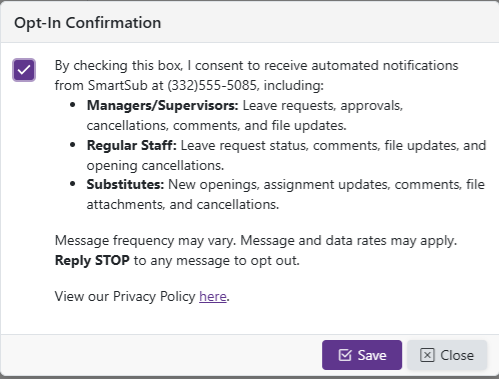 |
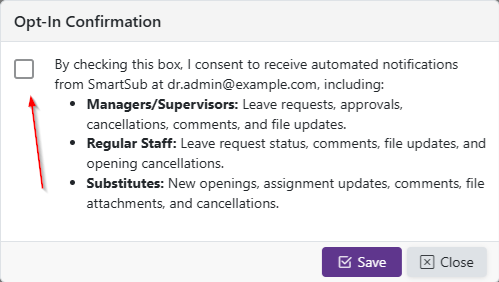
Step 2: Confirm by checking the box and clicking 'Save'
| Phone | |
|---|---|
 |
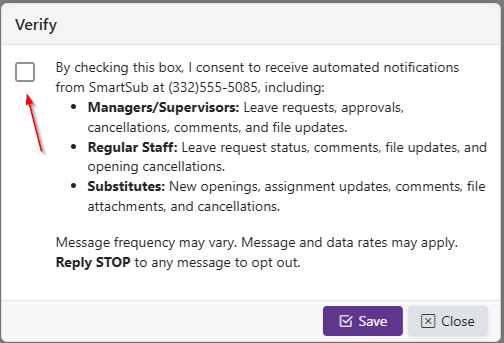 |
- Notifications are now enabled for this method.
Opt-Out
Step 1: Click the Opt-Out button for the Notification Method you wish to disable and stop receiving notifications.

| Phone | |
|---|---|
 |
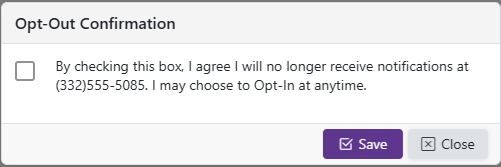 |
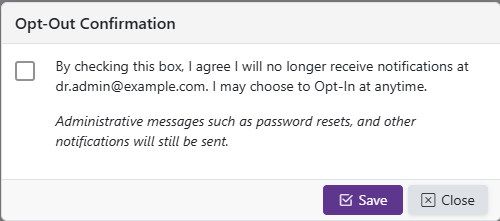
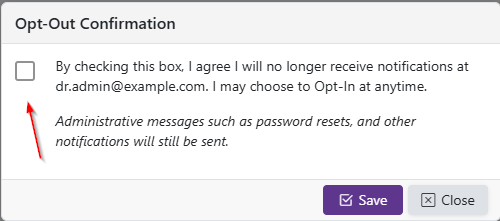
Step 2: Confirm by checking the box and clicking 'Save'
| Phone | |
|---|---|
 |
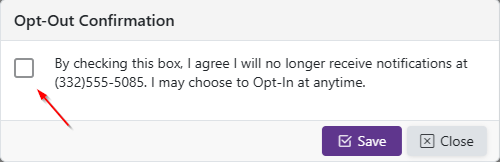 |
- Notifications are now disabled for this method. Administrative messages such as password resets, and other notifications will still be sent.
Browser Push Notifications
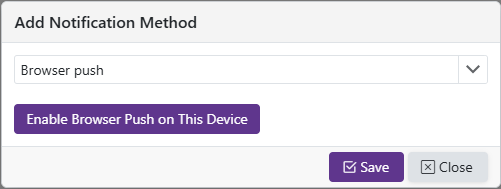
After enabling Browser Push Notifications, users will receive notifications directly in their web browser. This feature allows for real-time updates and alerts without needing to check email or phone messages.