My Openings
The My Openings displays openings generated from approved leave requests submitted by the user. This feature provides a quick and convenient way to track and manage personal openings.
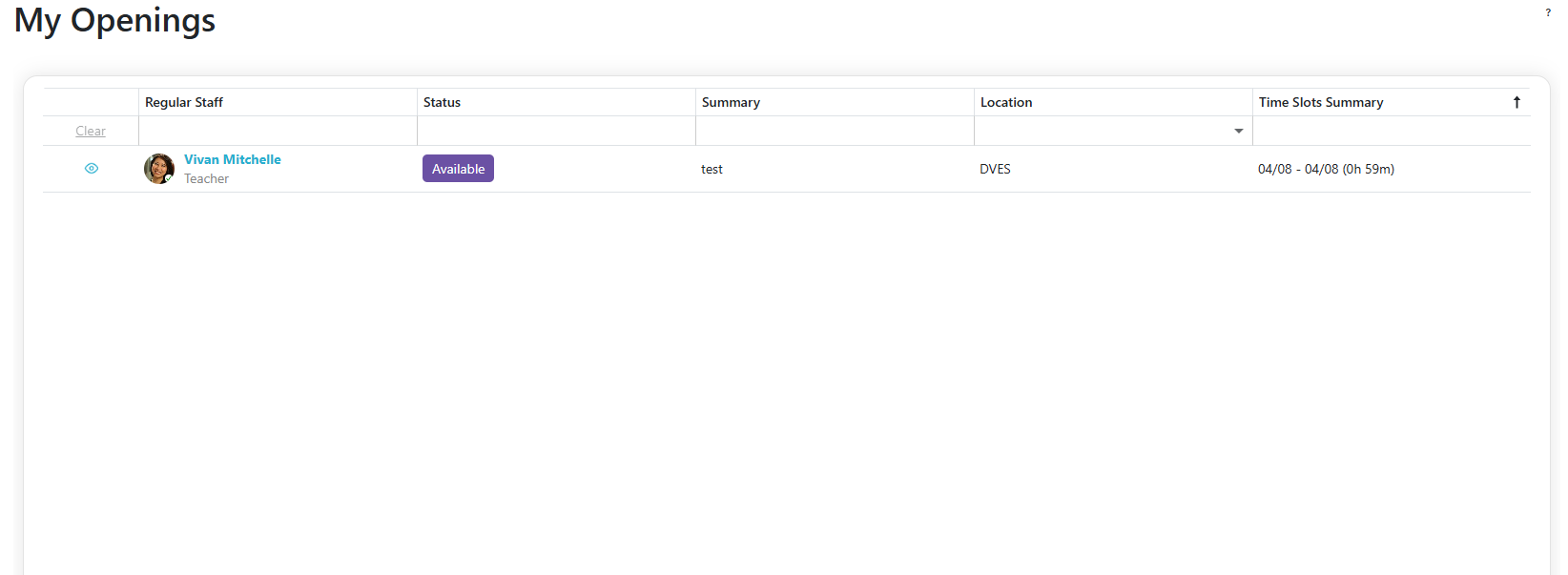
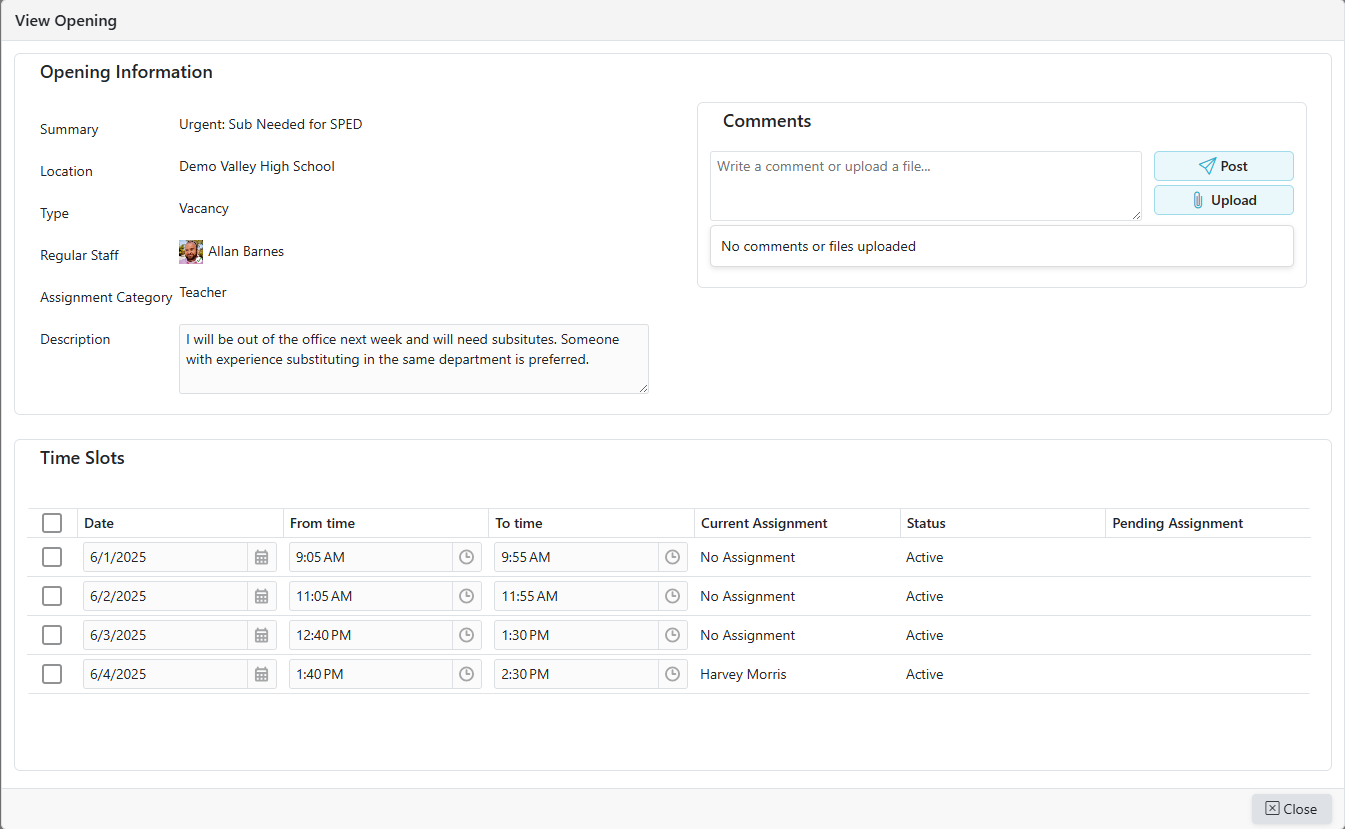
View Opening Details
- Click the
 icon to view the opening details.
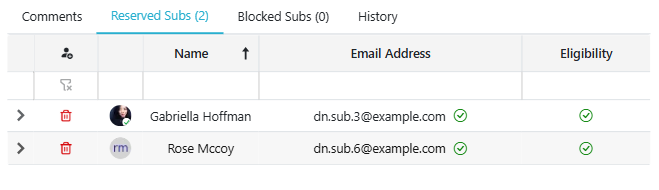
Reserved Subs
- If the opening has reserved substitutes, a Reserved Subs tab appears on the opening details, showing who it is reserved for. The tab label shows how many.
-
This list is read-only for you. Your manager or an administrator decides who an opening is reserved for, so there is no way to add or remove names here.
-
While the list has at least one name, only those substitutes are notified about the opening. Every other substitute sees it under their Ineligible Openings.
Filtering
Filtering Options
- Some columns support filtering; some use dropdowns while others accept text input (you can adjust how those text filters behave)
| Filter Option | Description |
|---|---|
| Starts With | Matches values that begin with the input text. Example: "Pro" matches "Product" |
| Ends With | Matches values that end with the input text. Example: "Pro" matches "MicroPro" |
| Equal | Matches values that exactly match the input. Example: "Admin" matches "Admin" only |
| Contains | Matches values that contain the input text anywhere. Example: "Pro" matches "Product" and "MicroPro" |
| Less Than | Matches values less than the input (for numbers, dates, etc.). Example: 50 matches 10 and 49 |
| Less Than or Equal | Matches values less than or equal to the input. Example: 50 matches 50 and 49 |
| Greater Than | Matches values greater than the input. Example: 50 matches 51 and 100 |
| Greater or Equal | Matches values greater than or equal to the input. Example: 50 matches 50 and 60 |