Staff
- The Staff section allows administrators/managers to manage staff members assigned to a specific location, including adding, promoting, and changing their status.
Path 1: Location Admin -> Manage Location -> Staff
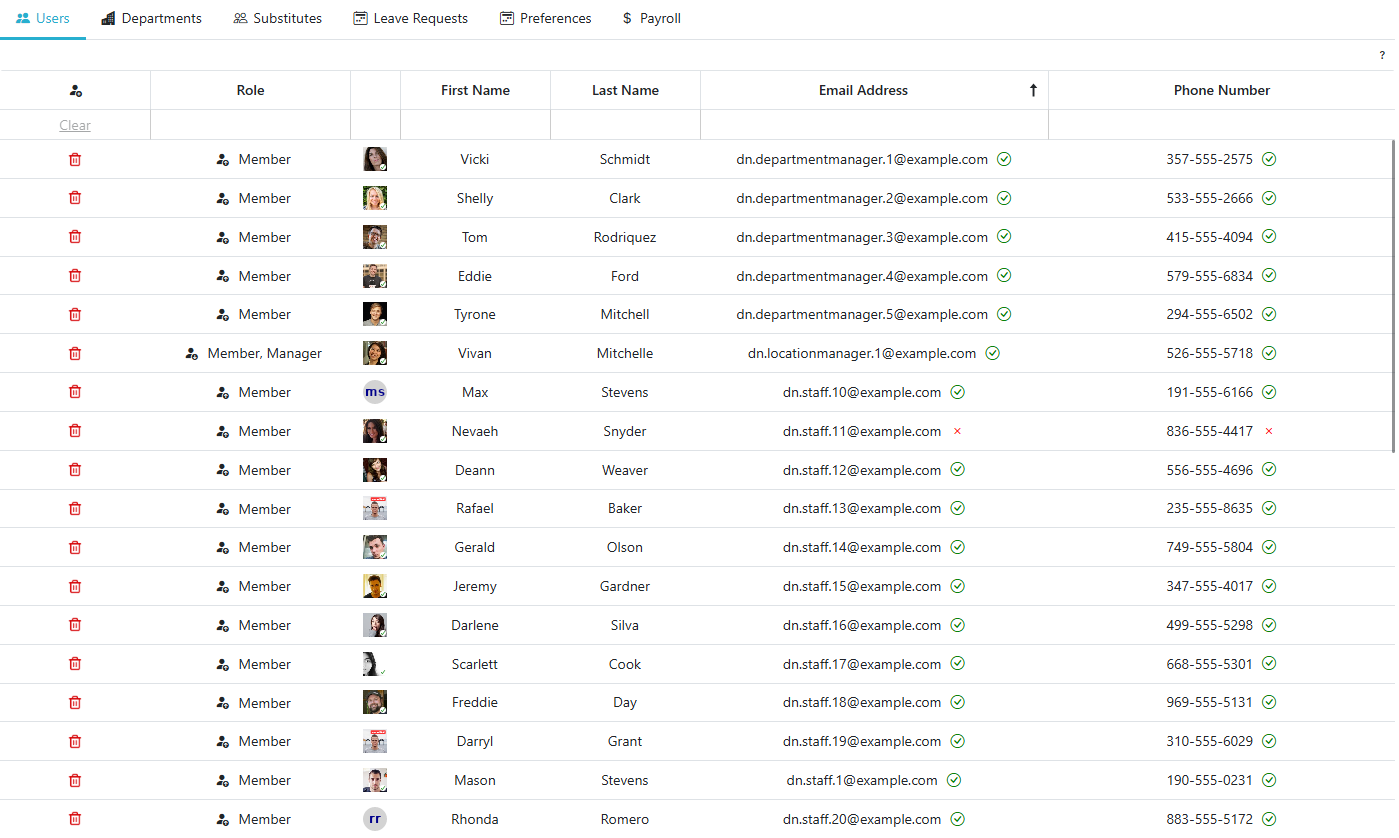
Path 2: Regular Staff -> Manage Regular Staff -> Locations -> Staff
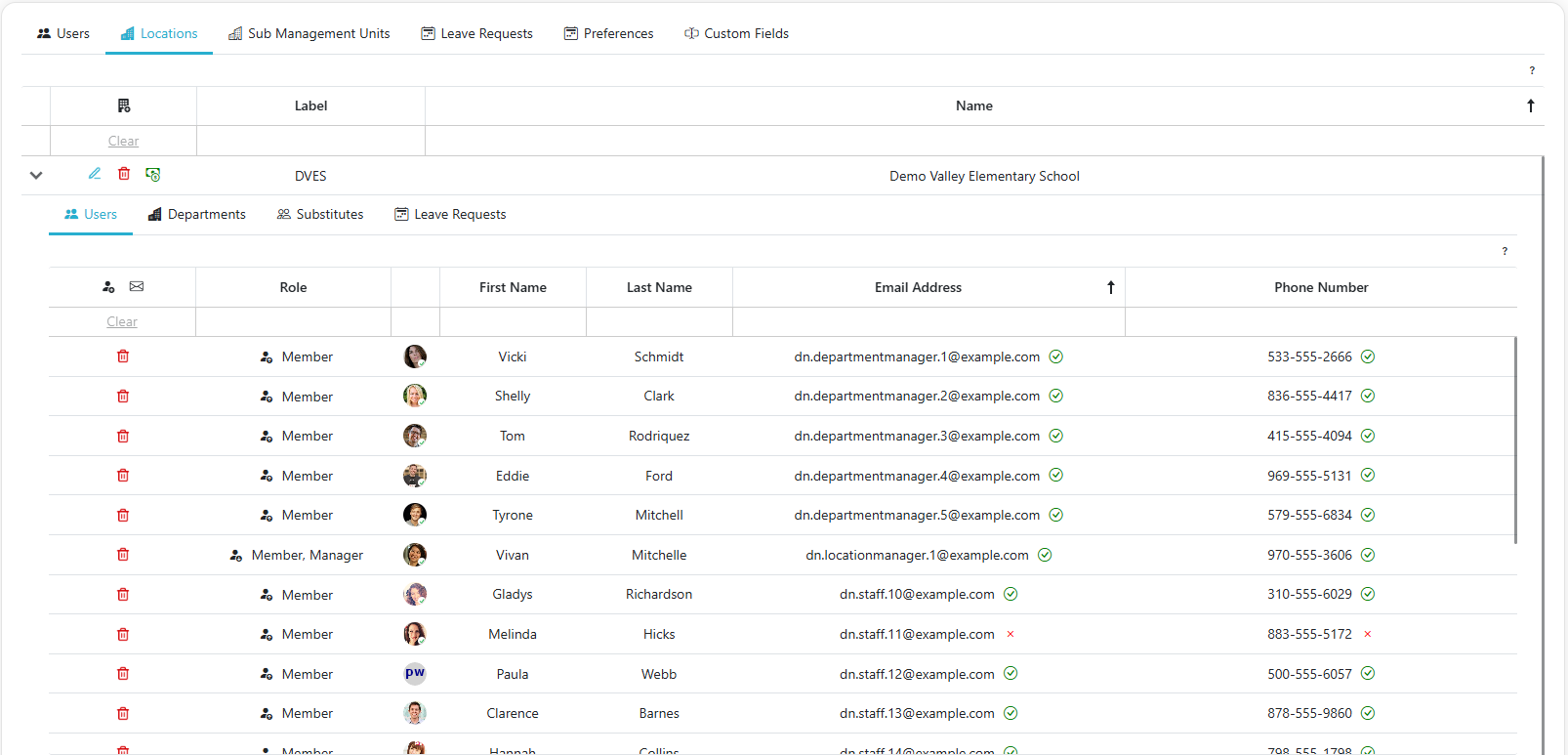
Path 3: Client Admin -> Regular Staff -> Locations -> Staff
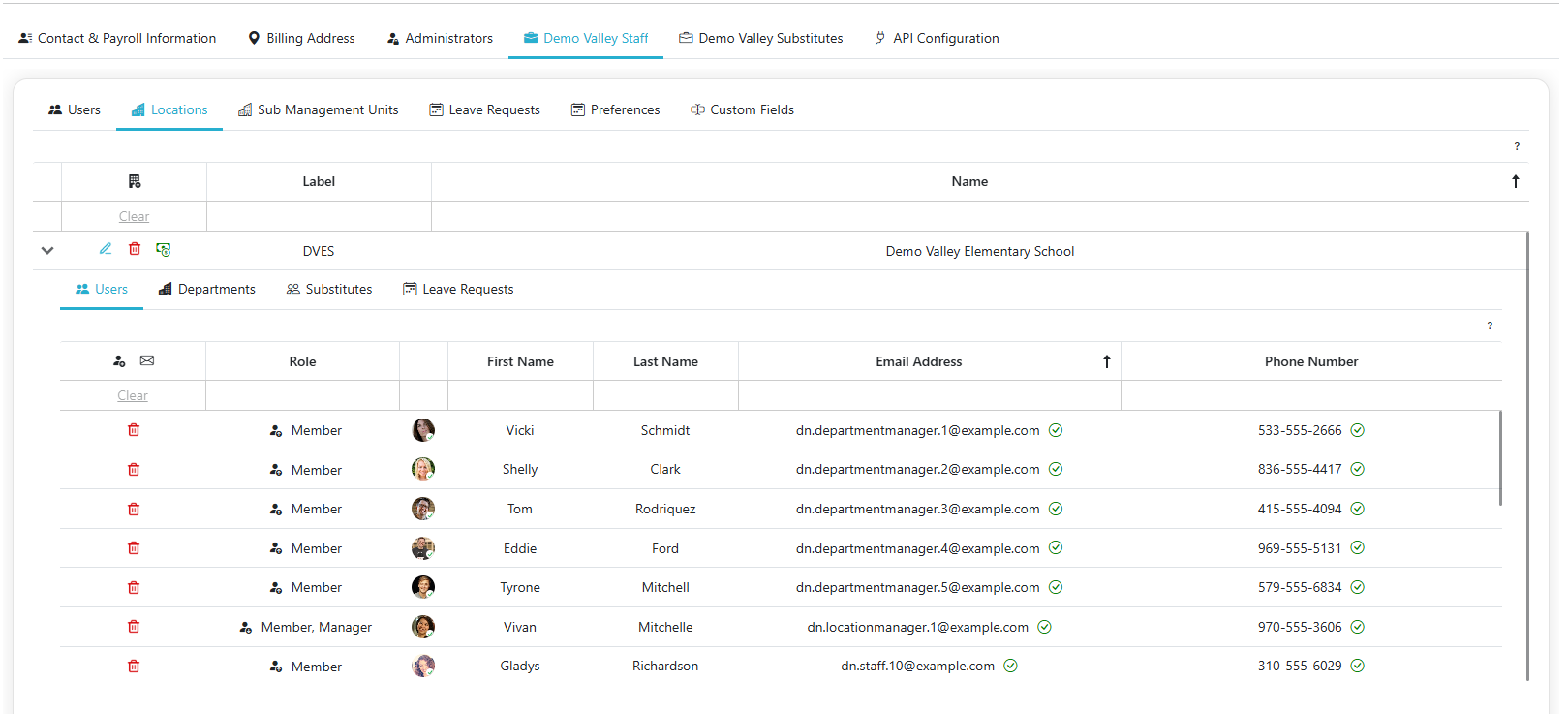
Adding A Staff Member To A Location
- Click the
 to add a new regular staff member to the selected location.
Managing a Regular Staff Member's Roles
- Each regular staff member's roles are shown as a set of tags in the Role column. Member is always present and can't be removed.
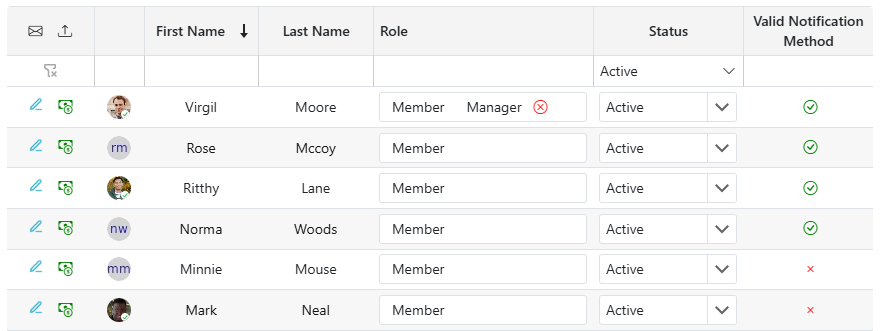
- To give a staff member manager permissions, click into the Role field and select Manager from the dropdown.
-
To remove the Manager role, click the x on that role's tag.
-
Selecting Coordinator instead of Manager gives the staff member full access to this location's openings, assignments, leave requests, and attendance — the same as a Manager — but the Staff, Departments, and Substitutes tabs on this screen become view-only for them (no adding, editing, or removing), and they won't see the Settings or Payroll tabs at all.
Changing a Regular Staff Member's Status
- Each staff member has a Status dropdown (Active, Inactive, or Terminated) instead of an outright removal action.
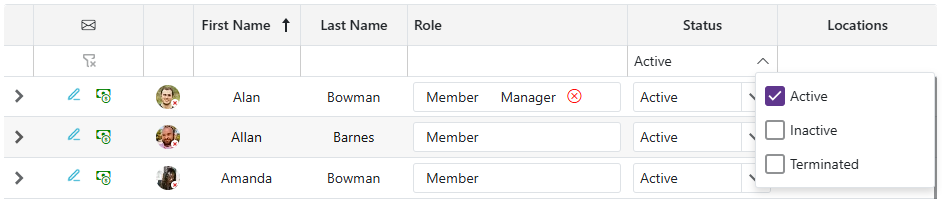
- Use the Status filter above the grid to choose which statuses to show — it defaults to Active only. Select Inactive and/or Terminated to include them.
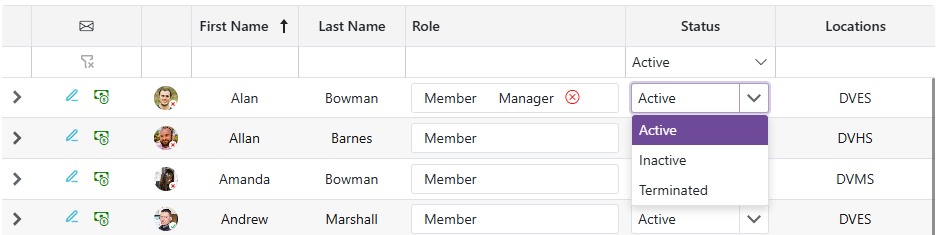
- If you move a staff member out of Active status while they still have active openings or pending leave requests, the change is rejected: "You cannot remove this staff member because they have active openings or pending leave requests, please resolve those before removing them from [unit name]."