Settings
- The Settings section allows users to customize settings such as Enable Leave Request Feature and Priority Substitute Notification Levels.
- After editing the preferences, click ‘Save’ to apply and save your changes.
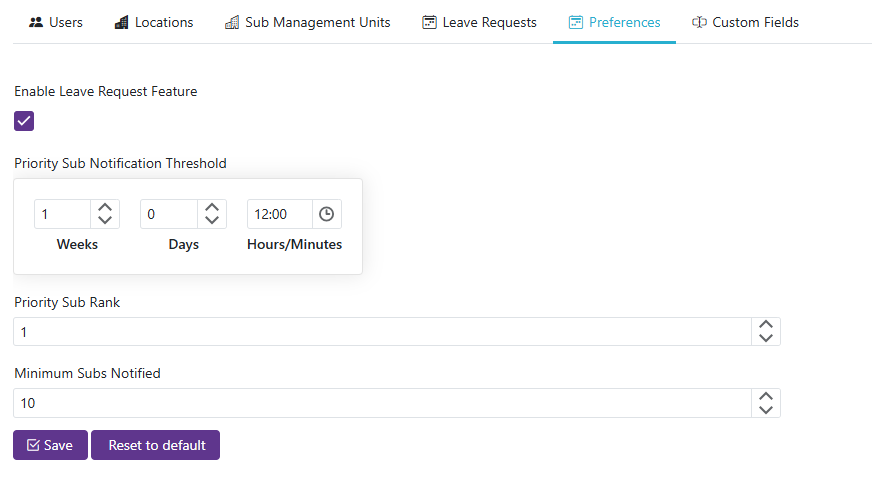
- The Enable Leave Request Feature should be enabled if using leave requests inside of SmartSub, if using an external leave request system like SCView the leave requests should be disabled in SmartSub. When disabled, leave requests will be hidden inside of SmartSub.
Priority Substitute Notifications
Why use this? By default, every eligible substitute is notified about an opening at the same time. Priority Substitute Notification Levels let you give your most trusted substitutes — the ones ranked highest by staff and location preferences and by Ranking Weights — first chance at an opening before it opens up to everyone else.
Click Add Level to create a level. Levels are evaluated shortest-proximity-first: an opening uses the first level whose Opening Start Proximity still covers its start time, or the last (longest) level if it starts further out than all of them. With no levels configured, every eligible substitute is notified right away for every opening.
Each level has:
- Opening Start Proximity — how close to the opening's start time this level applies.
- Priority Rank — the minimum ranked score a substitute needs to be notified at this level. This is a score cutoff, not a position like "1st" or "2nd" — substitutes at or above it are notified first.
- Minimum To Notify — a floor on how many substitutes are notified at this level. If fewer substitutes meet the Priority Rank cutoff, SmartSub gradually lowers the cutoff and admits the next-highest-ranked substitutes until the minimum is met — notifying every eligible substitute if the minimum still can't be reached.
- Notify All Eligible — skips the rank cutoff and minimum, notifying every eligible substitute once an opening reaches this level. Checking this on a level with a short Opening Start Proximity reproduces the old "notify everyone once an opening is about to start" safety net.
Allow Staff To Block Substitutes
- Check Allow staff to block individual substitutes to let each staff member mark a substitute as Blocked in their own preferences, which keeps that substitute off the staff member's openings.
- Uncheck it to ignore staff-level blocks unit-wide. Any substitute a staff member has already marked as Blocked stays marked, but the block no longer has any effect on ranking or eligibility.
- Whenever a staff member has a substitute marked as Blocked, they'll see a message noting that blocking a substitute may not have an effect depending on district policy — this message appears regardless of how this setting is configured.