Admin Dashboard

Global Filters
Use the Global Filters toolbar to narrow the data shown on the tabs below. Filters apply as soon as you make a selection.

Depending on your role and what you have access to, the filter bar can include:
- All Staff Mgmt: filter to one Regular Staff Management Unit (RMU). Shown only if you have access to more than one.
- All Substitute Mgmt: filter to one Substitute Management Unit (SMU). Shown only if you have access to more than one.
- All Locations: filter to one location. If a Staff Mgmt Unit is selected, the list only shows its locations. Shown only if there is more than one location to choose from.
- All Departments: filter to one department. Shown only if more than one department is available for your current Staff Mgmt and location selection. Disabled until you select a location, unless only one location is available.
- Date Range: defaults to Next 30 Days. Choose another range, or Custom to enter Start and End dates.
Note: If you have access to only one Staff Mgmt Unit or location, that filter isn't shown and your data is limited to it automatically. A department is never selected automatically.
Note: Not every tab uses every filter. The opening charts use only Location and Date Range, the Substitute Attendance tab ignores Date Range, and the User Invitations tab isn't filtered.
Click the  (Reset filters) button on the left of the filter bar to reset all filters back to their defaults.
Charts
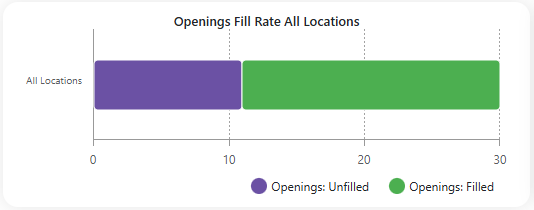
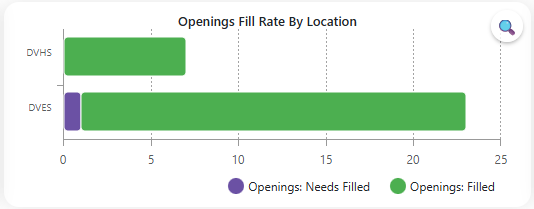
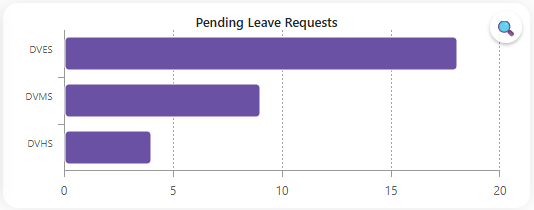
The dashboard consists of 3 charts: Openings Fill Rate All Locations, Openings Fill Rate By Location, and Leave Requests.
The charts sit in a Charts section above the tabs. Click the Charts header to collapse it and give the grid more room; click it again to expand it. SmartSub remembers your choice on this browser. Charts aren't shown on phones or narrow windows.

- Openings Fill Rate All Locations: counts time slots across all your locations, split into Filled and Needs Filled.
- Openings Fill Rate By Location: the same counts for each location. It shows the 4 locations with the highest share of unfilled time slots.
- Pending Leave Requests: shows employee leave requests that are still awaiting approval.
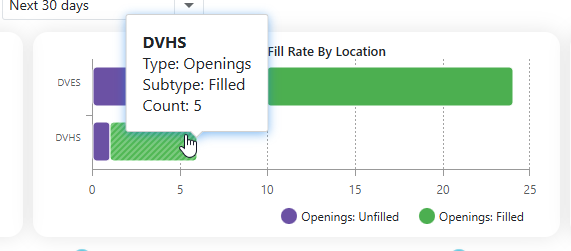
- Hovering over the bars in the graph displays additional details about the openings and leave requests for each location.
- Clicking the
 will expand the chart. The By Location chart shows the top 4 locations. Expanding the chart shows all of them.