Getting Started Guide for Substitutes
Welcome to  ! This guide covers the basics to get you started. As you become more comfortable with the system, you can explore additional features and settings.
What is SmartSub?
SmartSub is a website where you can:
-
Find substitute jobs at your school or workplace
-
Accept jobs that work with your schedule
-
Manage your personal information
-
Track your work assignments
Log In to SmartSub
Were you invited by a district or school? See Accepting Your SmartSub User Invitation for a step-by-step walkthrough of the invitation email and account setup.
Register a New Account or Sign In
- Go to SmartSub
- Click "Sign Up" or use Microsoft/Google SSO to register
- Fill in the registration form
- Click "Register"
Note: If you register with Microsoft or Google SSO, you won't need a password and will always log in using that SSO option.
Optional:
- Check "Remember Me" if you want the browser to keep you logged in
Login with Microsoft or Google
- Click the Microsoft or Google SSO button to log in with your existing account
If You Forgot Your Password
- Click "Forgot Password" and follow the instructions sent to your email
Complete Your Profile
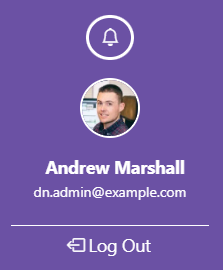
After logging in for the first time, you should set up your profile. This can be done by Clicking your name or profile image at the bottom left of the screen:
Set Your Notification Preferences
- Go to "Notification Methods" in your account
-
Add your email address:
- Click the
 button
 - Choose "Email"
- Enter your email address
- Click "Verify" and check your email
- Click the
-
Add your phone number for text messages:
- Click the button
- Choose "Phone"
- Enter your phone number
- Click "Verify" and enter the code you receive
- Click the
-
Choose how you want to be notified:
- Check "Preferred" for your favorite method
- Check "Allow Texts" if you want text messages
- Click "Opt-In" to receive notifications
Add Your Photo (Optional but Recommended)
- Go to "Profile Image" in your account
- Click "Choose File" or drag your photo to the box
- Upload a clear photo of yourself
- Click "Submit" (your photo will need approval)
Choose Your Assignment Categories (Optional but recommended)
- Go to "Assignment Categories" in your account
-
Check the boxes for job types you're qualified for:
- Teacher
- Teacher Aide
- Bus Driver
- Custodian
- Office Staff
- (and others available to you)
-
Click "Submit"
Note: Choose the job types you're interested in. Your administrator will see your preferences and determine which positions you're actually qualified for.
Add Times You're NOT Available (Optional)
- Go to "Schedule" in your account menu
- Under Unavailability Periods click the button
- Enter start and end dates you're not available (vacations, appointments, etc.)
- Include a description (optional) to help your administrator understand why you're unavailable
- Click "Save"
- Enter as many unavailability periods as you need
- Full Instructions for Completing Your Profile can be found in the Substitute Profile Setup Guide.
Administrator Approval
- After completing your profile, your administrator will review your information. Before you can accept jobs you will need to be assigned to a location and have your qualifications approved.
Finding and Accepting Jobs
NOTE: Before you can receive notifications about available openings, you need to set up your notification preferences and make sure your profile is complete.
Check for Available Jobs
- Go to your Dashboard (home page after logging in)
- Click the "Available Openings" tab
- You'll see a list of jobs available to you
Accept a Job
- Click the
 button next to a job you want
 -
Review the job details:
- Date and time
- Location
- Type of work
- Special instructions
-
Select the time slots you want to work:
- Check the boxes next to the times you can work
- You can accept some or all of the time slots
-
Click "Save"
Congratulations! You've accepted your first job.
View Your Accepted Jobs
- Go to the "My Assignments" tab on your dashboard
- You'll see all your upcoming work
- Click
 to add the job to your phone's calendar
Attend Your Assignment
Before You Go
- Check your assignment details in the "My Assignments" tab
- Note the location, time, and any special instructions
- Contact the staff or school with any questions
If You Need to Cancel
Sometimes things come up and you can't work:
- Go to "My Assignments"
- Click the button next to the job
- Select the time slots you need to cancel
- Click the ✅ to uncheck it
- Click "Save"
Please cancel as soon as possible so someone else can take the job.
Common Questions
How do I know if there are new jobs available?
- You'll get email or text notifications (if you set them up)
- Check the "Available Openings" tab regularly
- New jobs can be posted at any time
What if I can't find any jobs?
- Your administrator needs to set up your qualifications
- Location administrators at schools/workplaces where you want to work also need to add you and set your eligibility
- Contact your administrator - they may need to finish setting up your account or reach out to location administrators
How do I get paid?
- Your workplace will handle payroll
- SmartSub tracks your hours automatically
- Contact your administrator for payroll questions
I forgot my password. What do I do?
- On the login page, click "Forgot Password"
- Enter your email address
- Check your email for reset instructions
Who do I contact for help?
- For account or technical problems: Contact your SmartSub administrator
- For workplace questions: Contact the main office of your workplace
- For urgent day-of-assignment issues: Call the workplace directly
Quick Tips for Success
✅ Keep your profile updated - Change your contact info and availability when needed
✅ Check SmartSub regularly - New jobs are posted regularly
✅ Be reliable - Only accept jobs you can actually do
✅ Cancel early - If you must cancel, do it as soon as possible
✅ Be professional - Arrive on time and follow workplace rules
✅ Ask questions - When in doubt, contact the workplace or your administrator
Need More Help?
- Look for the '?' help icon on any page for specific guidance
- Contact your administrator for account setup or permission issues
- Review the full user guides for detailed instructions on specific features