Notification Preferences
The Notification Preferences page controls what you are notified about, which of your notification methods each notification goes to, and whether it can reach you during your quiet hours.
Only notification methods you have verified appear here. Add and verify them on the Notification Methods page first.
Quiet Hours
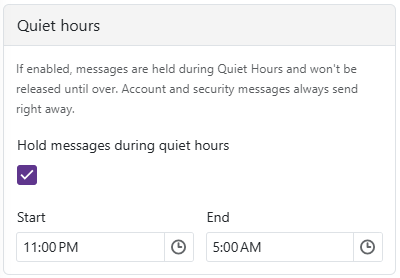
- Select Hold messages during quiet hours, then set a Start and an End time. If you have not set them before, they fill in as 11:00 PM to 5:00 AM and you can change them.
- Messages that would arrive during your quiet hours are held and released once the quiet hours end.
- Account and security messages always send right away and are never held.
Notification Categories
Each category is a card. You see only the categories that apply to your role.
- Opening: openings you could be notified about.
- My Openings: openings created to cover your own absences. Regular staff only.
- Daily Digest: the nightly summary email.
Each card has three settings:
- On: clear the checkbox to stop every notification in that category.
- Send to: choose My preferred methods to use the methods you marked as preferred, or Only the methods I pick and then choose them from the list.
- During quiet hours: choose Hold until quiet hours end, or Send right away if that category is urgent enough to interrupt you.
Per-Event Settings
Opening and My Openings break down into individual events. Tap the card header to expand the category.
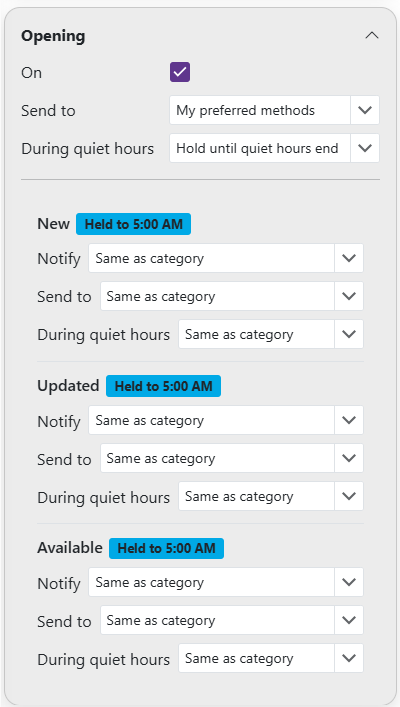
- Opening events are New, Updated, and Available.
- My Openings events are New, Status Changed, and Canceled.
Each event has the same Send to and During quiet hours settings as its category, plus a Notify setting. Every one of them offers a Same as category choice, which leaves that event following the category. Notify also offers Always notify me and Never notify me.
A badge beside the event name shows what that event will actually do once your settings are worked out: Never, Sends anyway, or Held to your quiet hours end time.
What You'll Get
- Below the cards, What you'll get restates your settings for each category in plain language, including any per-event exceptions. Use it to check the result without working back through every dropdown.
Saving
- Tap Save when you are done.
- If quiet hours are on, both the start and end time are required.
- A category set to Only the methods I pick needs at least one method selected before it will save.