Manage Timesheets
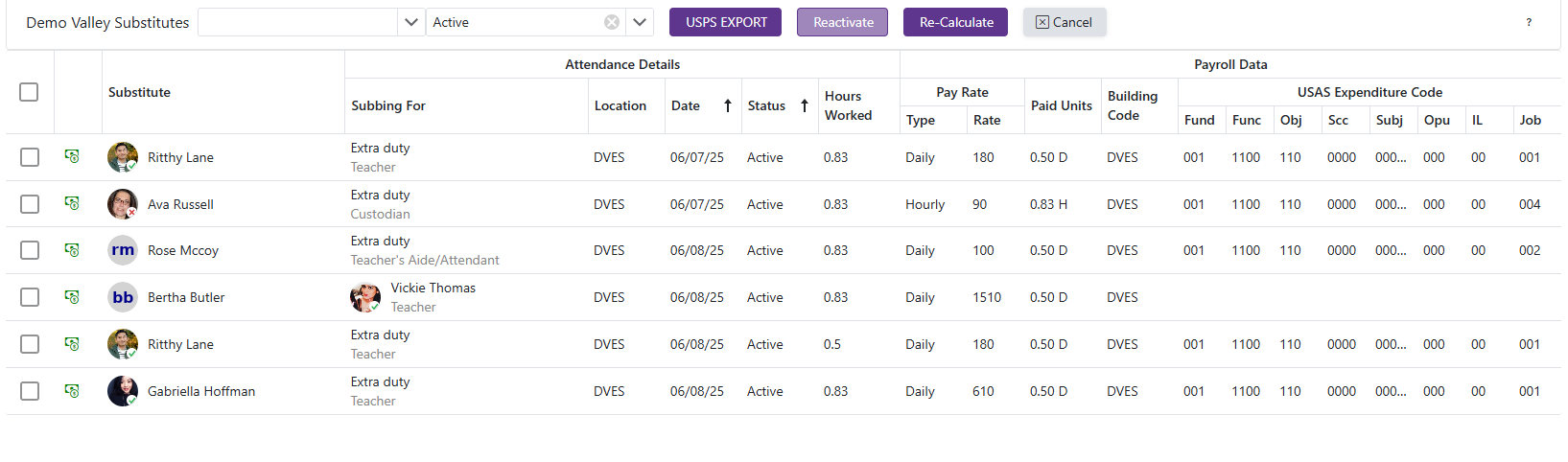
-
Click the
 to edit any payroll information for that row. Most of the payroll information should auto-populate using the Mapping Rules set on the 'Timesheet Configuration' tab under Client Admin and also the payroll information for each substitute's, regular staff member's, and location's payroll information. This grid is populated when a substitute's attendance has been verified.
 -
A Pay Period can be selected by changing the Date filter, if you need a specific date range please select 'Custom' and enter in the desired date range.
-
Most payroll fields throughout the site are optional, but we need enough information entered to pay the Substitute.
Exporting To Payroll System
- Select the checkboxes of the rows you wish to Export
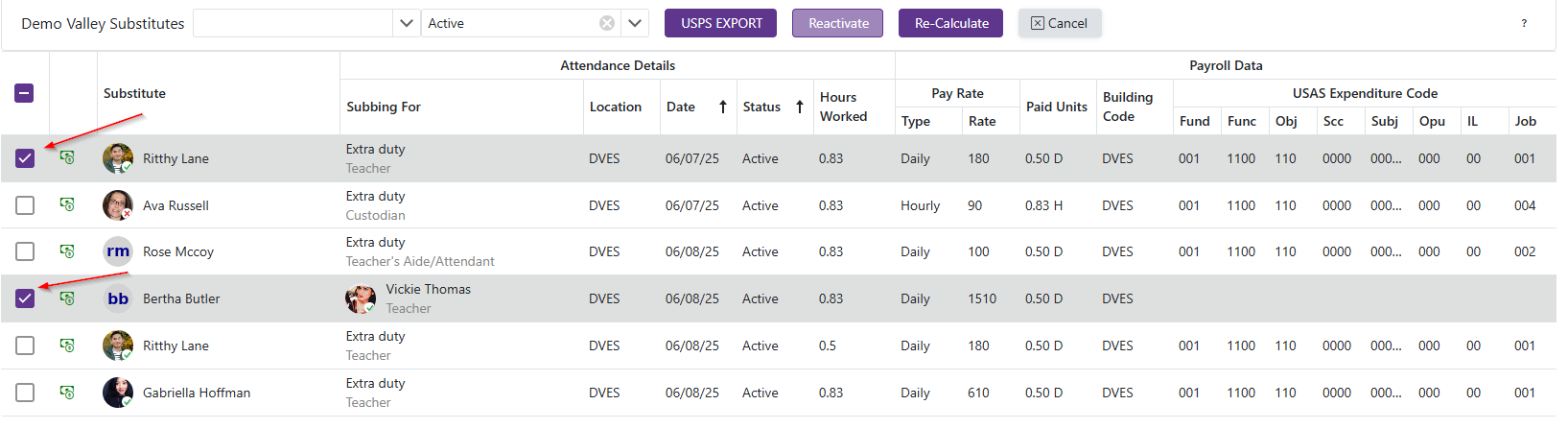
- Click the
 button and choose a filename and if you would like to mark these entries as 'Paid'
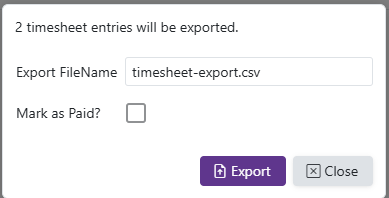
- Clicking
 will download a csv file
Requesting A Transfer
-
For payroll systems that accept timesheets directly, a Request FIS Transfer button appears beside the export button. It tells the payroll system that entries in Pending status are ready to collect, instead of downloading a file.
-
The button only appears for payroll systems that support this. CSIU/FIS is the only one today, and the button takes that system's name.
-
At least one Event Notification Target must be configured for the client first. Without one the request is refused, nothing is sent, and you are told to configure a notification method. See API Configuration to add one.
Reactivating Entries
-
Reactivating returns an entry to the New status so it can be corrected and then exported or approved again. It also clears any messages the payroll system left on the entry.
-
Use the status filter to show the entries you need. It accepts more than one status at a time, and clearing it shows everything.
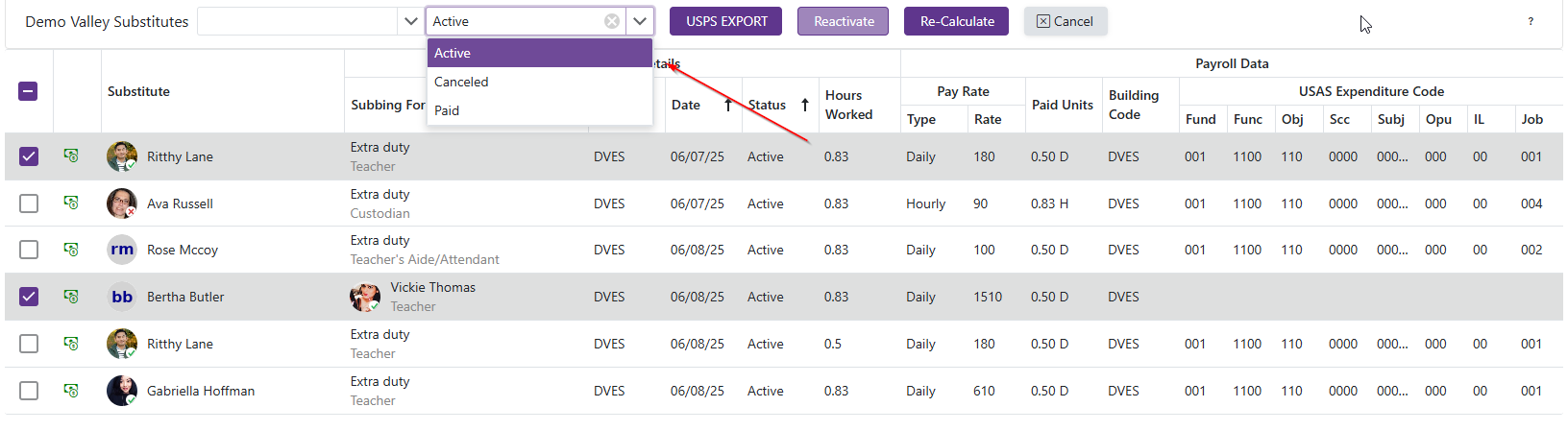
- Select the checkboxes of the rows you wish to Reactivate
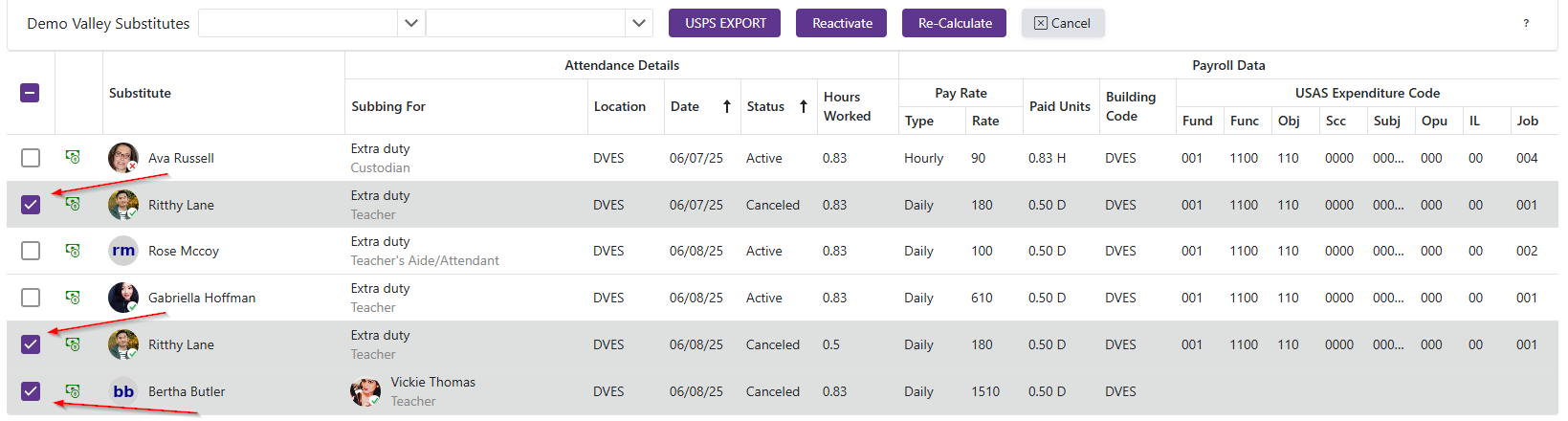
- Click the
 button to Reactivate those entries
Note: Canceled, Rejected, and Pending entries can be reactivated. Paid entries cannot, and neither can entries already set to New. The Reactivate button stays disabled unless every selected row is in one of the three reactivatable statuses, so a mixed selection will not enable it.
Re-Calculating Entries
- Select the checkboxes of the rows you wish to Re-Calculate
- Click the
 button to Re-Calculate the payroll info for those entries. Recalculating will update the selected rows to apply any changes made to the sub's payroll data, location's payroll data, and mapping rules that were updated after the entry has already been added to the manage timesheets page. It uses the payroll data at the time the attendance was verified when being added to the manage timesheets page, any changes made after that will require a Re-Calculate for them to be applied.
Canceling Entries
- Select the checkboxes of the rows you wish to Cancel
- Click the
 button to Cancel those entries