Creating An Opening
Most openings are created automatically. When a leave request has Substitute Required selected, the Opening Information tab becomes available, and once an approver approves the request an opening is created from the details on it: time slots, title, description, and assignment category.
This page covers creating one by hand.
Step 1: Start Creating a New Opening
- Click the Add button to begin.
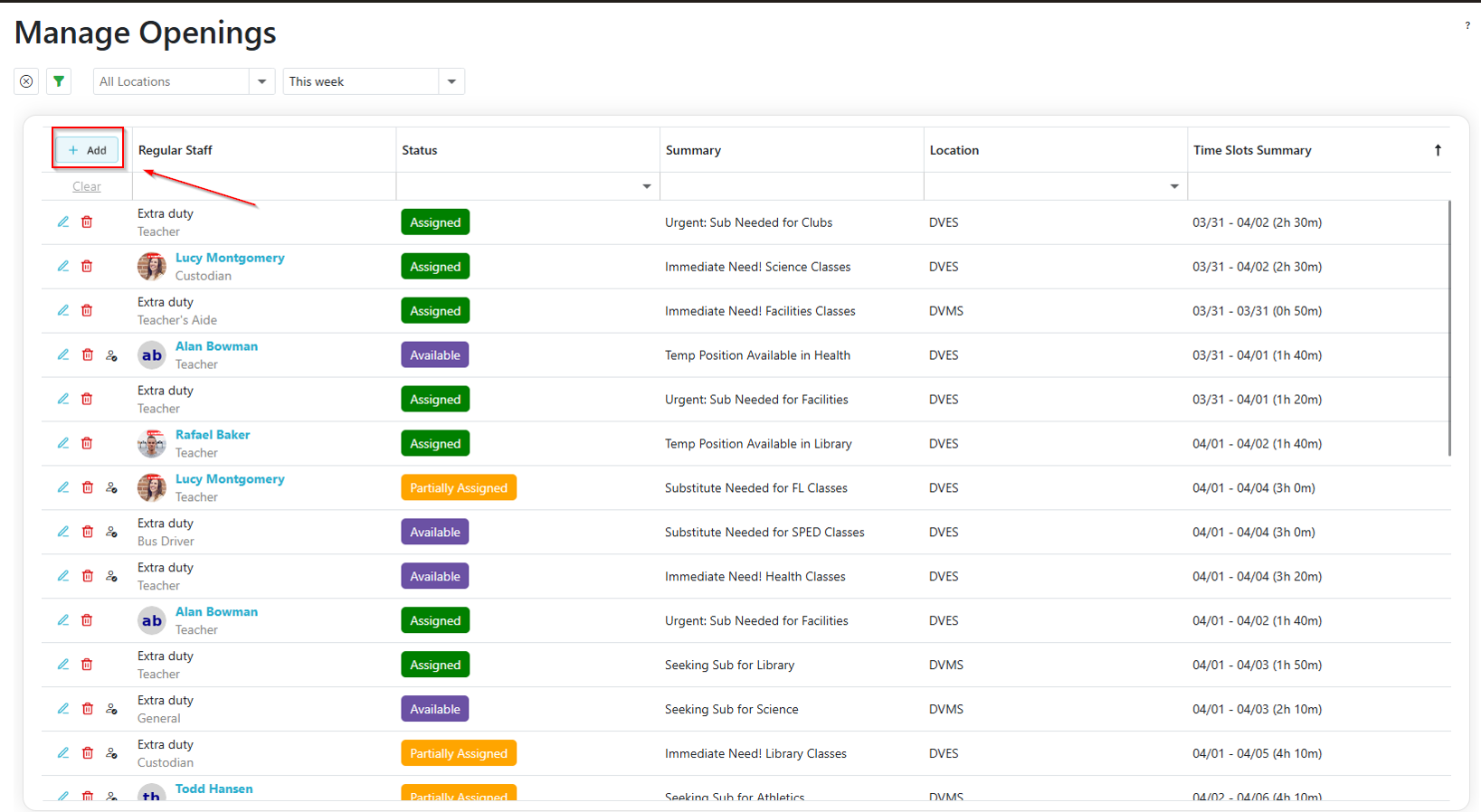
Step 2: Fill In the Opening
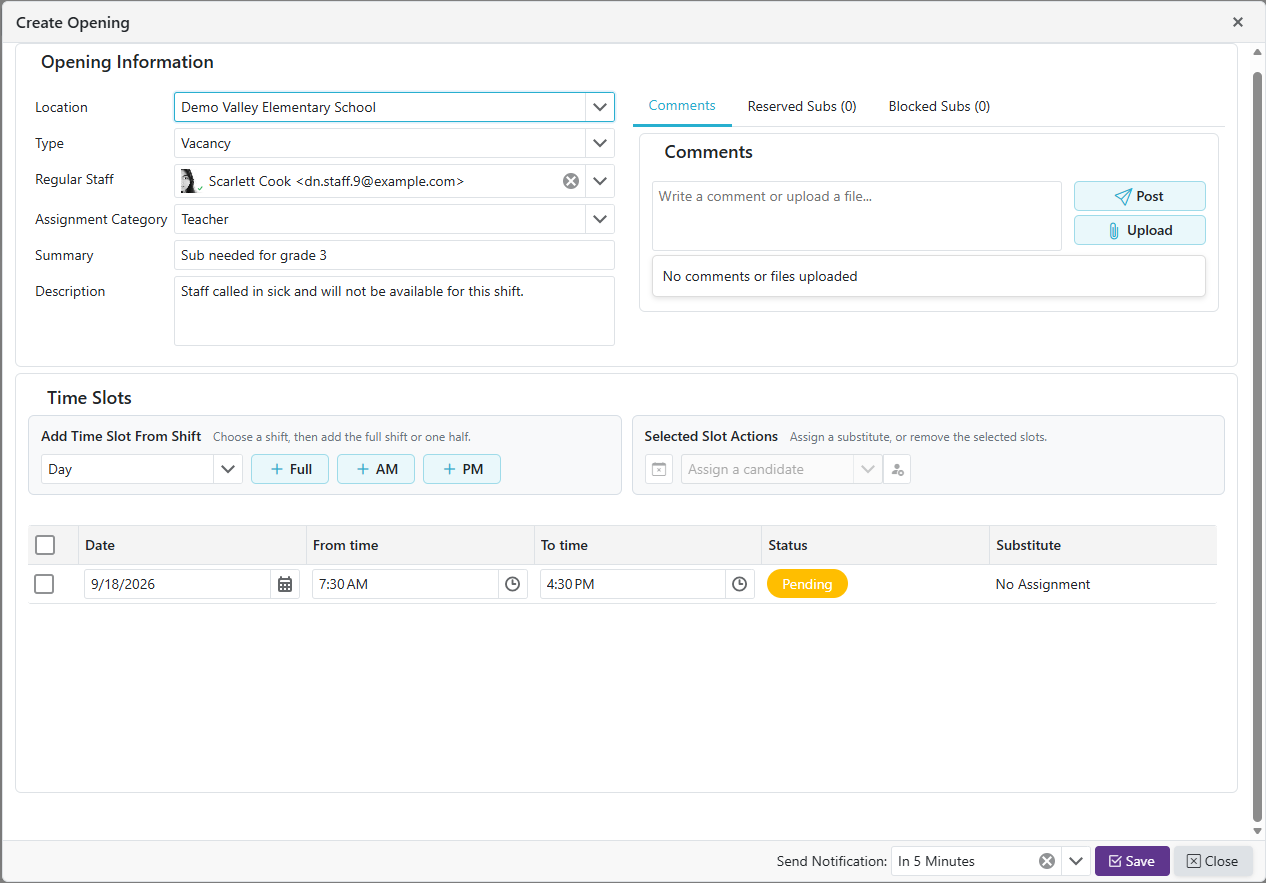
Work down the form in order. Location comes first because the rest of the form depends on it, including the shift picker used to add time slots.
- Location: the building the opening is for.
- Department: if the location uses departments, choose one. Depending on how the location is set up, a department may be required before the opening can be saved.
- Type: Vacancy or Extra Duty.
- Regular Staff: the staff member being covered. Only applies when the Type is Vacancy.
- Assignment Category: the category the substitute must be authorized to work.
- Summary: a brief description of the opening.
- Description: the detail a substitute needs to understand what the role involves.
Note: If a default Summary and/or Description has been configured for the selected staff member (see "Adding A User To A Location" for your role), those fields are pre-filled when you select them. You can still edit either before saving.
Step 3: Add Time Slots and Assign Substitutes
Time slots are added from the location's shifts, so the times come from the shift itself rather than being typed in.
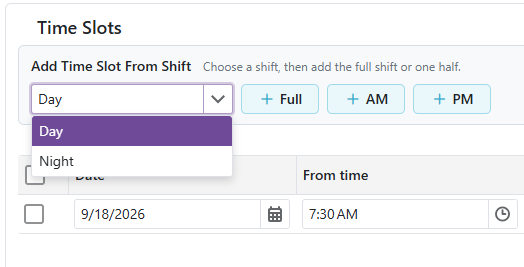
a. Choose a shift, then add the full shift or one half.
- If the location has more than one shift, pick one from the Select a shift dropdown first. Until a Location is chosen on the opening, the dropdown reads Select a location first and cannot be used.
- If the location has only one shift, there is no dropdown. The control simply reads Add Slot and you go straight to the buttons.
b. Click one of the split buttons to add the slot:
- Full: the whole shift, from its start time to its end time.
- AM and PM: the two halves of a shift that runs from morning into the afternoon.
- 1st Half and 2nd Half: the two halves of a shift that does not cross midday.
A button is disabled when the selected shift does not offer that split.
c. Repeat for as many slots as the opening needs. Each slot is listed with its Date, From time, To time and Status.
Selected Slot Actions
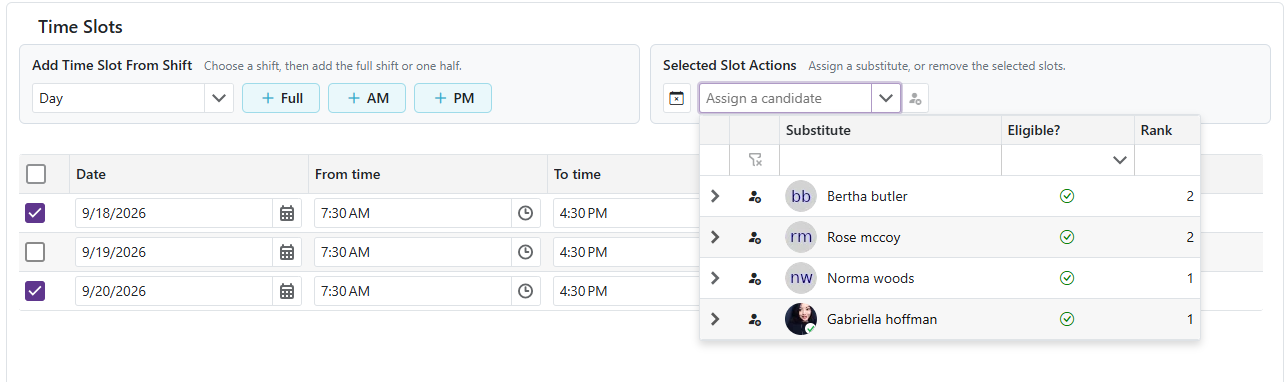
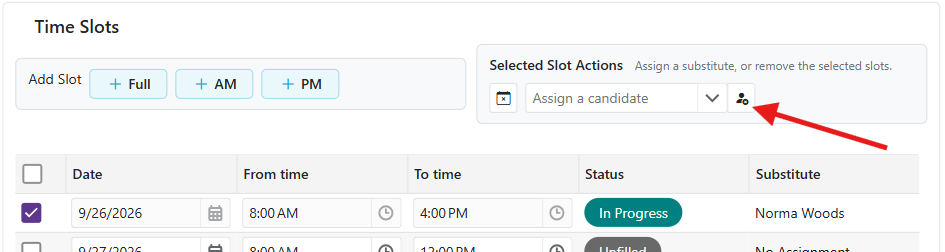
Select the checkbox on one or more time slot rows, then use the Selected Slot Actions toolbar.
-
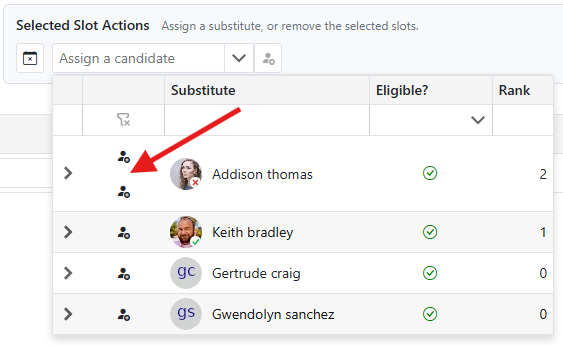
Assign a substitute: open the Substitute picker in the toolbar and choose one. They appear in the Pending Action column, meaning they will be assigned once you click Save. To add more slots for the same substitute, select those rows too. To assign someone different, clear the picker, select the slots you want, then choose the other substitute.
- If a substitute is authorized at the location through more than one Substitute Management Unit (SMU), the picker shows one button per SMU for that substitute, labeled with the SMU's name, instead of a single select button. Click the SMU the assignment should go through.
-
Unassign a substitute: select the slot rows and click the Unassign Substitute icon.
-
Remove a time slot: select the slot rows and click the Remove TimeSlot icon. It is disabled for slots that cannot be canceled.
Step 4 (Optional): Reserve This Opening For Specific Substitutes
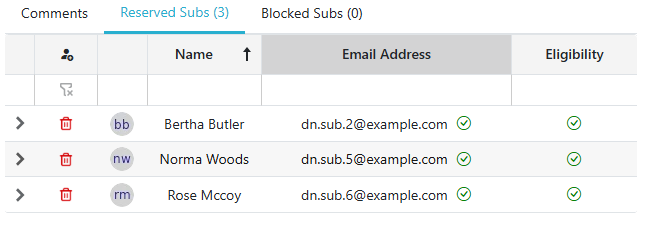
- Go to the Reserved Subs tab. The tab label shows how many substitutes are currently reserved. This tab appears once a Location has been selected.
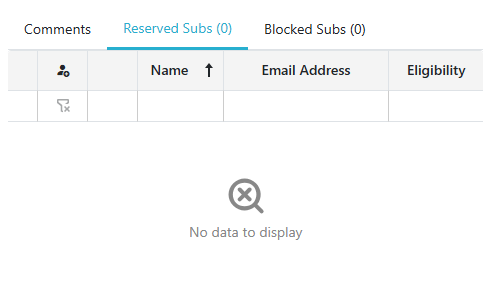
- Click the
 button to open the Add a reserved sub popup, which lists the substitutes considered for this opening and whether each one is currently eligible.
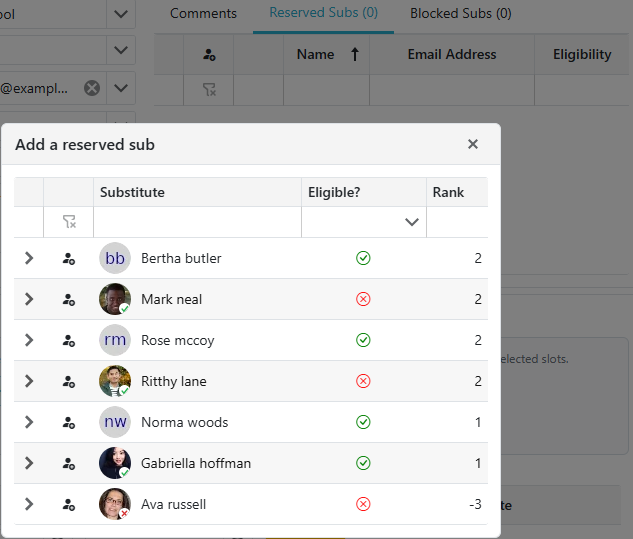
- Click the button on a substitute's row to reserve the opening for them. Repeat to reserve it for more than one substitute.
-
Once the list has at least one name, the opening is reserved. Every other substitute is restricted from it: they are not notified about it, and it appears under their Ineligible Openings rather than Available Openings. A manager can still assign a substitute who is not on the list.
-
Reserving a substitute does not make them eligible on its own. The Eligibility column shows whether each reserved substitute currently qualifies for the opening. Expand the row to see the reasons.
-
To remove a reservation, click the
 icon next to their name. Clearing the list entirely returns the opening to normal.
 -
If a reserved substitute declines the opening, they are removed from this list and added to the blocked list. They are never on both. Undeclining lifts their block but does not restore the reservation, so add them back here if you still want the opening held for them.
Step 5 (Optional): Block a Substitute From This Opening
- Go to the Blocked Subs tab.
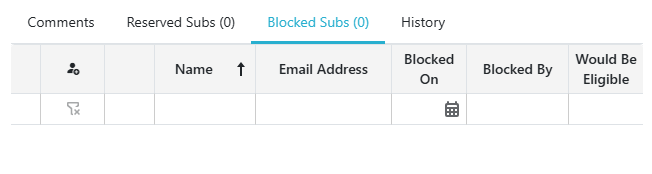
- Click the button to open the Block a substitute popup, which lists substitutes currently eligible for this opening.
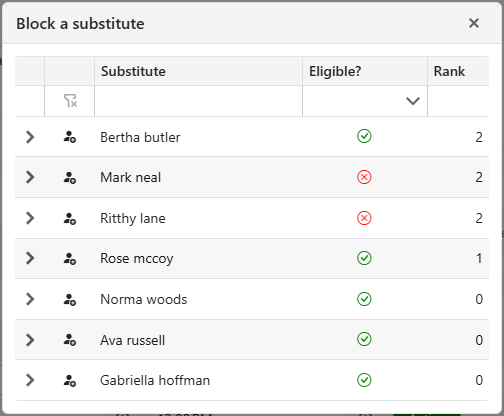
- Click a substitute's row to block them from this opening. They'll be excluded from the candidate list and won't be notified about it — but only for this specific opening, not anywhere else.
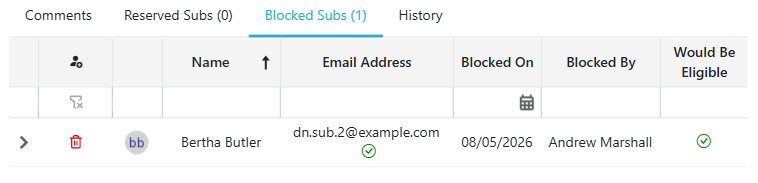
- To remove a block, click the icon next to their name in the Blocked Subs grid.
Step 6 (Optional): Add Comments And/Or Attachments
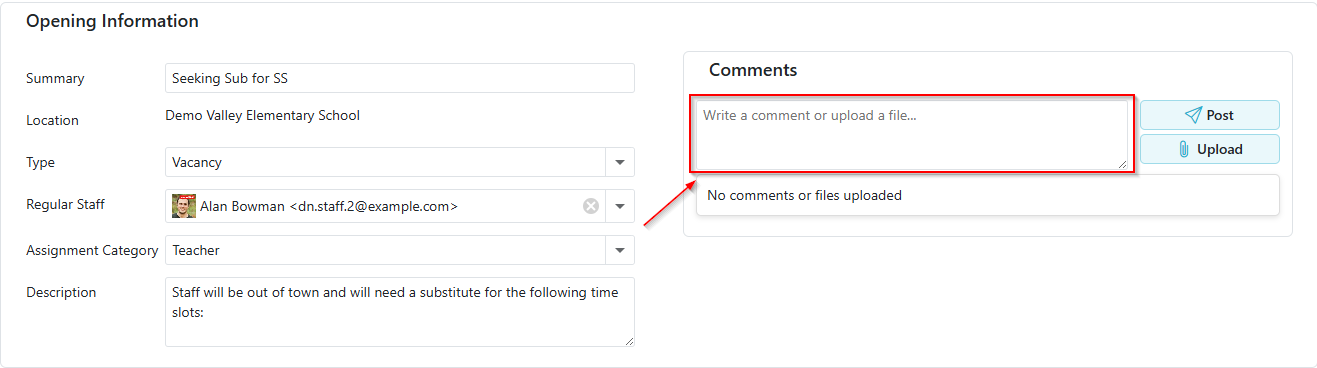
Comments and attachments share the same input area at the bottom of the opening, and appear together in the same thread.
Comments
- Type your comment in the input field, then click the
 button. Be clear and concise so potential substitutes can understand it easily.
 - Post as many comments as you need.
- To remove a comment, click the icon on it. You can only remove your own comments.
Attachments
- Drag and drop a file into the input field, or click the
 button to pick one from your computer. Repeat for as many files as you need.
 - To download an attachment, click the
 icon on it.
 - To remove an attachment, click the icon on it. You can only remove your own attachments.
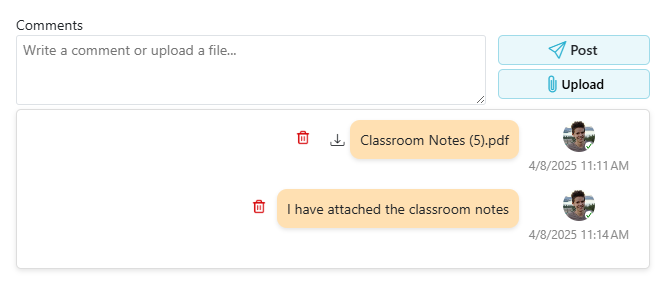
- Comments and attachments from other users appear in blue, on the left.
Step 7: Save and Create the Opening
- Click the 'Save' button to finalize and save the new opening.