Staff
The Staff section, under Departments, allows administrators to manage users within a department at a specific location, including adding, promoting, and removing them.
Path 1: Location Admin -> Manage Location -> Departments-> Staff
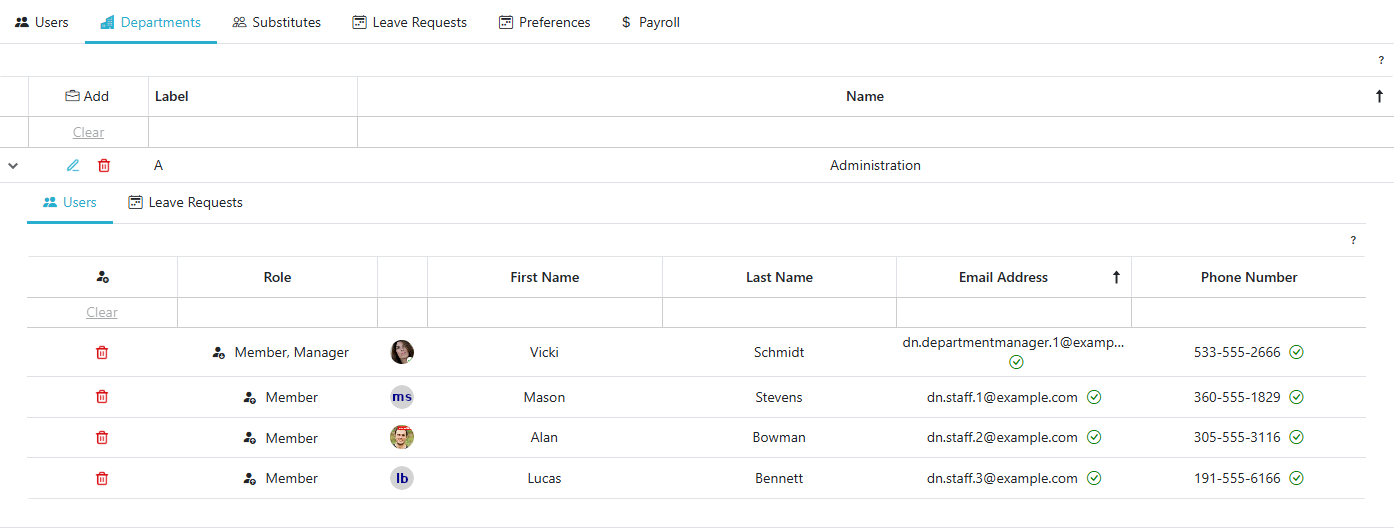
Path 2: Regular Staff -> Manage Regular Staff -> Locations -> Departments -> Staff
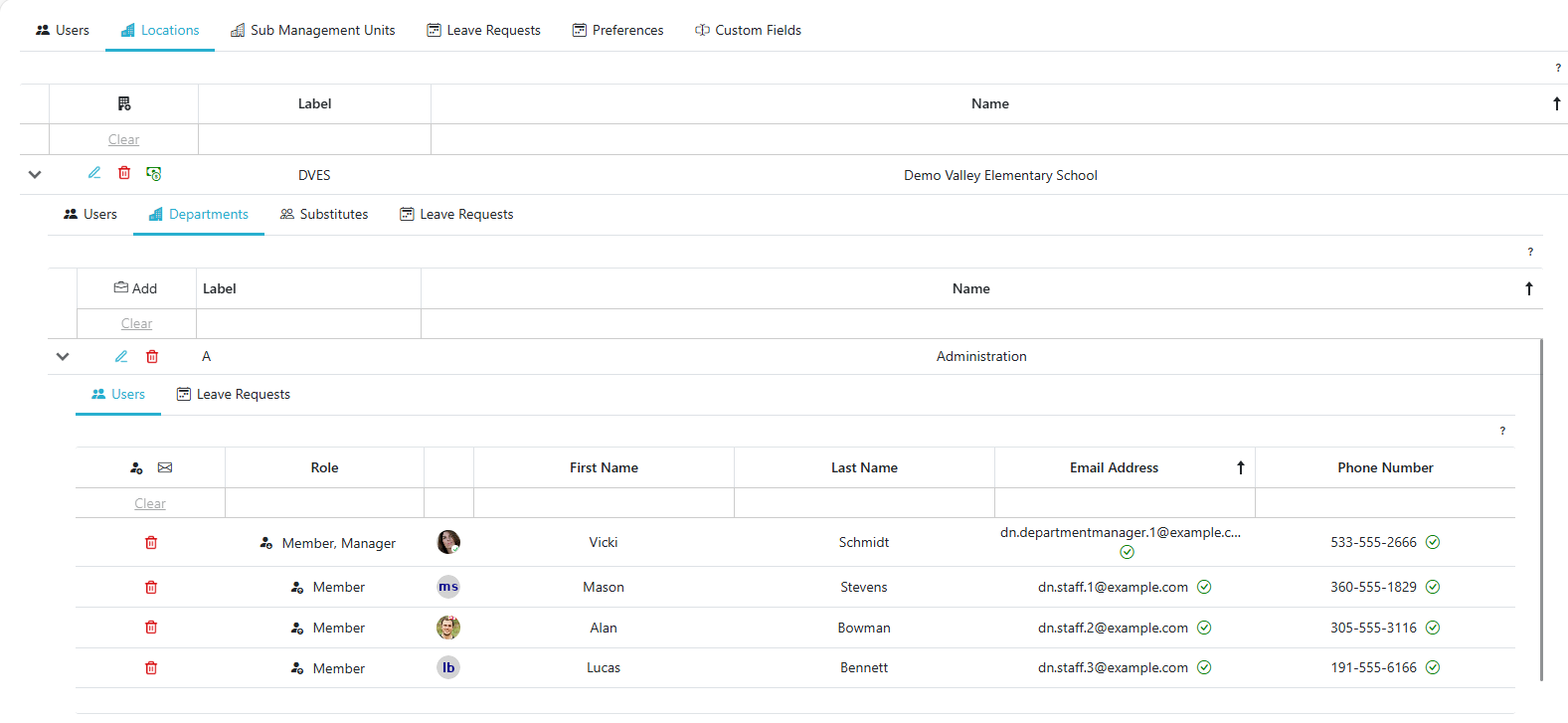
Path 3: Client Admin -> (your Regular Staff unit's tab) -> Locations -> Departments -> Staff
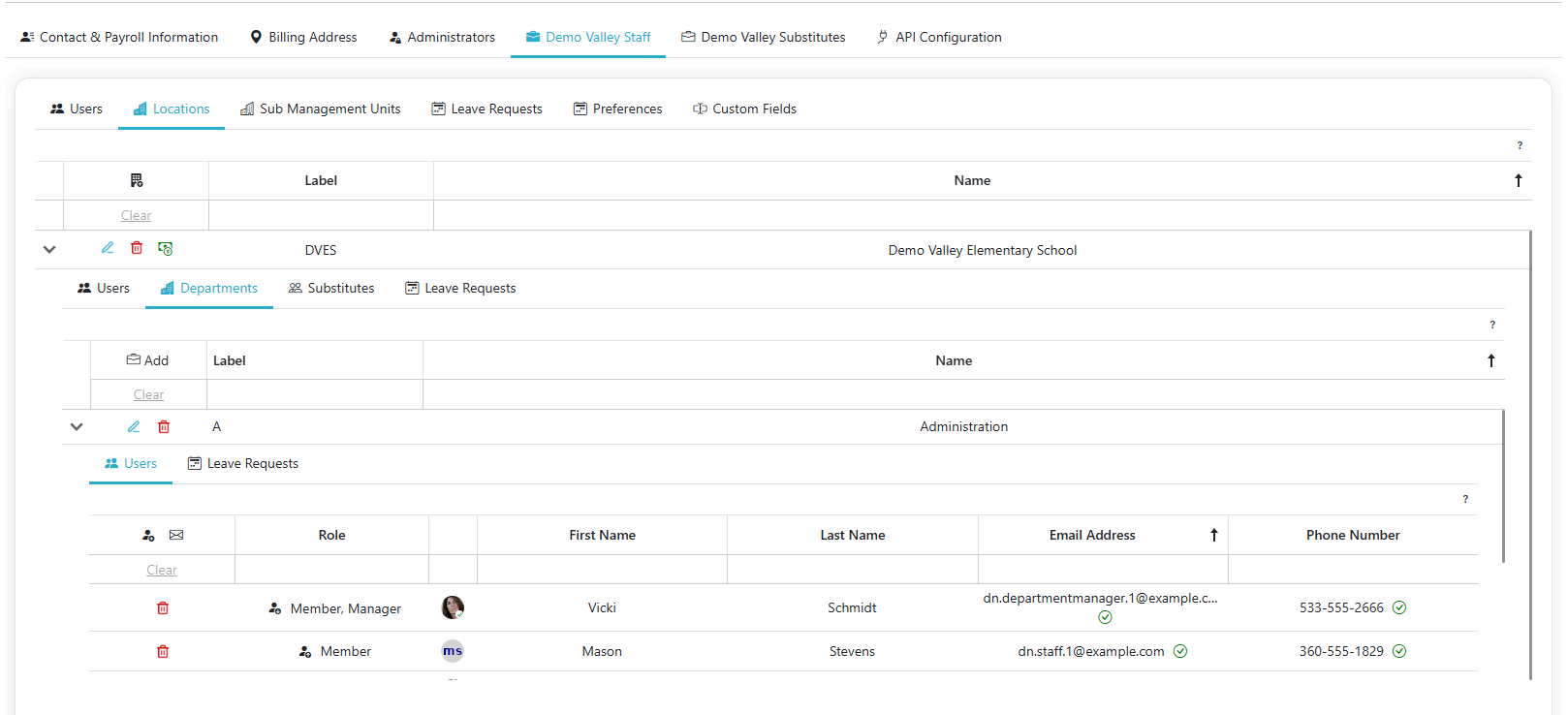
Adding A Regular Staff Member To A Department
- Click the
 to add a new user to the selected department.
- Follow the process outlined in the Adding a User to a Department guide for detailed instructions.
Managing a Regular Staff Member's Roles
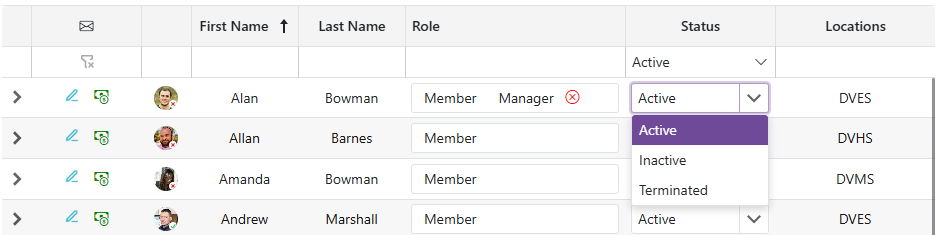
- Each regular staff member's roles are shown as a set of tags in the Role column. Member is always present and can't be removed.
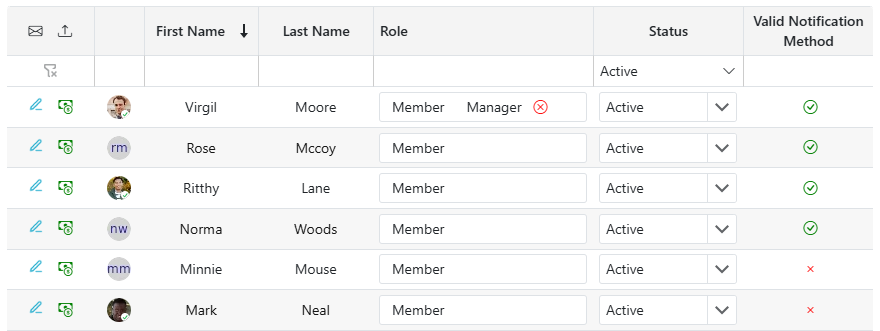
- To give a staff member manager permissions, click into the Role field and select Manager from the dropdown.
- To remove the Manager role, click the x on that role's tag.
Removing a Staff Member
- The Status column shows each staff member's status (Active, Inactive, or Terminated). It can't be changed on this tab.
- Use the Status filter above the grid to choose which statuses to show. It defaults to Active only.
- To remove a staff member, click the
 (Delete User) on their row and confirm.
- On a location's Staff tab, this removes them from the location and from all of its departments.
- On a department's Staff tab, this removes them from that department only.
Note: Coordinators see this tab as view-only and don't get the delete button.