User Invitation
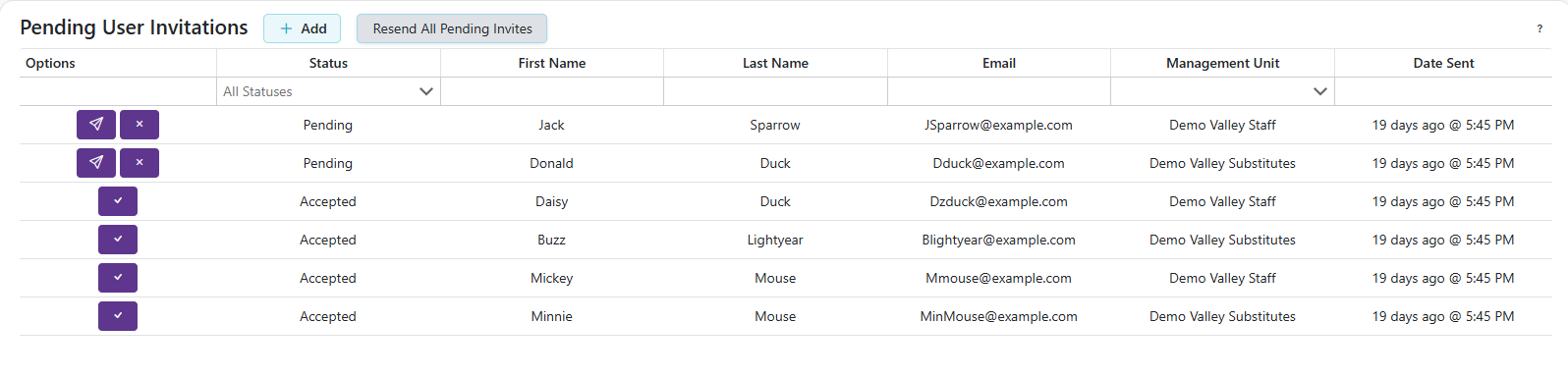
- This is where admins will be able to see all the pending invitations they have sent, be able to resend the invite, and also cancel any invites
Invitation Status
The Status column shows where each invitation stands. Use the status filter above the column to narrow the list.
- Pending: sent, waiting on the invitee.
- Accepted: the invitee accepted. Waiting on you to finalize it.
- Rejected: the invitee declined. You can cancel it or re-invite them.
- Expired: 30 days passed with no response. You can cancel it or re-invite them.
- Completed: you finalized the invitation. Nothing further to do.
- Canceled: you withdrew the invitation, or a re-invite replaced it.
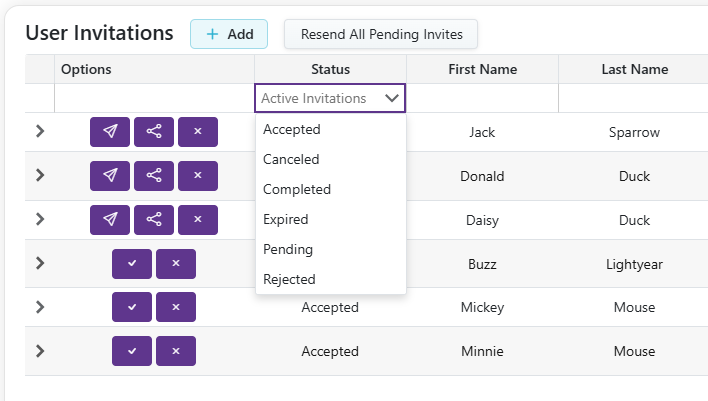
Note: The filter starts on Active Invitations, which hides Completed and Canceled so the list only shows invitations still waiting on someone. Expired invitations still appear, because you can still act on them. To see a finished invitation, pick its status from the filter.
-
Completed and canceled invitations are kept for 30 days as history and then removed.
-
Click the caret next to a pending invitation to expand it and view its delivery history, showing whether the invitation email was delivered, deferred, or undeliverable by the recipient's mail server. If delivery failed, use the Share button to send the invitation link another way.

- Click the
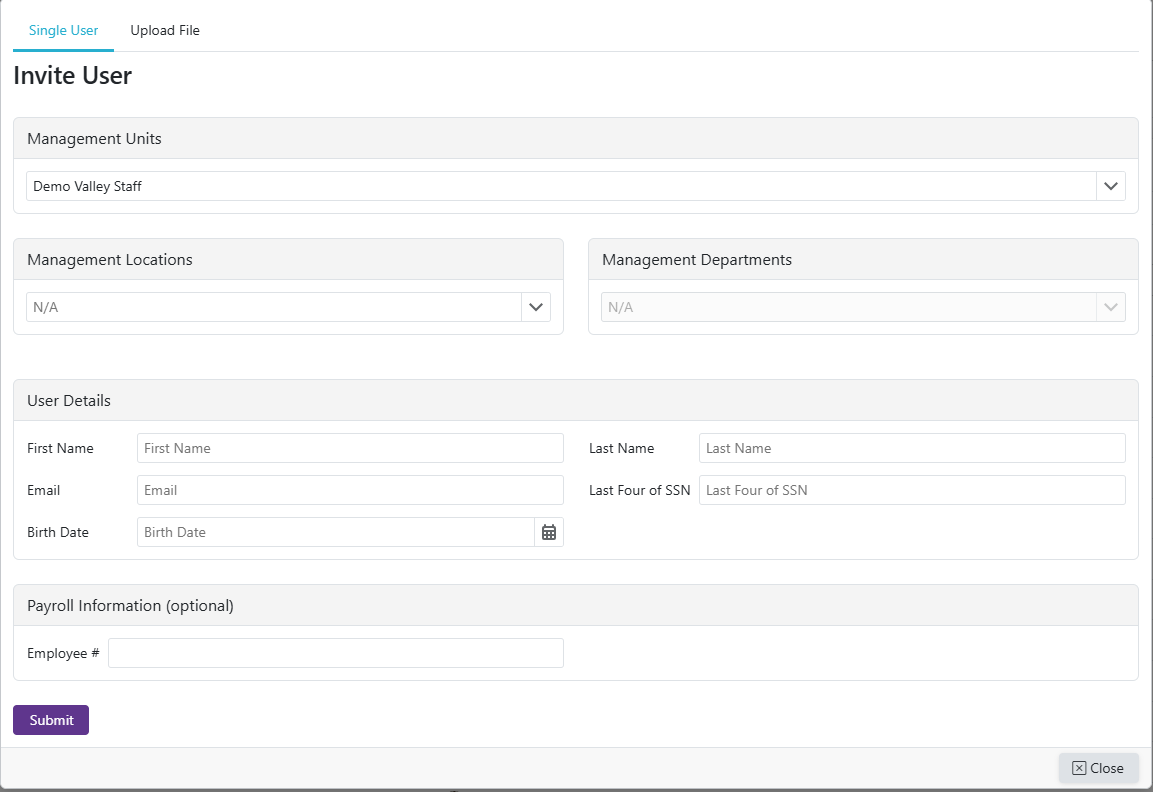
 to invite new or existing users to join the Regular Staff or Substitute unit.
-
If inviting a Regular Staff user, select their Locations And Departments from the tree. Checking a Location automatically checks all of its Departments, and you can also check individual Departments on their own. Also select which Assignment Category(s) the user is authorized to work.
-
Substitute invitations don't show this tree; substitutes select their own preferred assignment categories after accepting the invitation.
-
Click the
 to send the user another invite. Doing so cancels the previous invite and sends a new one. This is available for Pending, Rejected, and Expired invitations. To resend all pending invites, click the
  .
. -
Click the
 on a pending invitation to copy a short link to that invitation. On supported mobile devices this opens your device's native share menu instead of copying. This is handy when the automated invitation email doesn't reach the recipient. The link takes them to the same invitation page as the emailed link, though it doesn't automatically add the invited email as one of their notification methods the way the emailed link can, since clicking a shared link isn't proof they control that email address.
 -
Clicking the
 will prompt you to confirm before canceling the invite. This is available while an invitation is still open, whether it is Pending, Accepted, Rejected, or Expired. It disappears once the invitation is Completed or Canceled, since there is nothing left to cancel.
 -
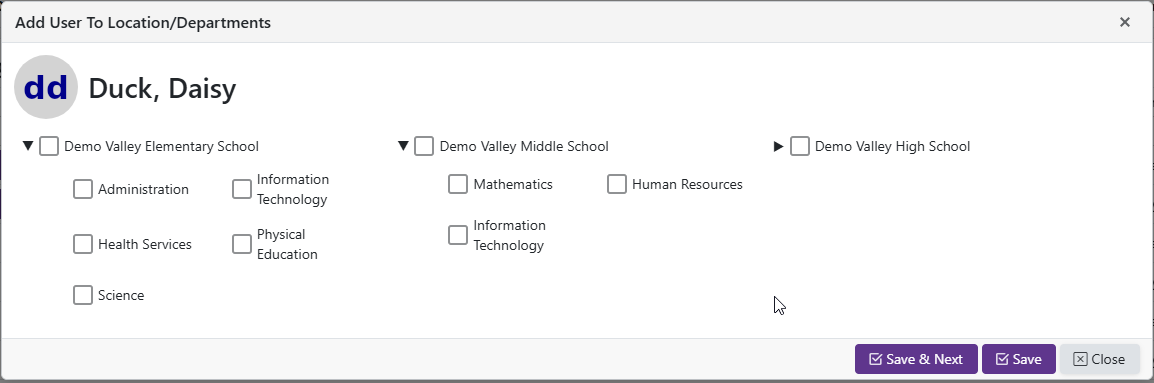
Once a user has accepted an invite, you will see
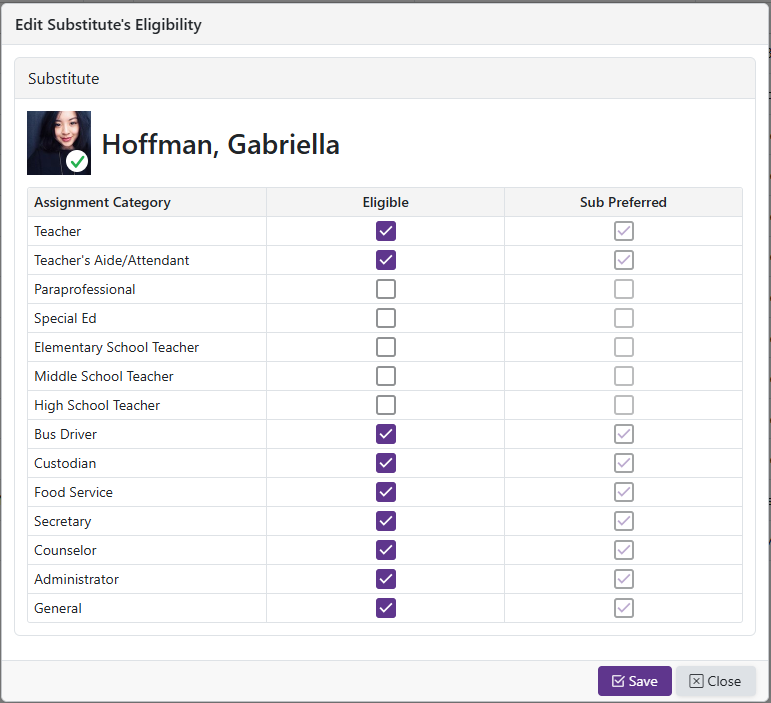
 . For a substitute staff invite, clicking this prompts you to set the substitute's assignment categories that they are authorized to work. For a Regular Staff invite, clicking this prompts you to add the user to locations/departments, but only if no Locations And Departments were selected on the invitation itself. If they were, the user was already added on acceptance and no prompt appears.
-
If a substitute is authorized to be a 'Teacher', they are also eligible for all teacher types: 'High School Teacher', 'Middle School Teacher', 'Elementary School Teacher'.
-
If a substitute is authorized to be a 'Paraprofessional' they are also eligible to be a 'Teacher's Aide/Attendant'. If a substitute is authorized to be a 'Teacher's Aide/Attendant' they are also eligible to be a 'Paraprofessional'.