Location Assignments / Substitute Assignments Tab
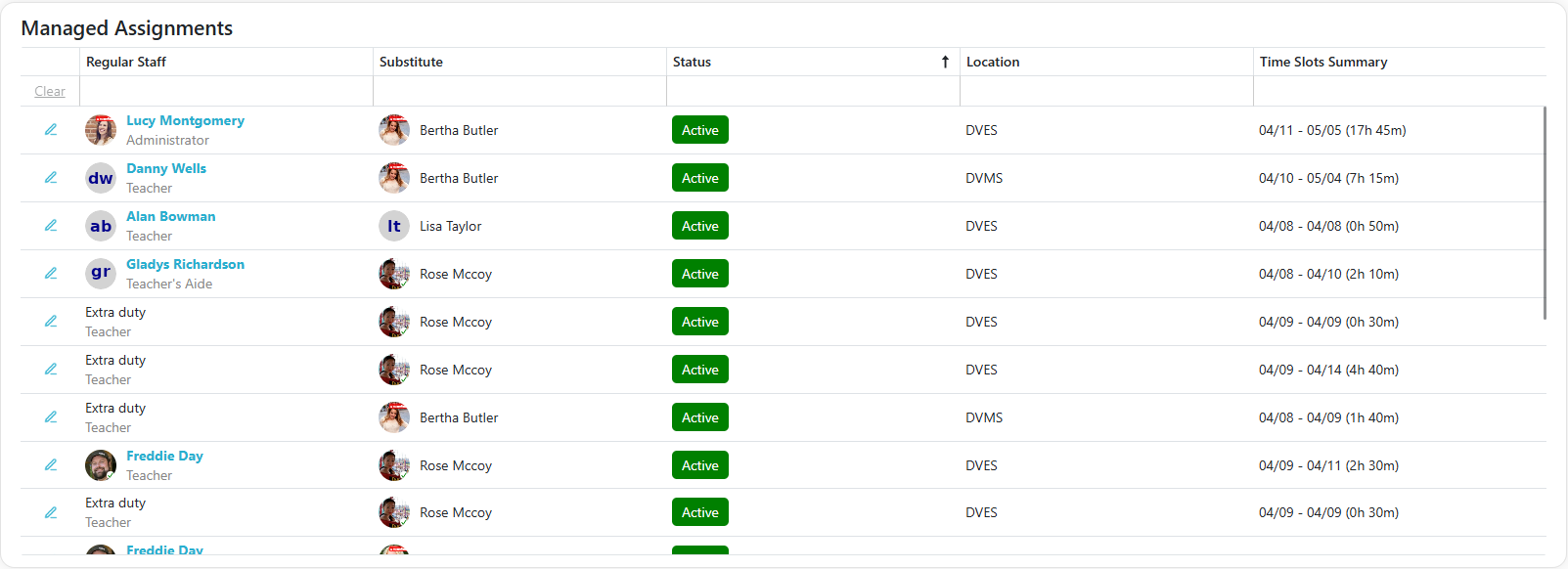
This tab displays all staff members you manage, along with the substitutes assigned to cover their absences. Depending on what you manage, you may see one or both of these tabs:
- Location Assignments — assignments for staff at the locations you manage.
- Substitute Assignments — assignments for substitutes in the Sub-Management Units (SMUs) you manage.
- Click the
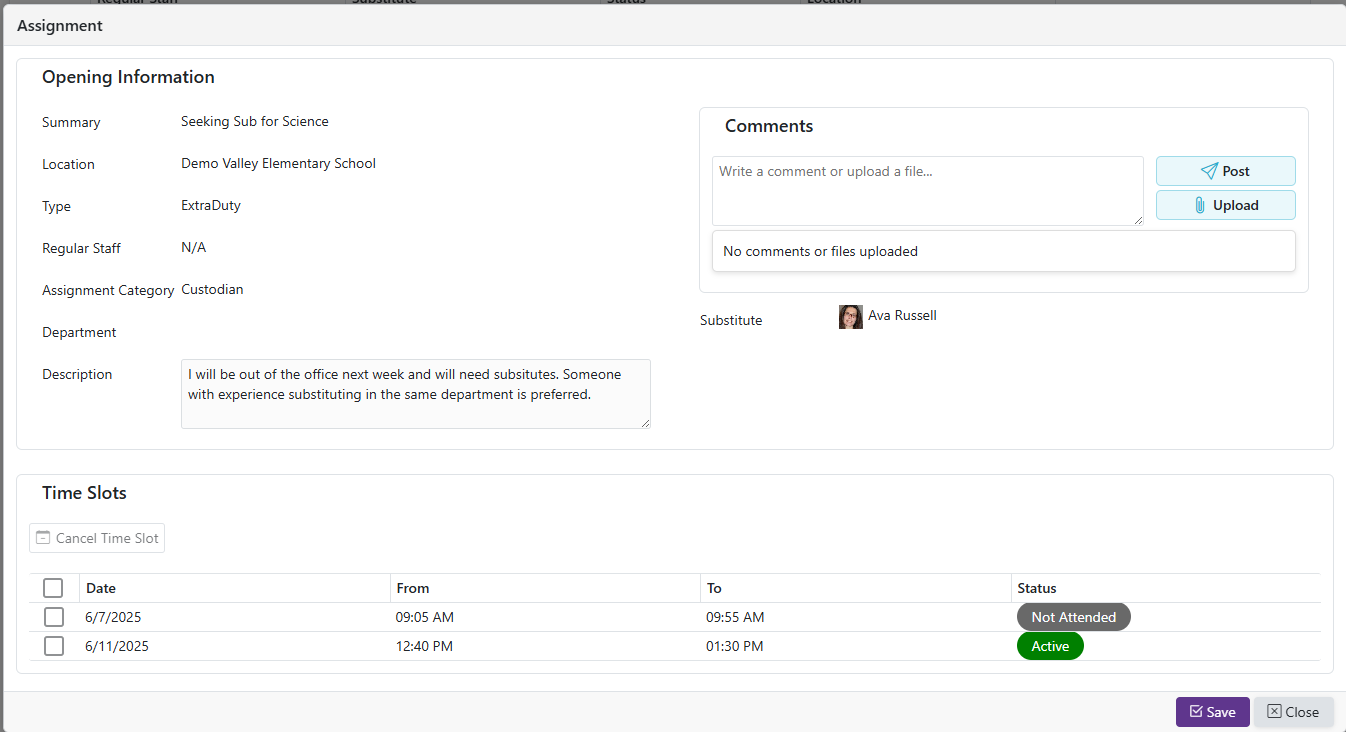
 Edit icon to modify the selected record.
 - This action opens the editing interface where you can update the existing information.
Assignment Statuses
| Status | Meaning |
|---|---|
| Active | Substitute is assigned and has upcoming time slots |
| Complete | Substitute's attendance has been verified for all time slots (final state) |
| Partially Complete | Substitute's attendance verified for some time slots, rejected for others (final state) |
| Not Attended | Substitute's attendance has been rejected for all time slots (final state) |
| Canceled | Substitute has canceled all time slots and is no longer assigned (final state) |
Filtering Options
- Some columns support filtering; some use dropdowns while others accept text input (you can adjust how those text filters behave)
| Filter Option | Description |
|---|---|
| Starts With | Matches values that begin with the input text. Example: "Pro" matches "Product" |
| Ends With | Matches values that end with the input text. Example: "Pro" matches "MicroPro" |
| Equal | Matches values that exactly match the input. Example: "Admin" matches "Admin" only |
| Contains | Matches values that contain the input text anywhere. Example: "Pro" matches "Product" and "MicroPro" |
| Less Than | Matches values less than the input (for numbers, dates, etc.). Example: 50 matches 10 and 49 |
| Less Than or Equal | Matches values less than or equal to the input. Example: 50 matches 50 and 49 |
| Greater Than | Matches values greater than the input. Example: 50 matches 51 and 100 |
| Greater or Equal | Matches values greater than or equal to the input. Example: 50 matches 50 and 60 |