Substitutes
The Substitutes section allows users to manage the substitute staff list for a specific location. Users can add substitutes, edit their preferences, and deactivate or reactivate them as needed.
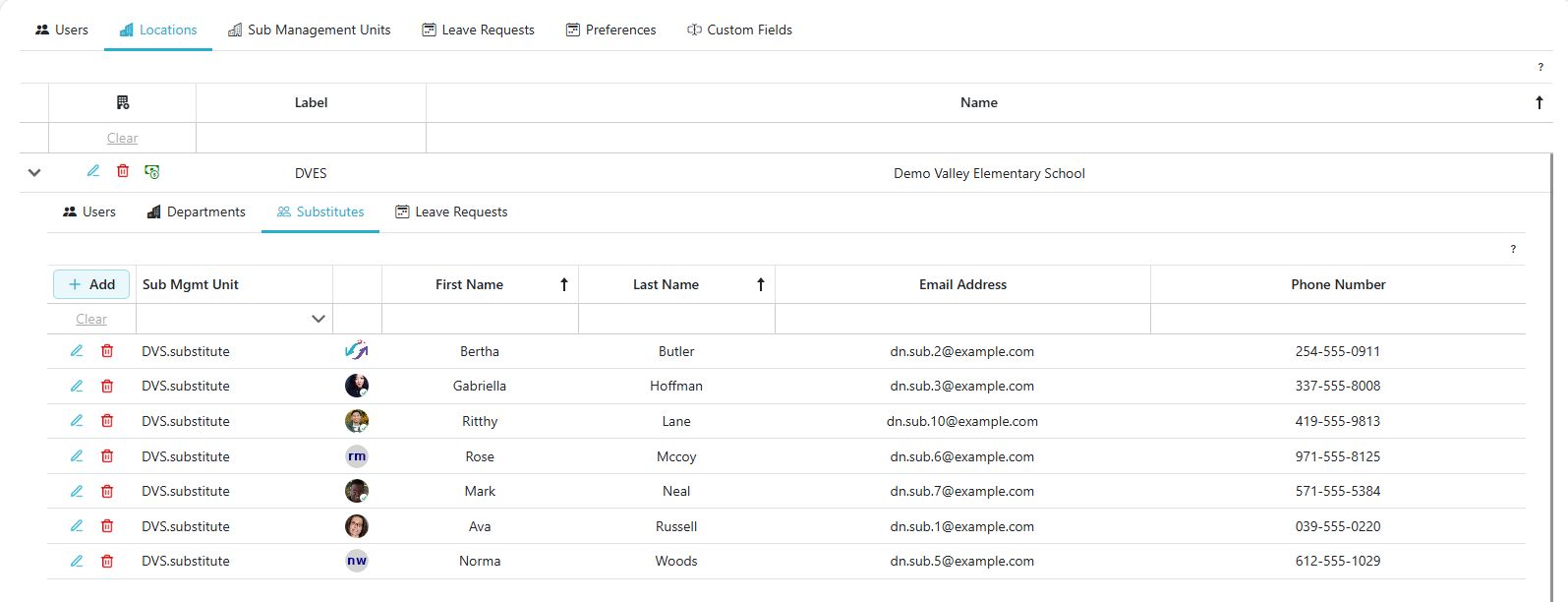
Adding A Substitute To A Location
-
Click the
 button to add a new substitute to the selected location.
 -
Follow the steps outlined in the Adding A Substitute To A Location guide for detailed instructions.
Edit the Location's Preferences For A Substitute
- Click the
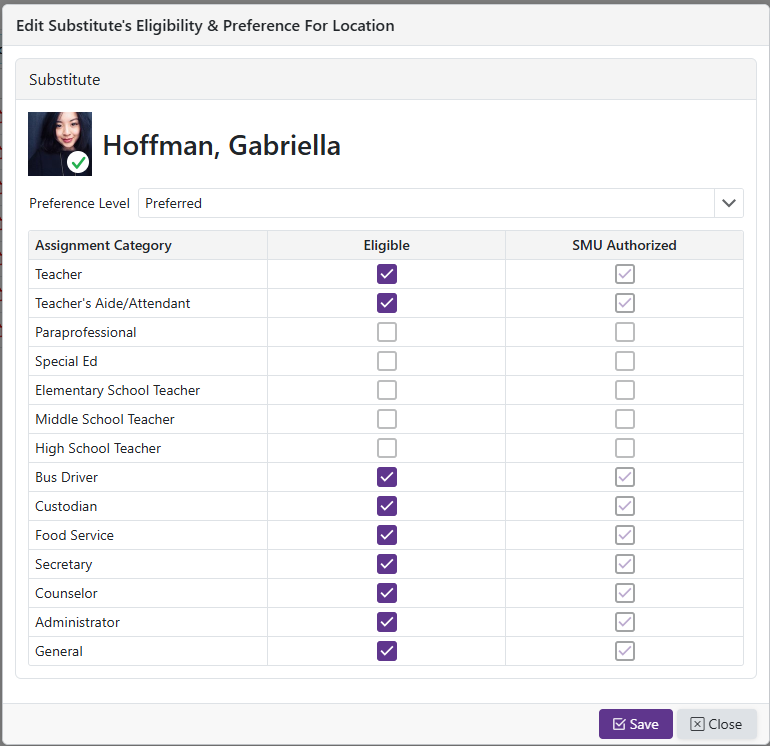
 icon to view/edit the location's preferences for the selected substitute.
-
The Location will be able to select which assignment categories the substitute is eligible to work for their location. The column on the right shows the assignment categories that the Substitute Management Unit (the organization that is managing/paying the substitute) has authorized the substitute to work. The Location can not select any assignment categories that the Substitute Management Unit, SMU, has not authorized. The location can choose to not authorize substitutes even if the SMU has authorized those categories.
-
If a substitute is authorized to be a 'Teacher', they are also eligible for all teacher types: 'High School Teacher', 'Middle School Teacher', 'Elementary School Teacher'.
-
If a substitute is authorized to be a 'Paraprofessional' they are also eligible to be a 'Teacher's Aide/Attendant'. If a substitute is authorized to be a 'Teacher's Aide/Attendant' they are also eligible to be a 'Paraprofessional'.
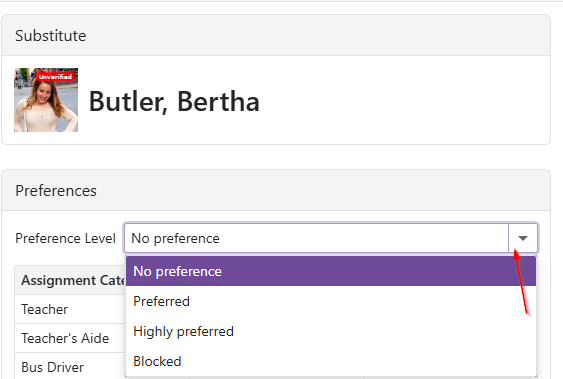
- The Location's Preference Level for the substitute can be set using the dropdown. The Preference Levels are: 'No Preference' which does not affect the substitute's ranking; 'Preferred' which adds 1 to the substitute's ranking; 'Highly Preferred' which adds 2 to the substitute's ranking; 'Blocked' which makes it so the substitute is not eligible to work at that location.
Note: Only Location Coordinators and higher can change the Preference Level. Everyone else sees it read-only, including a Substitute Management Unit that has been delegated authorization at this location.
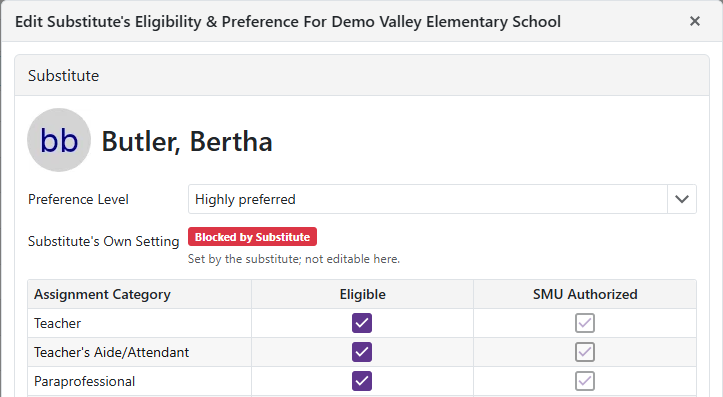
- If the substitute has restricted this location themselves, a Substitute's Own Setting badge appears showing either Notifications Suppressed by Substitute or Blocked by Substitute. This is the substitute's own choice, set on their Allowed Locations page, and cannot be changed here. A substitute who has blocked the location cannot be assigned to it, and unlike the location's own Blocked preference there is no way to override it.
Note: The badge only appears when editing a single location. In multi-location edit mode it is hidden, because the setting is per location and the selected locations can differ.
Status
-
The Status column shows whether each authorization is Active or Inactive.
-
The list shows Active substitutes only until you change the filter. Click the chevron in the Status column header to open the status filter and pick the statuses you want. The header text shows what is selected.
Deactivate and Reactivate A Substitute At A Location
-
Click the
 to deactivate a substitute at the selected location, then confirm. They stop being eligible to work there, but the record is kept: the assignment categories you selected and the location's preference for them, including Blocked, all survive.
 -
A deactivated substitute shows a Reactivate Substitute button in place of the edit and deactivate buttons. Reactivating restores everything as it was, including a Blocked preference set before deactivation.