Viewing News and Announcements
SmartSub administrators can publish announcements and system messages that appear to you in the app.
Who Uses This
- All Users
Finding News
Look for the bell icon in the navigation menu. A red dot appears on the bell when there's something new for you to read.
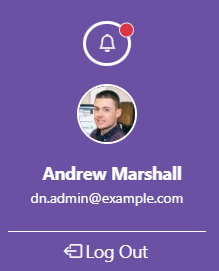
Click the bell to open the News popup, which has two tabs:
- News — general announcements
- System — system-related messages
Each tab shows how many unread items you have, e.g. "News (3)".
Reading News
- Each item in the list shows its title, a preview of its content, and a "New" badge if you haven't read it yet.
- Click View on an item to read it in full.
- Click Mark as Read (or Mark as Unread) on an item to change its read status.
- Click Mark All as Read to clear every unread item in that tab at once.
Note: A news item is only shown to you if it applies to your role — administrators can target announcements to specific roles, or to everyone.