Settings
The Settings section allows users to edit a location's settings and preferences to better suit their needs. First, select a location from the list and then select the Settings tab. After making any edits to a location's preferences, click ‘Save’ to apply and save your changes.
- Users with the Coordinator role for this location don't see the Settings tab at all.
Location Settings
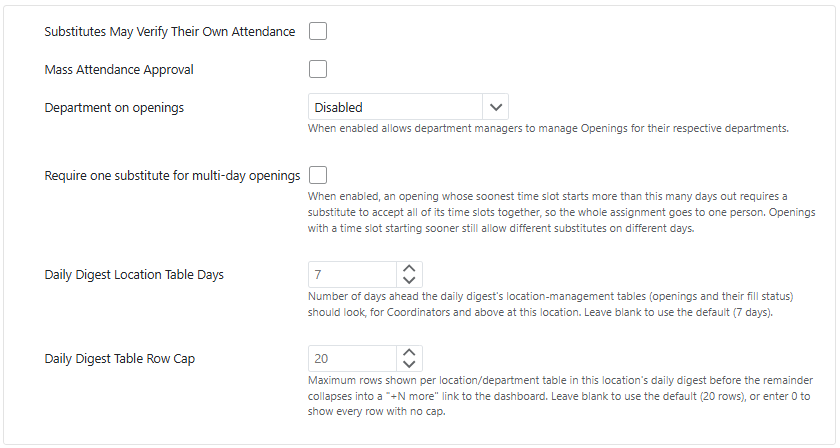
-
Substitutes May Verify Their Own Attendance lets substitutes who work at that location verify their own attendance. A manager still verifies attendance, and the manager's verification completes the assignment on its own, whether or not the substitute has verified theirs.
-
Mass Attendance Approval. Multi-select approval of attendance. Approve multiple attendance records at once instead of one at a time. Must be enabled for each location.
-
Department on openings. The department dropdown has three choices: Disabled turns off the department dropdown for a location when it isn't used. Optional shows the department dropdown but doesn't require it to be filled out. Required makes the department dropdown required to be filled out when creating an opening.
-
Require one substitute for multi-day openings. Check this option to require a single substitute to cover all remaining time slots on a multi-day opening, once the opening is far enough out.
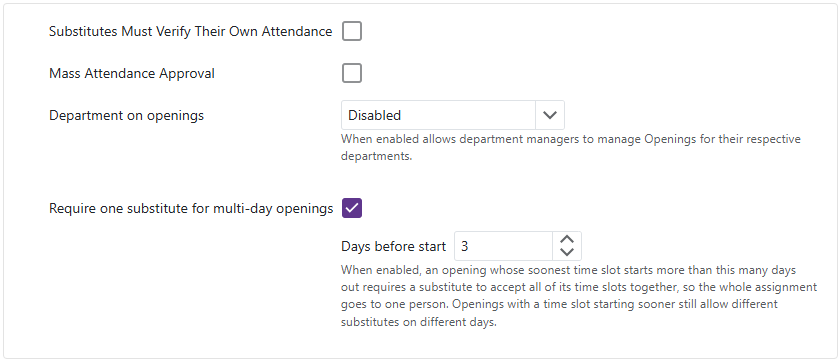
- When checked, enter the number of Days before start. If an opening's soonest remaining time slot is more than this many days away, a substitute must accept — or later cancel — all of the opening's remaining time slots together instead of individual days.
- Once the opening's soonest remaining time slot falls within that day count, it reverts to normal behavior and substitutes can accept or cancel individual time slots again.
- Managers aren't affected by this restriction and can still assign a substitute to a subset of the remaining time slots manually.
- Click Save to apply your changes.
Assignment Instructions
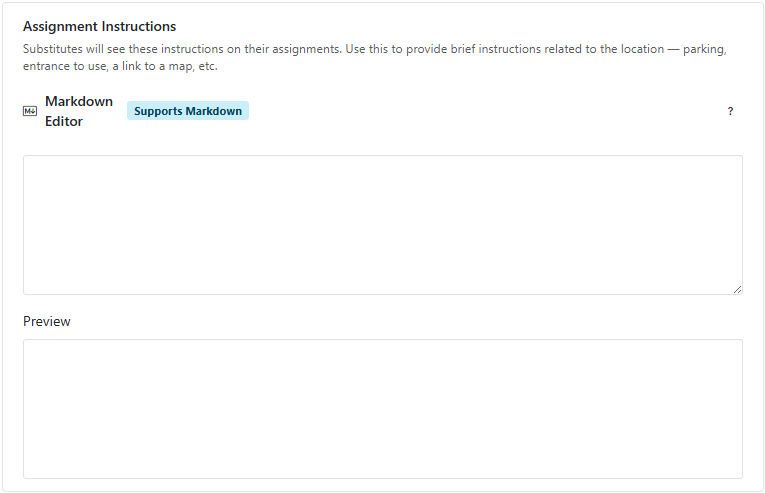
- Custom assignment instructions per location. Location managers can write instructions that appear directly on the substitute's assignment.
- Instructions for Markdown can be found here.
Shifts
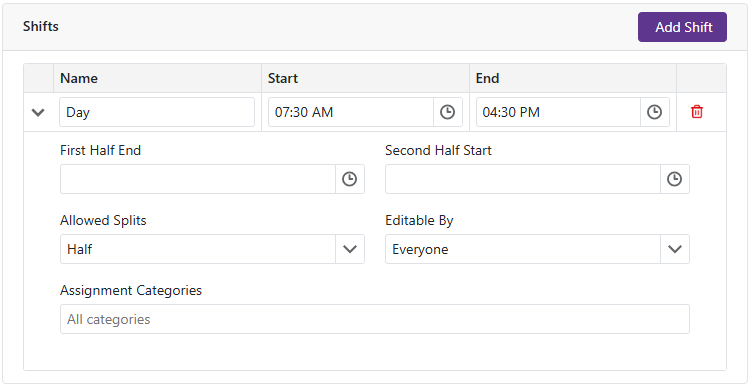
- All locations have a default shift of 8:00 AM to 3:00 PM. If a location has different hours, the manager can edit the shift times for that location. The shift times will be displayed on the assignment for the substitute to see.
-
To add a shift to a location, click the
 button. A new row will appear where you can set options for that shift.
- Shift Name - The name of the shift can be edited to better describe the shift.
- Start Time - The start time of the shift can be edited to reflect the actual start time of the shift.
- End Time - The end time of the shift can be edited to reflect the actual end time of the shift.
-
Clicking the
 on the left side of the shift row will expand the row to show additional options for that shift.
- First Half End - The end time of the first half of the shift can be edited to reflect the actual end time of the first half of the shift.
- Second Half Start - The start time of the second half of the shift can be edited to reflect the actual start time of the second half of the shift.
- Allowed Splits - Allowed splits can be set to either half or none. If set to half, the shift can be split into two halves. If set to none, the shift cannot be split.
- Editable By - The editable by setting can be set to either Manager or Substitute. If set to Manager, only the manager can edit the shift. If set to Substitute, the substitute can edit the shift.
- Assignment Categories - The assignment categories setting allows you to specify which categories of assignments are available for the shift.
Deleting and Restoring A Shift
- Click the
 on a shift row to delete the shift, then confirm. A deleted shift is no longer offered when adding time slots, but existing openings and leave requests that already use it are unaffected.
 - Deleted shifts are hidden from the list. Check Show deleted in the Shifts header to see them.
- A deleted shift is greyed out, marked with a Deleted badge, and cannot be edited.
- Click the Restore shift button (a counter-clockwise arrow, in place of the trash can) on a deleted shift to make it available again.
- A deleted shift's name can be reused for a new shift.
- Deleting or restoring a shift takes effect when you click Save.
Ranking Weights
- Ranking Weights lets you tune how much each candidate quality factor affects a substitute's rank and notification order for this location.
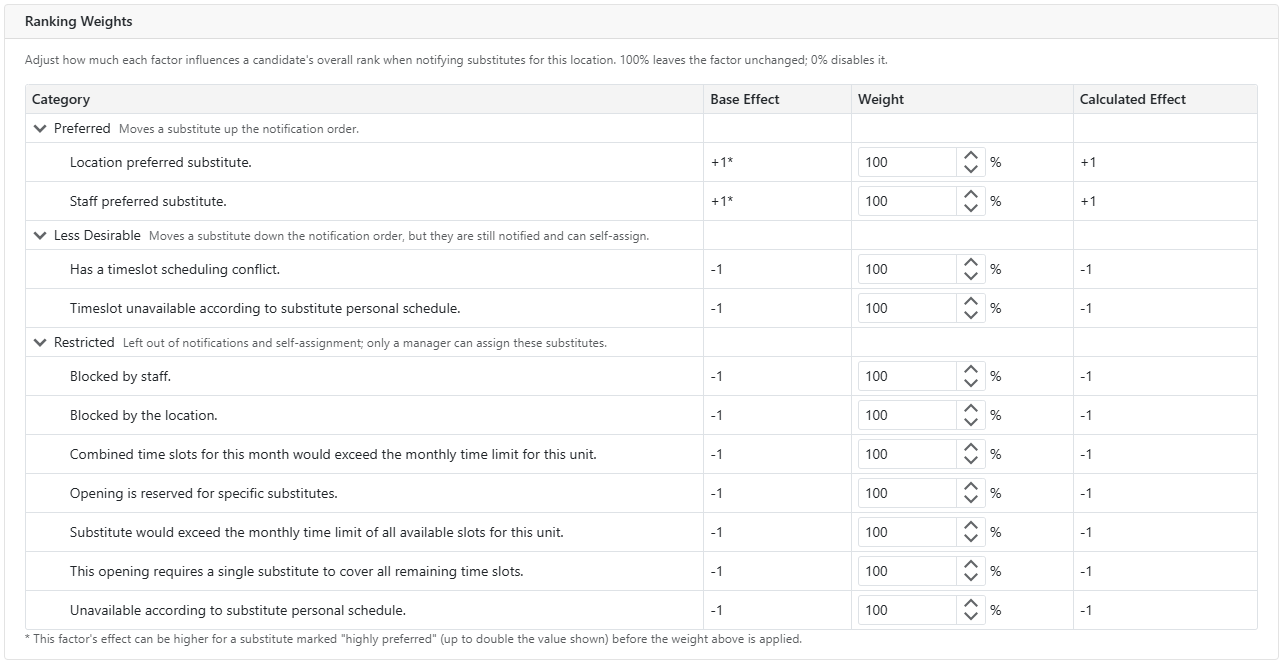
- Quality factors are grouped in a tree under Preferred, Less Desirable, and Restricted — the same eligibility tiers used to group the candidate list. Each factor shows its Base Effect (the fixed effect before weighting, e.g. +1 or -1), your Weight percentage, and the resulting Calculated Effect.
- 100% leaves a factor's base effect unchanged, 0% disables it entirely, and values above 100% amplify it.
- Restricted factors — such as a substitute being blocked at the location, blocked by staff, or not on a reserved list — can be weighted the same as any other factor.
- A few factors don't offer a weight and don't appear in this list at all: a substitute pool not yet being active is a timing gate rather than a quality signal, so there's no effect to scale, and monthly time-limit caps aren't weightable at the location level either.
- For factors based on a substitute's preference level, a substitute marked Highly Preferred can have up to double the Base Effect shown before the weight is applied.
- This weighted score is also what's compared against a Priority Substitute Notification Level's rank cutoff, so changing a weight here can shift which substitutes qualify as priority for this location's openings.
- Click Save to apply your changes.
Daily Digest
- Anyone with Coordinator-level access or higher to this location automatically receives a table of its openings — date, time, absent staff member, substitute (or Unfilled), and assignment category — in their daily digest email, alongside the existing substitute-facing digest content. This isn't optional to turn on; it comes with Coordinator-or-higher access to the location.
- Daily Digest Location Table Days sets how many days ahead the location's table looks. It can be set from 1 to 7 days — you can shorten the default 7-day window, but not extend it.
- Daily Digest Table Row Cap limits how many rows the location's table shows. Leave it blank for the default of 20 rows, or enter 0 for no limit.
- Recipients managing more than one location get a Jump to list at the top of the digest email linking to each location's table. Recipients who receive the digest by text message instead see a one-line summary of opening/filled/unfilled counts and a link to their dashboard, without the full tables.
- Click Save to apply your changes.