ManageOpenings
Edit Opening
-
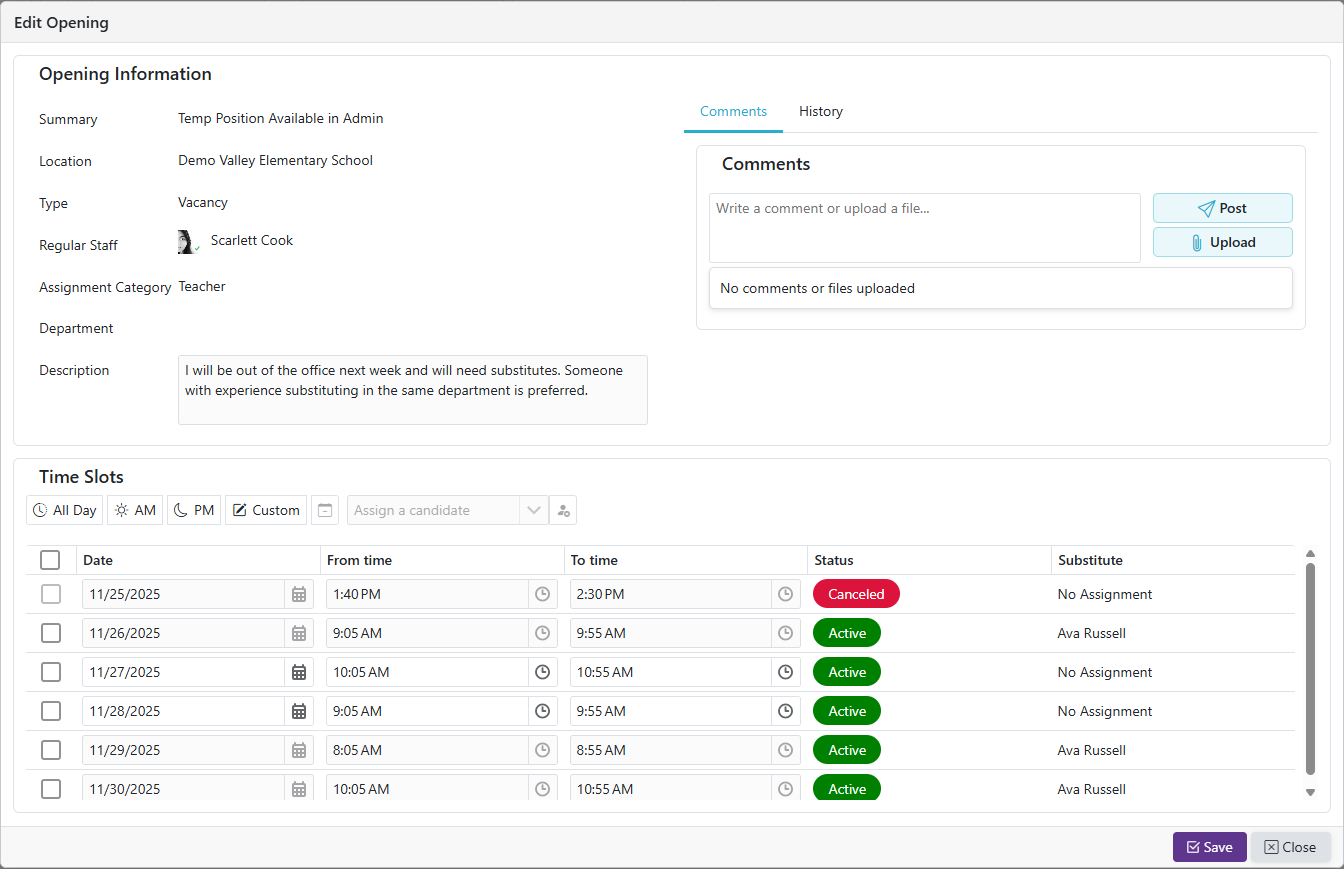
Click the
 icon to edit the opening in the selected row.
 -
This action will redirect you to the Edit Openings page, where you can modify the details of the opening.
Reissue an Opening
-
Click the Reissue Opening icon to create a new opening from the selected row's opening. This icon is only shown when every time slot on the opening is still unfilled — an opening with any assigned, completed, or canceled time slot can't be reissued.
-
Reissuing opens the opening editor pre-filled with a copy of the original opening's details and time slots, along with a banner reminding you that saving will cancel the original opening.
-
Make any changes you need — for example, updating the assignment category, time slots, or instructions — then click Save. The new opening is created and the original opening, along with all of its time slots, is canceled.
-
Use this when an opening needs a change that can't be made by editing it in place, and it needs to go back out to substitutes as a fresh opening.
Mass Cancel Opening/Assignments For A Specific Date
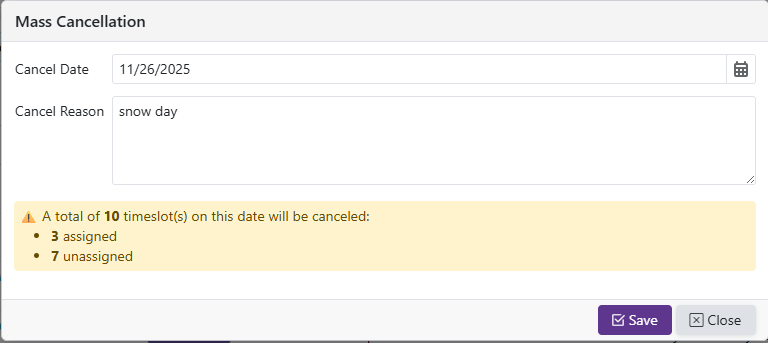
- Click the
 to begin mass canceling all time slots on a specific date. Select a Date and enter a Reason then hit save.
NOTE - This will cancel all assigned and unassigned time slots on that day and is irreversible
View Qualified Substitutes
- Click the
 to open the Candidate Results window, which shows the Qualified/Eligible Substitutes, their ranking, and the details behind each ranking.
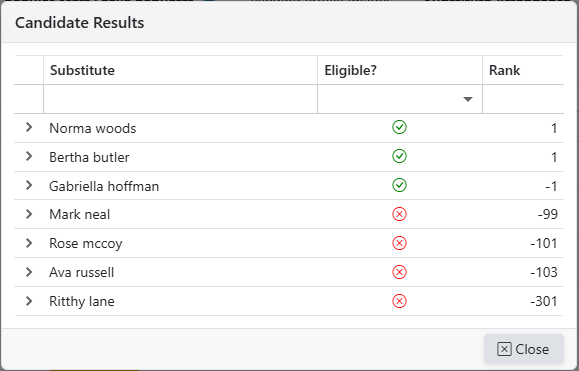
- Candidates are grouped Eligible, then Restricted, then Ineligible, with the highest-ranked substitute listed first within each group. A Restricted candidate never appears above an Eligible one.
Candidate Results Icons
| Icon | Meaning |
|---|---|
 |
Eligible: the substitute can be assigned to this opening. |
 |
Restricted: a manager can still assign the substitute, but review the reason first. |
 |
Ineligible: the substitute can't be assigned to this opening. |
 |
Opens the ranking details for that substitute. |
Note: Hover over an icon in the Eligible? column to see its label.
- The Rank column shows the substitute's overall ranked score. A higher score places the substitute higher within their group.
Ranking Details
- Click the on a row to see every factor that affected that substitute's ranking.
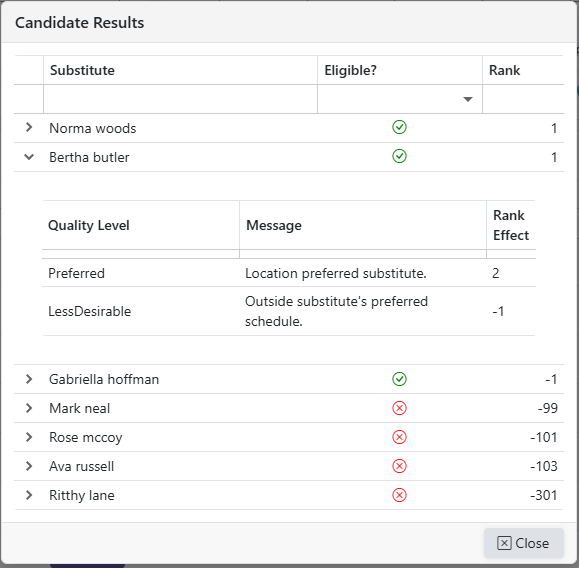
- Quality Level: the category of the factor (see the table below).
- Reasons: a short description of the factor, for example Location preferred substitute. or Has a scheduling conflict.
- Rank Effect: how much the factor raised or lowered the substitute's rank.
| Quality Level | Meaning |
|---|---|
| Eligible | The substitute meets this requirement. No effect on rank. |
| Preferred | The substitute is preferred, for example by the location or the staff member. Raises rank. |
| LessDesirable | The substitute can take the opening, but something counts against them, for example the opening is outside their preferred schedule. Lowers rank. |
| Restricted | The substitute is flagged, for example blocked by staff or not on a reserved list. A manager can still assign them. |
| Ineligible | The substitute can't take this opening, for example because of a scheduling conflict or no location authorization. |
-
A substitute whose pool has been deactivated is marked as ineligible in this list.
-
Substitutes you've blocked from this specific opening (see the Blocked Subs tab when editing the opening) are also marked as ineligible here, with "Blocked for opening by manager" shown as the reason.
Send Notification To Substitute for Opening Still Available
- Click the
 to send a notification to the Qualified/Eligible Substitutes saying that this opening is available.
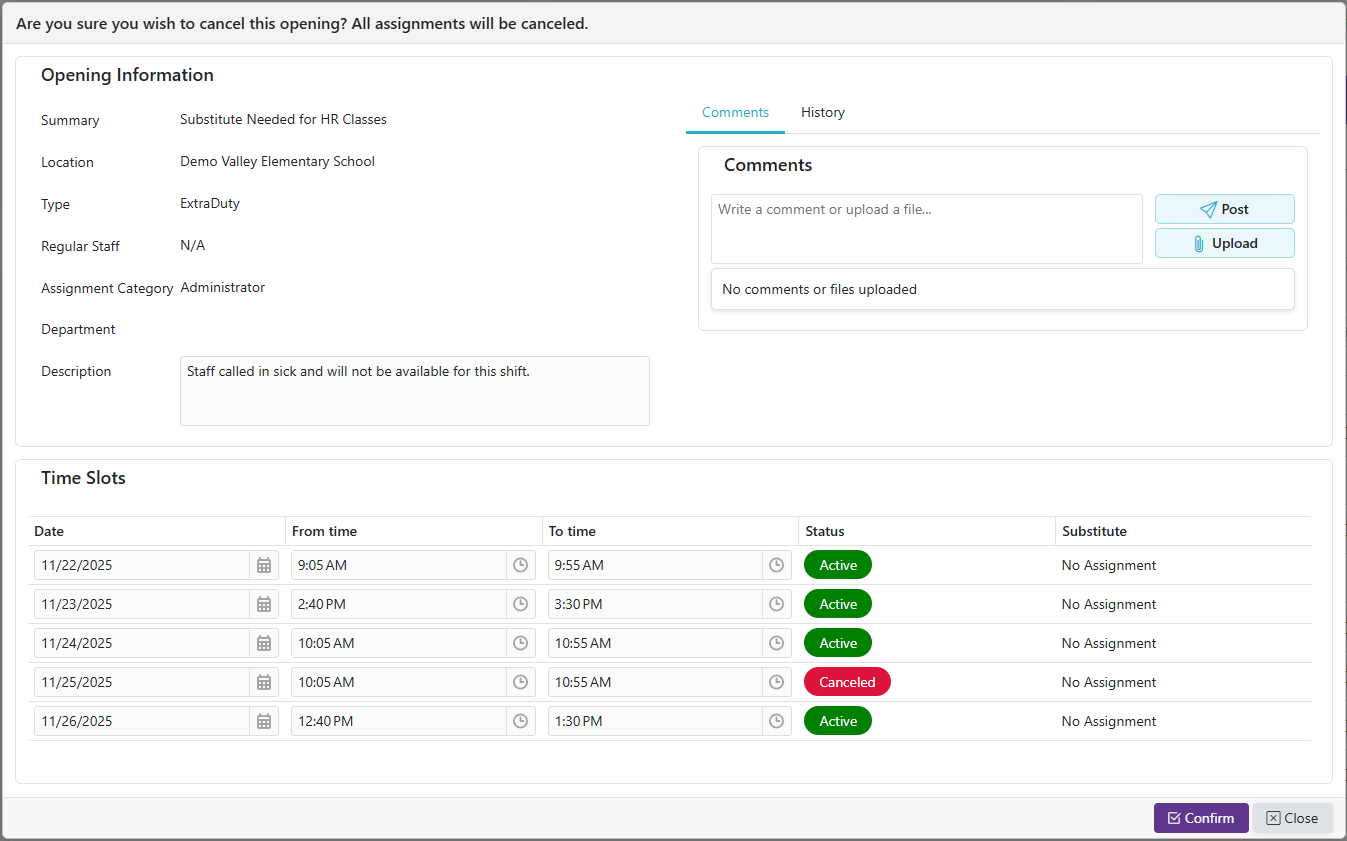
Cancel Opening
- Click the
 to initiate cancellation of the opening for the selected row. A confirmation screen will appear. Click
  to confirm and complete the cancellation of the opening.
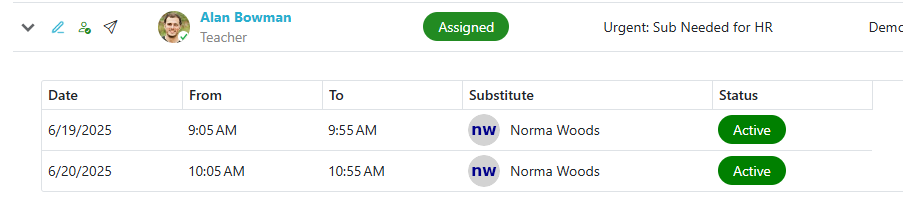
Show Time Slots
- Click the to show the time slots on the opening and who they are assigned to.
Opening Statuses
| Status | Meaning |
|---|---|
| Available | Opening with at least one time slot that still needs to be filled |
| Assigned | Opening with all time slots assigned to substitutes |
| Complete | Opening where substitutes attended all time slots and attendance was verified (final state) |
| Partially Complete | Opening with some completed time slots and some unfilled time slots (final state) |
| Canceled | Opening that has been canceled or all time slots have been canceled (final state) |
| Unfilled | Opening where no time slots were filled by substitutes (final state) |
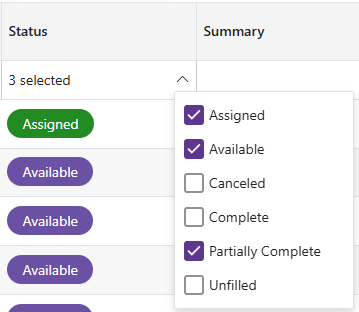
- The status filter is a dropdown with checkboxes, so you can select any combination of statuses to show. By default it shows Complete, Assigned, and Available openings — Canceled openings are hidden by default so they don't clutter the grid. Check the Canceled box to include them.
Filtering
Filtering Options
- Some columns support filtering; some use dropdowns while others accept text input (you can adjust how those text filters behave)
| Filter Option | Description |
|---|---|
| Starts With | Matches values that begin with the input text. Example: "Pro" matches "Product" |
| Ends With | Matches values that end with the input text. Example: "Pro" matches "MicroPro" |
| Equal | Matches values that exactly match the input. Example: "Admin" matches "Admin" only |
| Contains | Matches values that contain the input text anywhere. Example: "Pro" matches "Product" and "MicroPro" |
| Less Than | Matches values less than the input (for numbers, dates, etc.). Example: 50 matches 10 and 49 |
| Less Than or Equal | Matches values less than or equal to the input. Example: 50 matches 50 and 49 |
| Greater Than | Matches values greater than the input. Example: 50 matches 51 and 100 |
| Greater or Equal | Matches values greater than or equal to the input. Example: 50 matches 50 and 60 |