Accepting Your SmartSub User Invitation
When a district or school is ready to add you as a substitute, you'll receive a SmartSub User Invitation by email. This guide walks through accepting that invitation, creating your account, and completing the setup steps required before you can accept openings and assignments.
NOTE: You only need one  login, even if you substitute for more than one district. If this is your first invitation, you'll create a new account as part of this process. If you already have a SmartSub account from another district, just log in with those same credentials instead of signing up again — accepting the invitation will add the new district to your existing account. Either way, you'll use that same one login going forward to see openings and assignments from every district you work with.
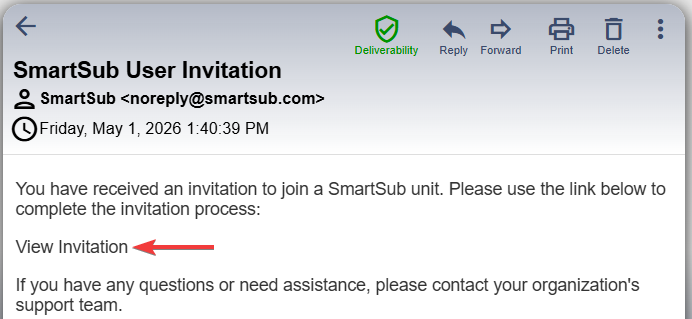
Open Your Invitation Email
- Wait for the SmartSub User Invitation email to arrive, then click View Invitation.
Sign Up for a New Account or Login
- If you already have a SmartSub account, enter your credentials. Otherwise, click Sign Up to create a new account.
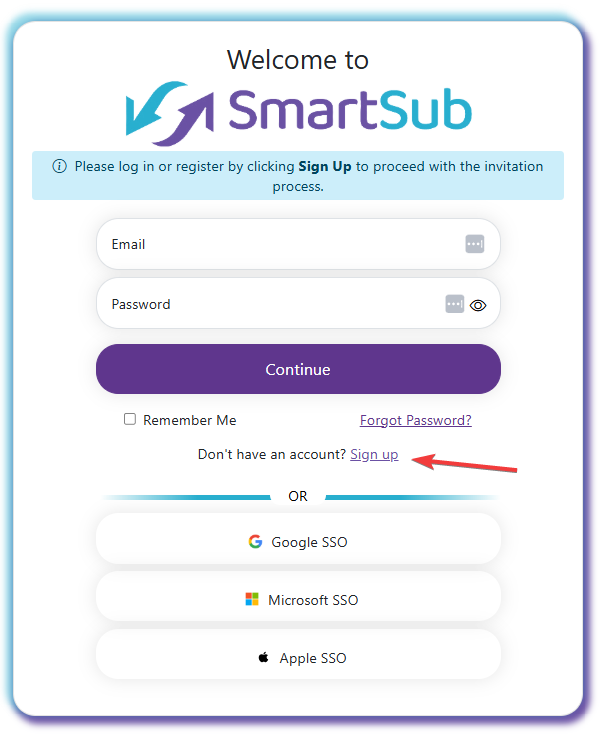
- You can also register or log in using Google SSO, Microsoft SSO, or Apple SSO instead of creating a password.
Note: If you try to sign up with an email address that already has an account, SmartSub shows "An account already exists for this email address." under the Email field. Click the Login link below the Register button and sign in with that account. The link keeps your invitation, so use it rather than starting over.
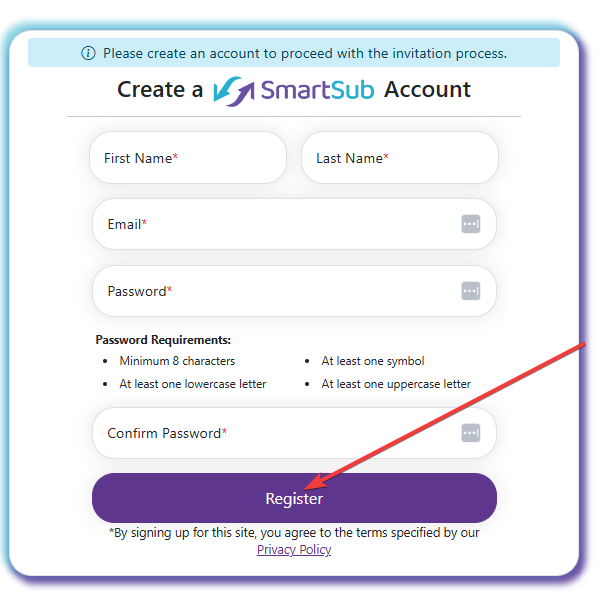
Create Your Account
- Enter your information along with a password, then click Register.
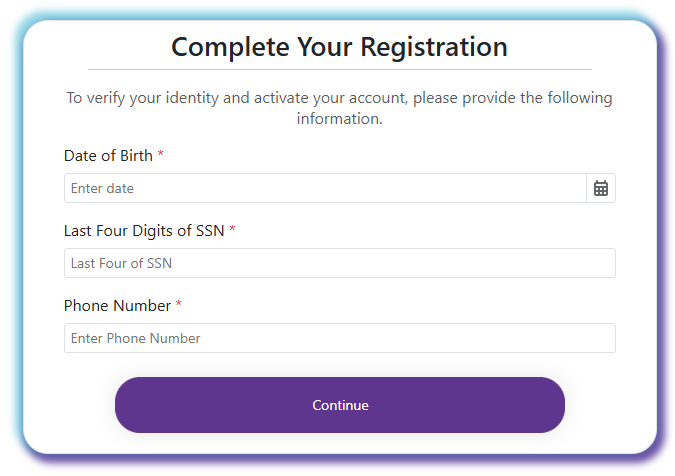
Complete Your Registration
- After registering, you'll be prompted to complete your registration by providing additional information. Fill in the required fields and click Continue.
Select Your Preferred Assignment Categories
- Select the assignment categories you're interested in, then click Accept. These are the areas you're willing to substitute for.
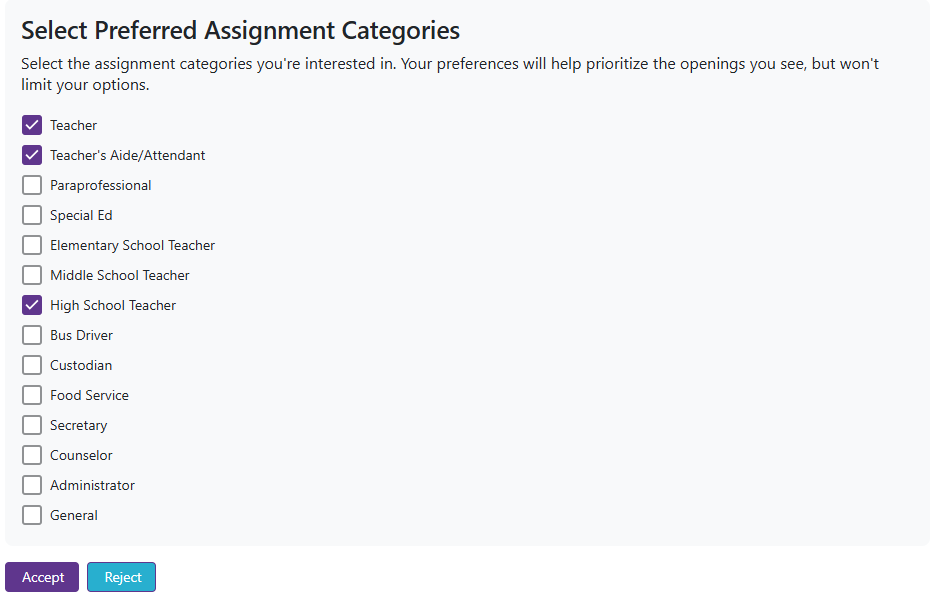
Note: Your preferences help prioritize the openings you see but won't limit your options — the district still has the ability to approve or deny each category. See the Assignment Categories guide for more information.
Set Up Your Notification Methods
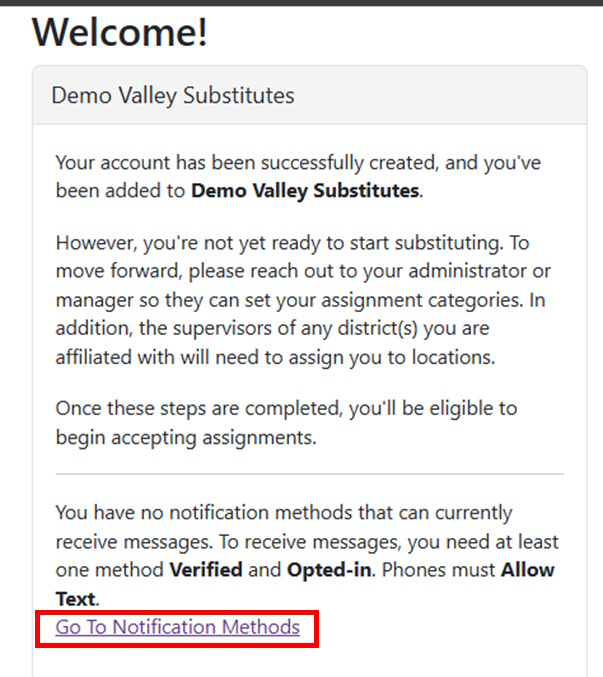
- Once registered, click Go To Notification Methods.
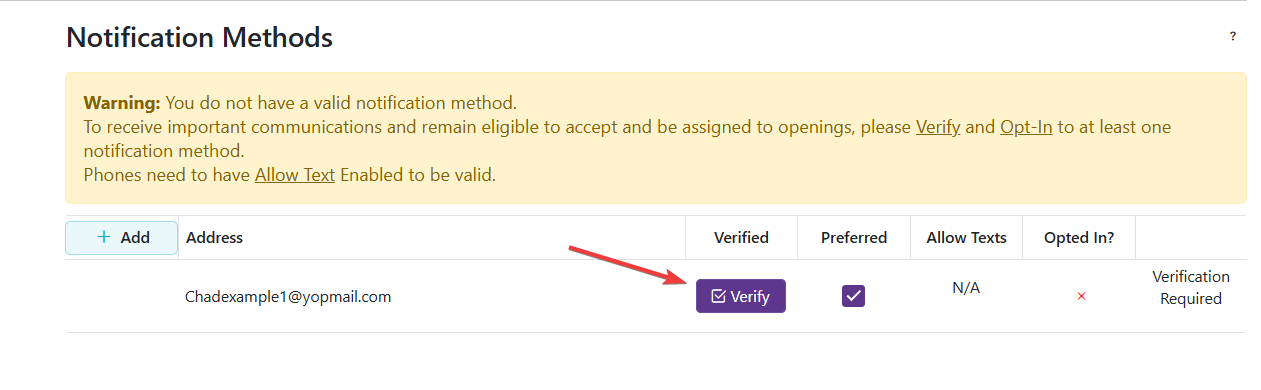
- Click Verify next to your email address.
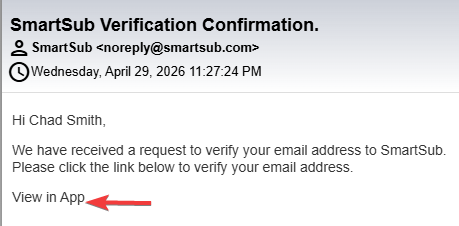
- You'll receive a SmartSub Verification Confirmation email — click View in App.
- Back in SmartSub, check Opt In and Mark as Preferred, then click Save.
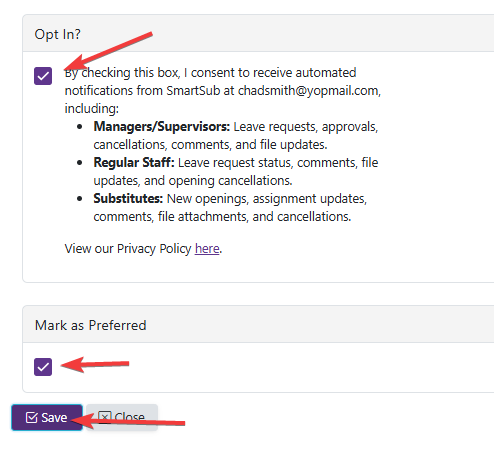
Note: You need at least one notification method that is both Verified and Opted-In to receive openings and system communications. Phone numbers also require Allow Text to be enabled. See the Notification Methods guide for full details, including adding a phone number.
Setup Complete
Your setup is now complete. Before you can accept openings or assignments, your organization will need to verify your information and assign you to a location.
Need More Help?
- Review the Getting Started Guide for Substitutes for an overview of finding and accepting jobs.
- Contact your organization's administrator with questions about your invitation, assignment categories, or location assignment.