Manager Dashboard
Global Filters
Use the Global Filters toolbar to narrow the data shown in the charts and grids on the tabs below. Filters apply immediately as you make a selection — there's no separate "Apply" step.

Depending on your role and what you have access to, the filter bar can include:
- Date Range — choose a predefined range, or select Custom to enter specific Start and End dates.
- Staff Mgmt Unit — filter to a specific Regular Management Unit (RMU). Only shown if you have access to more than one.
- Substitute Mgmt Unit — filter to a specific Sub-Management Unit (SMU). Only shown if you have access to more than one.
- Location — filter to a specific location. Narrows the Location list shown, if a Staff Mgmt Unit is selected. Only shown if you have access to more than one.
- Department — filter to a specific department. Disabled until a Location is selected, and only appears where departments are relevant.
Note: If you only have access to a single Staff Mgmt Unit, Substitute Mgmt Unit, or Location, that filter is automatically pre-selected for you.
Click the  button on the left of the filter bar to reset all filters back to their defaults.
Charts
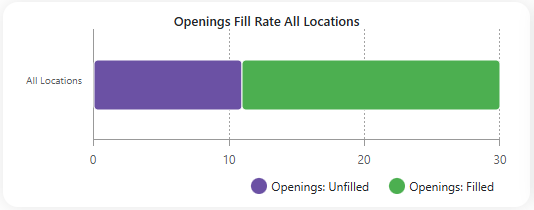
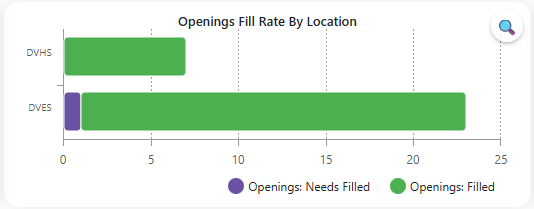
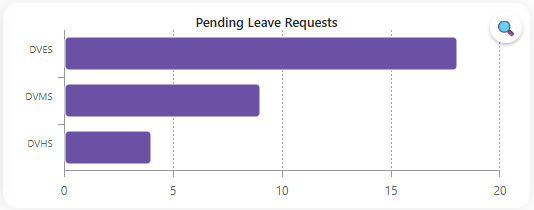
The dashboard consists of 3 charts: Openings Fill Rate All Locations, Openings Fill Rate By Location, and Leave Requests.

- Openings Fill Rate All Locations - Tracks the overall percentage of filled job openings across all locations.
- Openings Fill Rate By Location - Displays job openings fill rate for each specific location.
- Leave Requests - Shows all employee leave requests that are still awaiting approval.
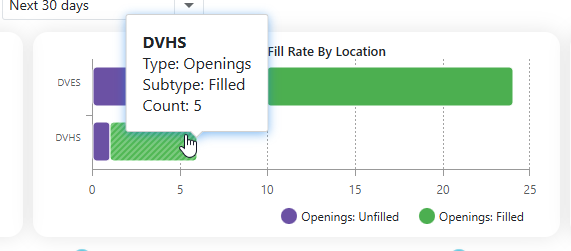
- Hovering over the bars in the graph displays additional details about the openings and leave requests for each location.
- Clicking the
 will expand the chart. The charts only show the top 4 locations for the Center and Right charts. Expanding the chart will show all the locations.