My Openings
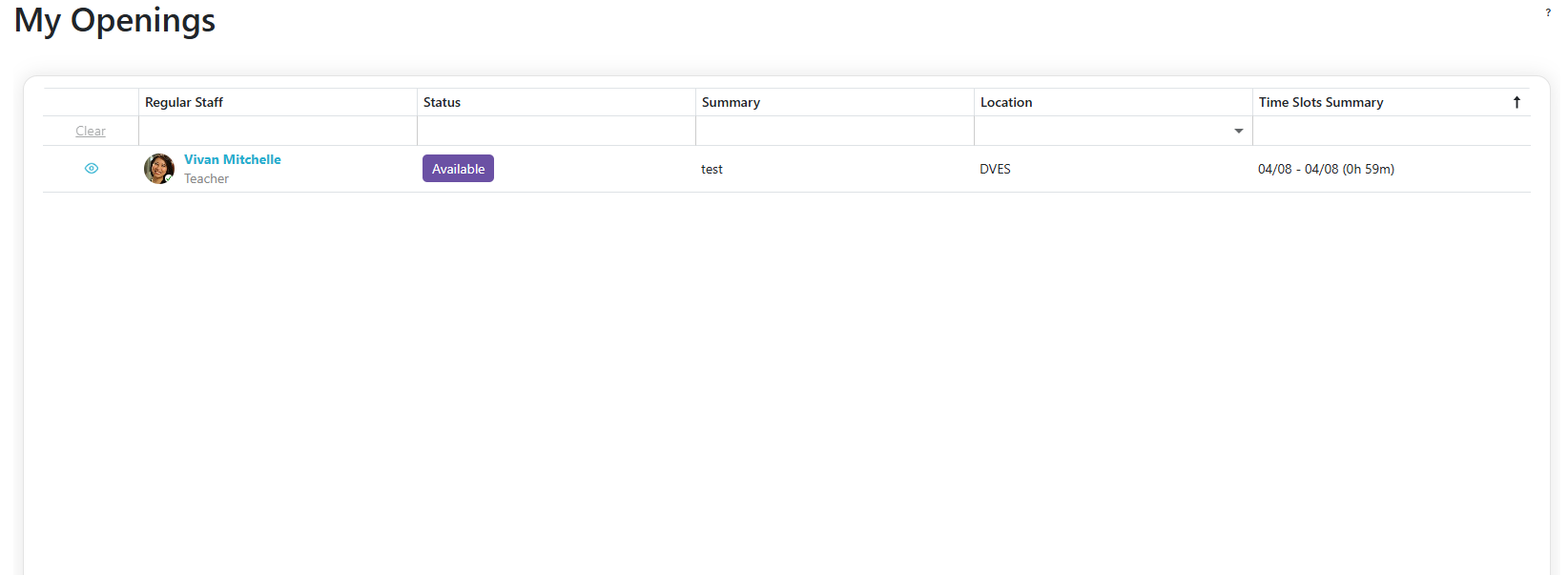
My Openings lists the openings that cover your absences, whether they were created from your approved leave requests or by a manager. You can view them but not change them.
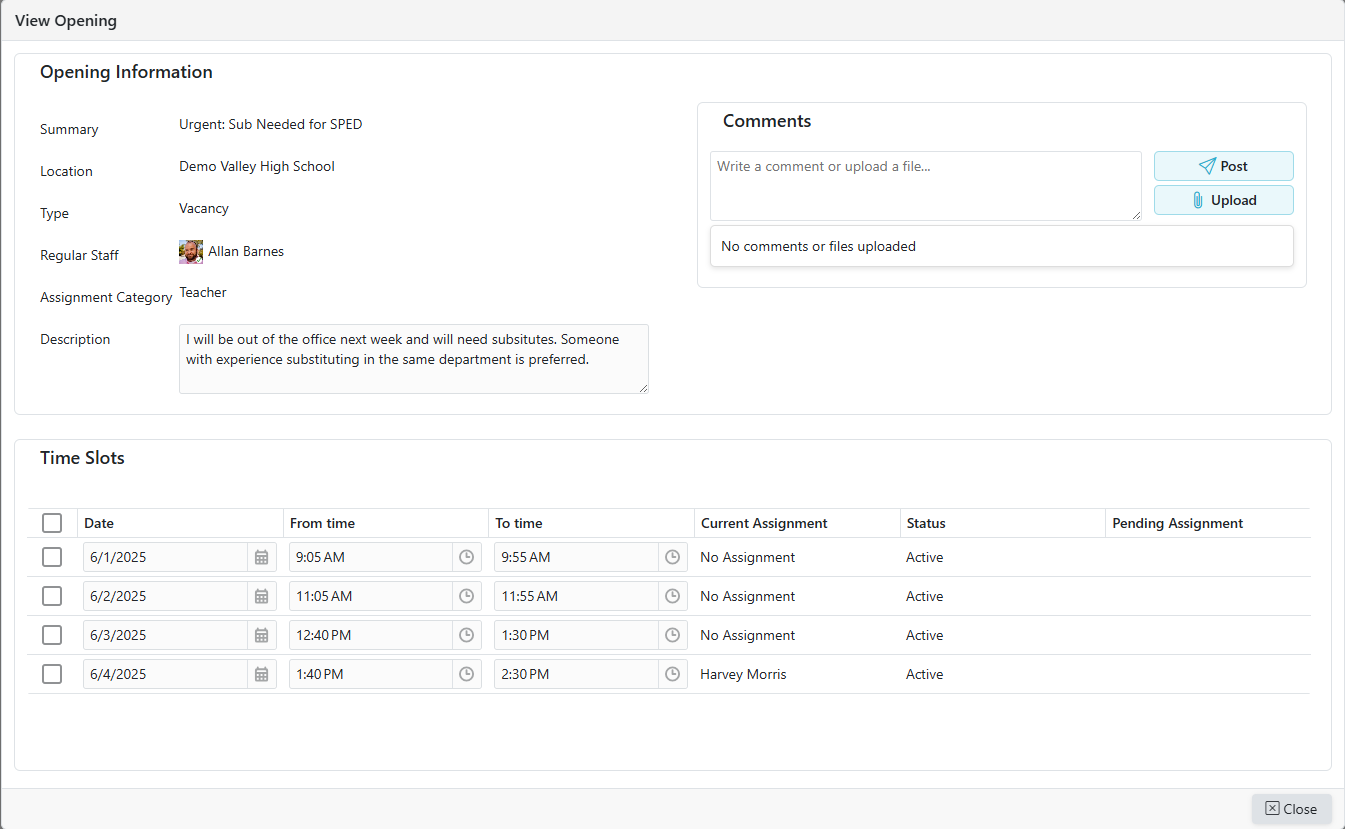
View Opening Details
- Click the
 icon to view the opening details.
Status Filter
- By default the grid shows Available, Assigned, and Partially Complete openings. Use the Status filter to include Complete, Unfilled, or Canceled ones.
Filtering
Filtering Options
- Some columns support filtering; some use dropdowns while others accept text input (you can adjust how those text filters behave)
| Filter Option | Description |
|---|---|
| Starts With | Matches values that begin with the input text. Example: "Pro" matches "Product" |
| Ends With | Matches values that end with the input text. Example: "Pro" matches "MicroPro" |
| Equal | Matches values that exactly match the input. Example: "Admin" matches "Admin" only |
| Contains | Matches values that contain the input text anywhere. Example: "Pro" matches "Product" and "MicroPro" |
| Less Than | Matches values less than the input (for numbers, dates, etc.). Example: 50 matches 10 and 49 |
| Less Than or Equal | Matches values less than or equal to the input. Example: 50 matches 50 and 49 |
| Greater Than | Matches values greater than the input. Example: 50 matches 51 and 100 |
| Greater or Equal | Matches values greater than or equal to the input. Example: 50 matches 50 and 60 |