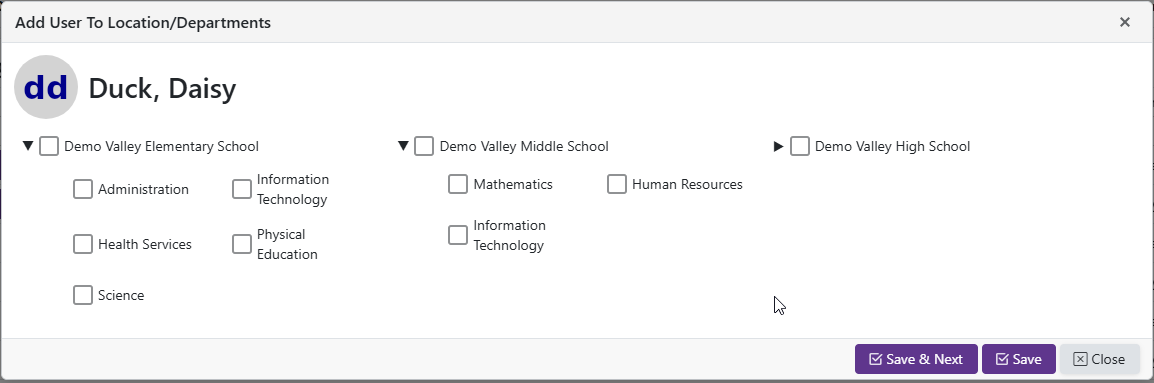
Adding A User To A Location
Path 1: Client Admin->Regular Staff->Locations->Users
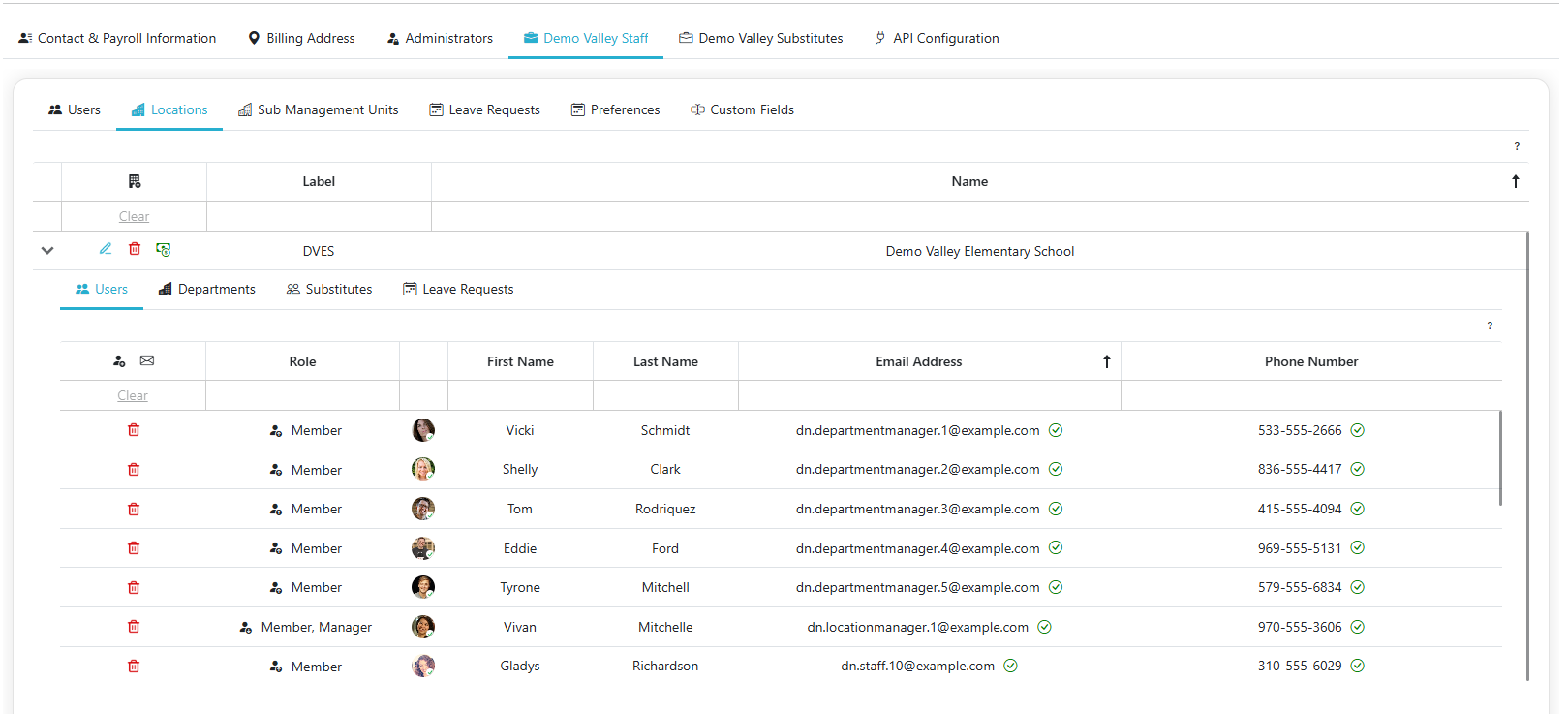
Path 2: Regular Staff->Manage Regular Staff->Locations->Users
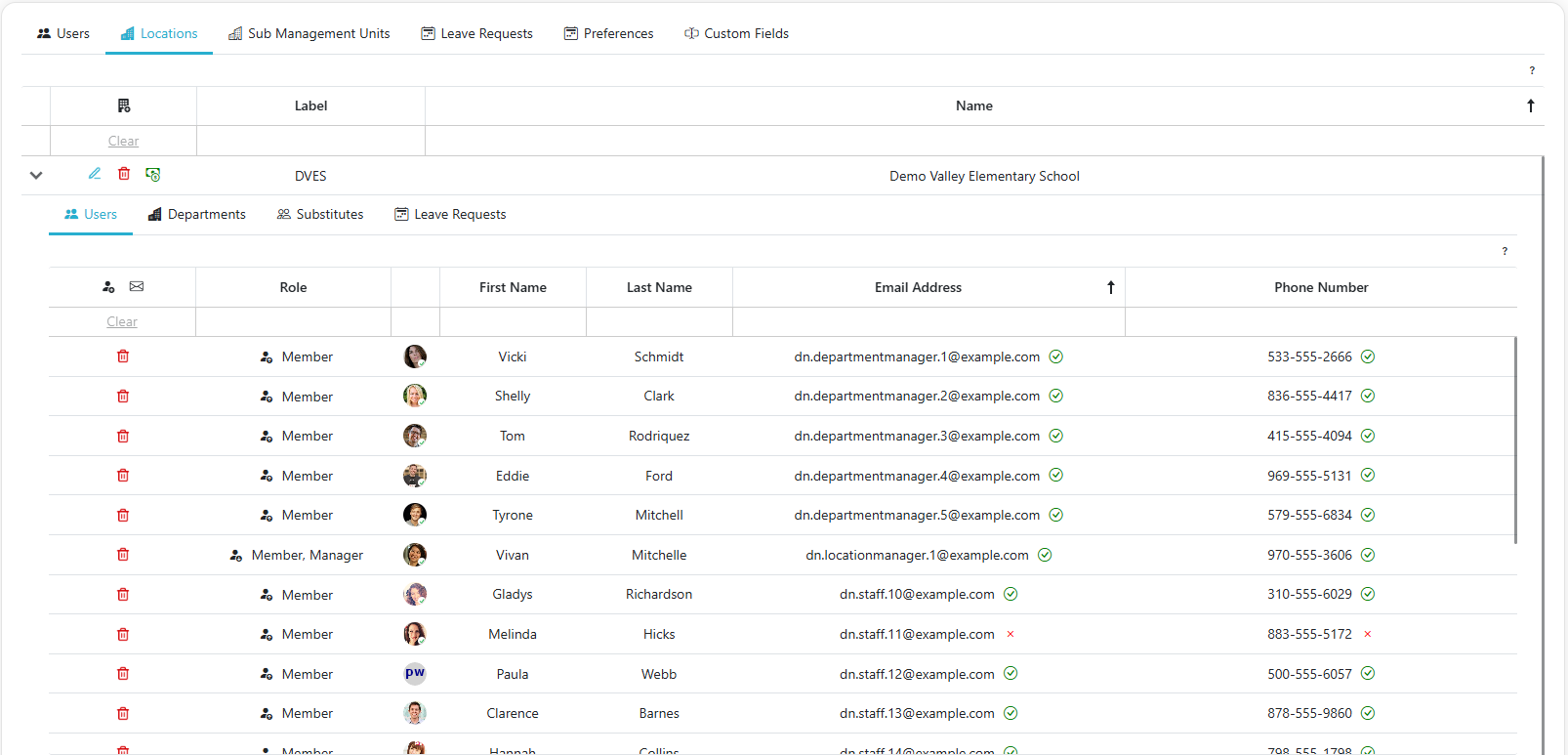
Step 1: Click the Add Person Icon
To begin, click the  icon to initiate the process.
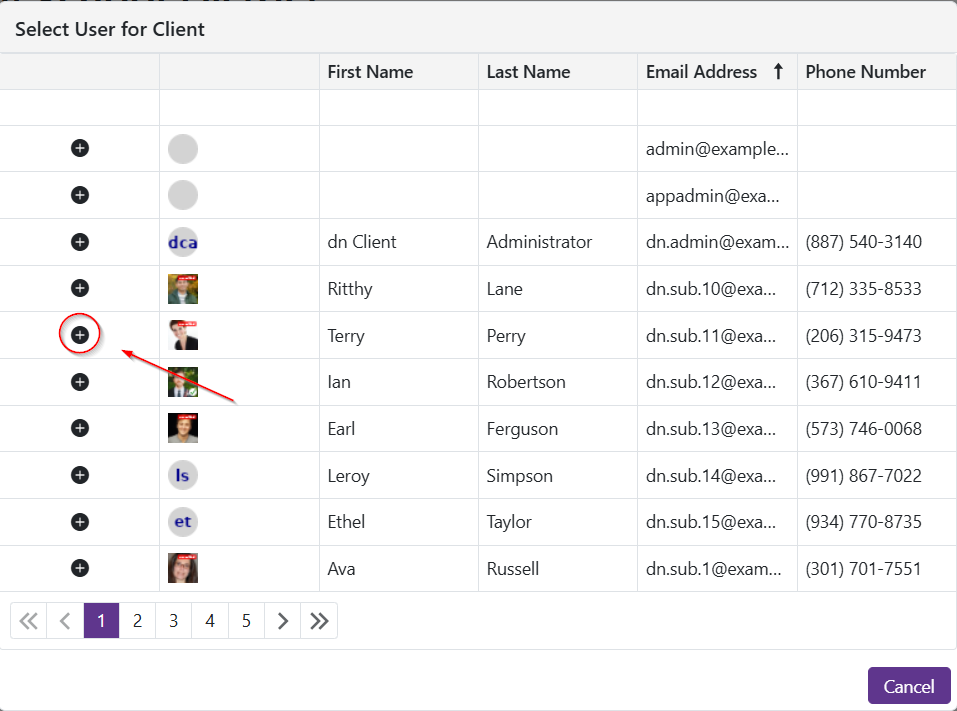
Step 2: Select a User and Assign Them
From the available user list, choose the user you want to assign and click the  icon to add the user to the location.
Step 3 (Optional): Set a Default Opening Summary/Description
While assigning the user, you can also enter a Default Opening Summary and/or Default Opening Description for this location. Whenever an opening is created for this staff member's leave at this location, these values automatically pre-fill the opening's Summary/Description fields — see Creating An Opening. The pre-filled text can still be edited before saving.
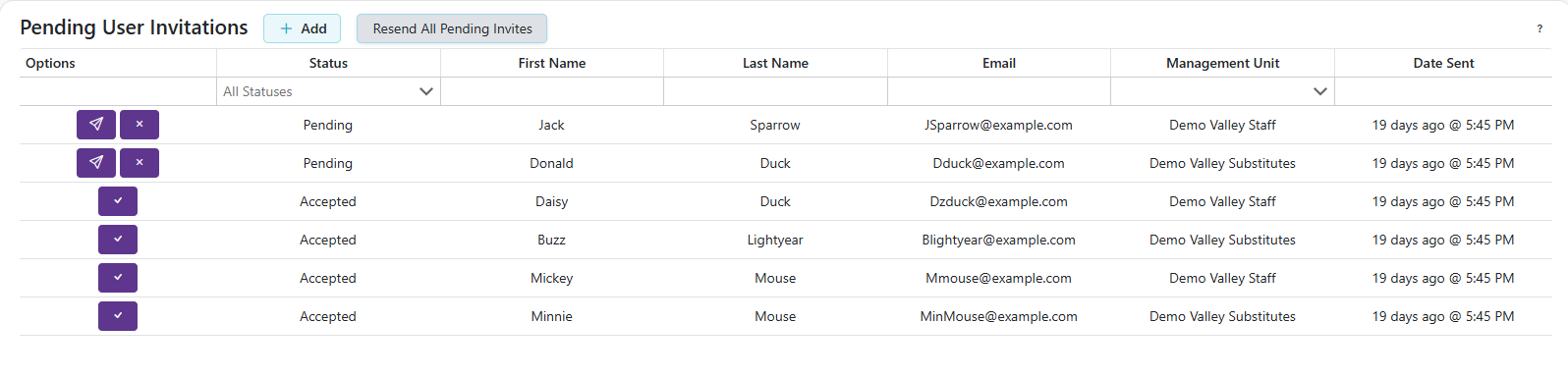
By Invitation - Users can also be added from the Home page on the User Invitations tab
-
Click the
 to invite new or existing users to join the Regular Staff
 -
Once a user has accepted an invite, you will see
 , and upon clicking this you will be prompted to add the user to locations/departments.