Accept Available Opening
Path 1: Dashboard (Home)->Available Openings Tab
Path 2: Assignments->Available Openings
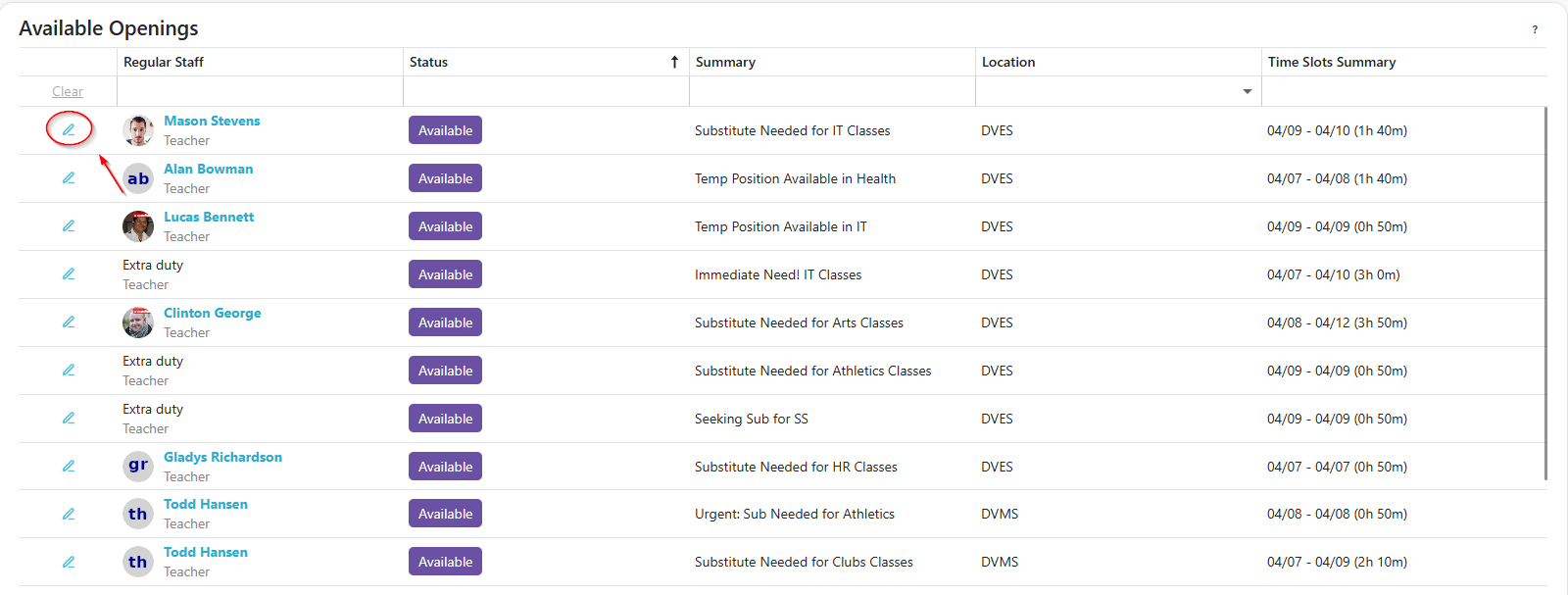
Step 1: Open the Available Opening
- Click the
 to view the available opening's details.
Decline Opening (Alternative)
If you're not interested in this opening, you can decline it instead of accepting a TimeSlot.
-
Click the
 to decline an opening you're not interested in. Declining removes the opening from your Available Openings list and stops any further reminders about it.
 -
You can also decline from inside the opening's details by clicking Decline in the footer.
-
Declined openings move to your Ineligible Openings list, alongside any openings you don't qualify for. From there, click the
 to undo your decline — the opening reappears in Available Openings right away.
Step 2: Accept an Available TimeSlot
- If this opening requires one substitute to cover all remaining days, a banner will appear stating this. Selecting one TimeSlot will select all of them together, and all must be accepted at once.
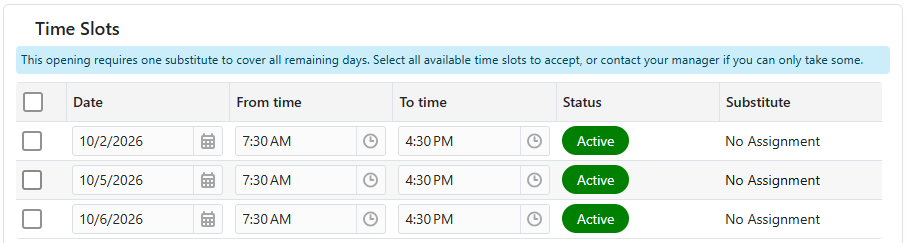
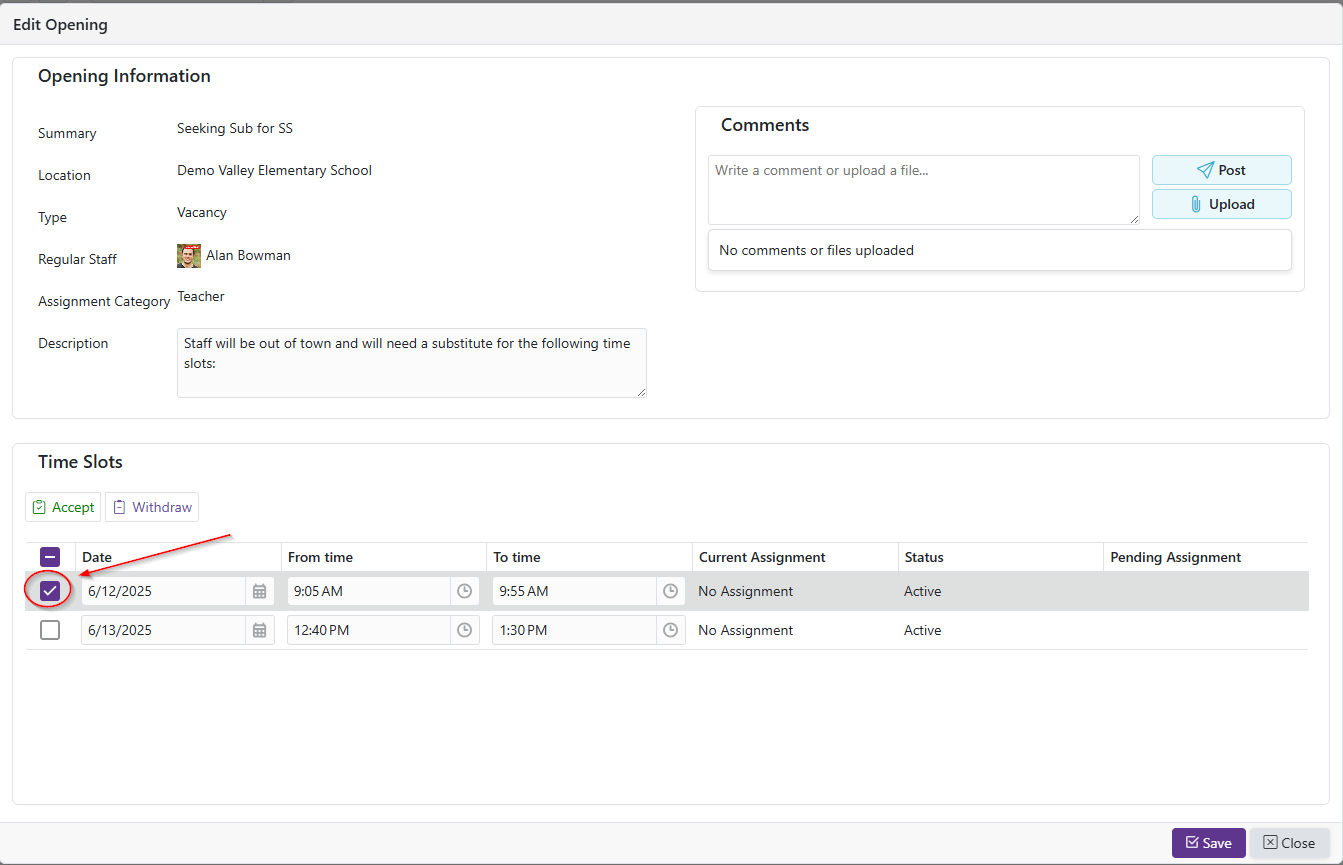
- Select the TimeSlot row(s)
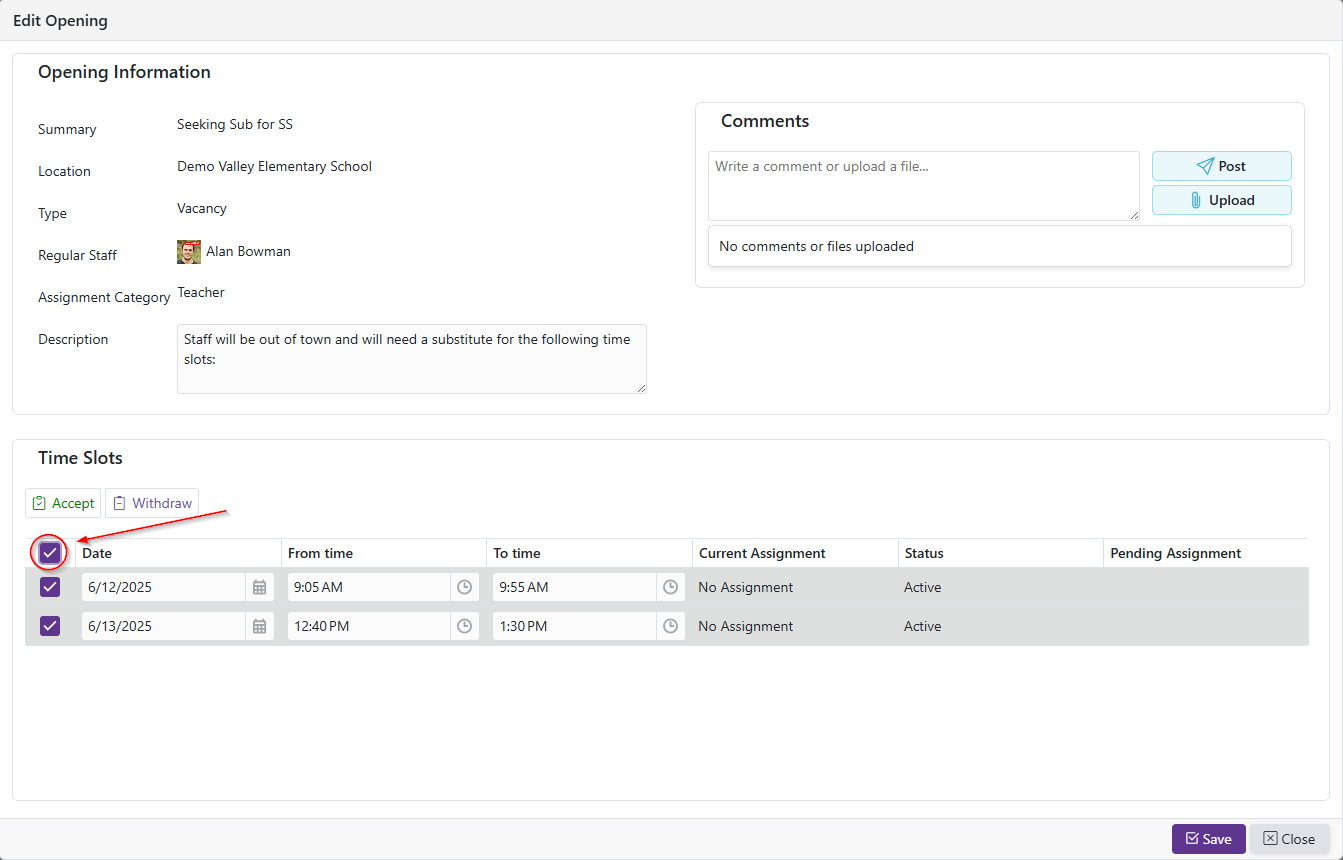
- To select all TimeSlots, click the checkbox at the top of the table:
Step 3: Save Changes
-
Click the ‘Save’ button to finalize acceptance of the selected TimeSlots.
-
Once at least one TimeSlot is accepted, the accepted Assignment(s) will appear in the ‘My Assignment’ section