Time Slots
See every time slot you're responsible for at a glance. The Time Slots tab breaks your openings into individual time slots, grouped by day, so you can spot which ones still need a substitute and fill them without opening each opening. It's the first tab you'll see on your dashboard.
What You'll See
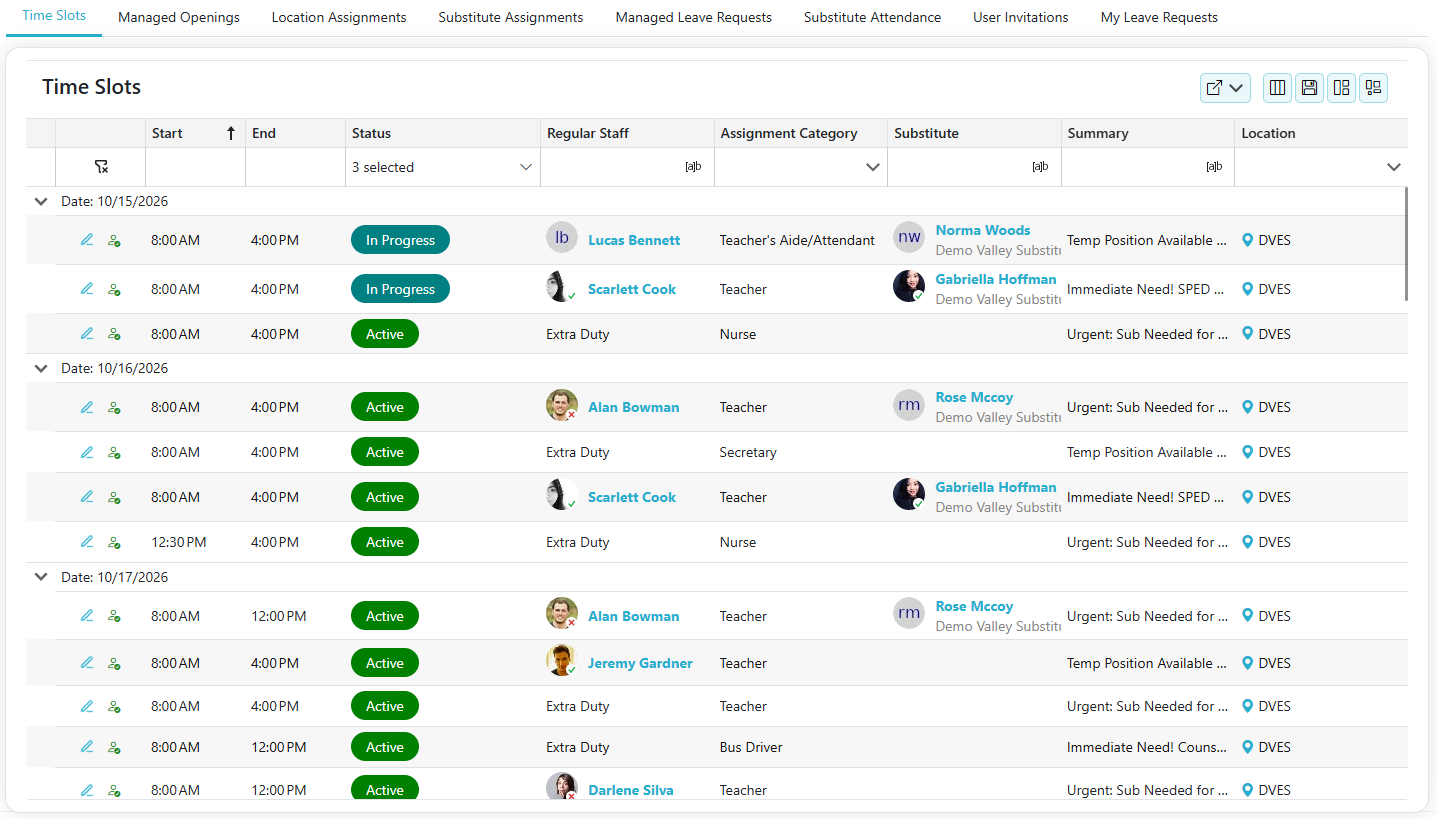
- Time slots are grouped by day and listed in order of start time.
- Each row shows when the time slot starts and ends, its Status, who it's for (Regular Staff, or Extra Duty), the Assignment Category, the Substitute covering it, the opening's Summary, and the Location.
- If your locations use departments, you can add a Department column from the Column Chooser. It's hidden until you turn it on, but it's always included when you export. Time slots without a department show No Department.
- A time slot that runs more than an hour past its shift is marked Exceeds shift and shaded. Hover over the badge to see how long it is. It often means the wrong shift was picked or a time was mistyped.
- The Date Range in your Global Filters picks which days you see. For a long opening, you'll only see the time slots that fall within that range.
Focus on What Needs Attention
- The list starts by showing Active, In Progress, and Unfilled time slots, the ones most likely to need your attention.
- Want to see more? Click the arrow under Status and check the statuses you want. Uncheck them all to see everything.
Filtering Options
- Some columns support filtering; some use dropdowns while others accept text input (you can adjust how those text filters behave)
| Filter Option | Description |
|---|---|
| Starts With | Matches values that begin with the input text. Example: "Pro" matches "Product" |
| Ends With | Matches values that end with the input text. Example: "Pro" matches "MicroPro" |
| Equal | Matches values that exactly match the input. Example: "Admin" matches "Admin" only |
| Contains | Matches values that contain the input text anywhere. Example: "Pro" matches "Product" and "MicroPro" |
| Less Than | Matches values less than the input (for numbers, dates, etc.). Example: 50 matches 10 and 49 |
| Less Than or Equal | Matches values less than or equal to the input. Example: 50 matches 50 and 49 |
| Greater Than | Matches values greater than the input. Example: 50 matches 51 and 100 |
| Greater or Equal | Matches values greater than or equal to the input. Example: 50 matches 50 and 60 |
Create an Opening
- Click the
 to create a new opening. See Creating An Opening for details.
Open the Opening
- Click the
 to open the full opening and make changes. See Editing An Opening for details.
- If the opening can't be changed anymore, or you don't manage its substitutes, you'll see the
 instead, so you can still view it.
Fill a Single Time Slot
- Click the
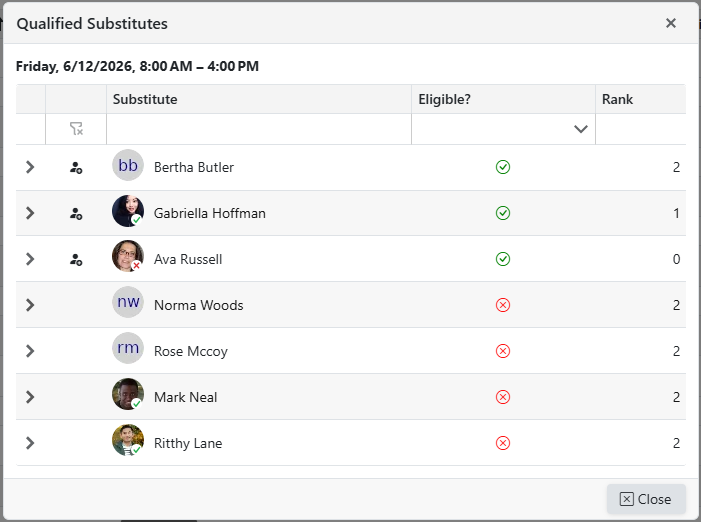
 to see who can cover that specific time slot. The day, date, and times appear at the top, so you know exactly which time slot you're filling.
- Select a substitute to assign them to the time slot.
- Eligible substitutes can be assigned right away.
- Restricted substitutes can be assigned by a manager of the opening.
- Ineligible substitutes are shown with the reason they can't take the time slot.
- The icon appears only on time slots that still need a substitute. Time slots that already have one, or are complete or canceled, don't show it.
Note: To change or remove a time slot's substitute, edit the opening.
Time Slot Statuses
| Status | What It Means |
|---|---|
| Active | Scheduled and coming up |
| In Progress | A substitute is assigned and the day has arrived; attendance still needs to be verified |
| Complete | The substitute worked the time slot and their attendance was verified |
| Not Attended | The substitute's attendance was rejected |
| Canceled | The time slot was canceled |
| Unfilled | The time slot passed without a substitute |